Perplexity Privacy Settings Guide


Table of Contents
Having reviewed ChatGPT, Claude, and Gemini’s privacy settings, it was time to find Perplexity’s privacy settings.
Like most AI tools, Perplexity collects your questions, answers, and account data by default.
The good news is that you can limit what gets stored and what gets used to train its models.
Here is a practical guide I wish I had for every privacy setting that matters in Perplexity, along with how to set each one up.
Turn Off AI Data Training In Perplexity
Perplexity only trains its models on your data if you’re on a Perplexity consumer plan.
Enterprise customers are excluded from their data being used to train Perplexity’s AI models.
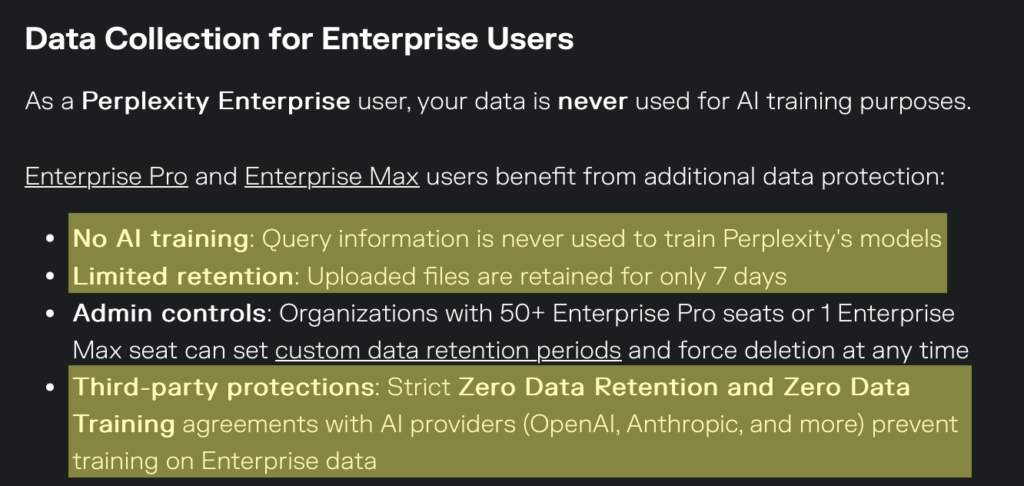
Users on Free, Perplexity Pro, and Perplexity Max have the AI data retention setting turned on by default. When you use Perplexity while logged in, your searches and chats are saved to your account history and, unless you change a setting, used to help improve its AI models.
If you use Perplexity without logging in, your inputs and outputs are still collected and used for training by default.
Perplexity does not allow other third-party model providers like Anthropic to use its data for model training.

Your account and personal information stay on file for as long as your account is active, and your chat history is kept until you delete it yourself.
How to turn off AI training in Perplexity
This is probably the most important privacy setting in Perplexity.
Here’s how to stop Perplexity from using your activity to train its models.
1. Click your Perplexity profile name
Sign in to your Perplexity account.
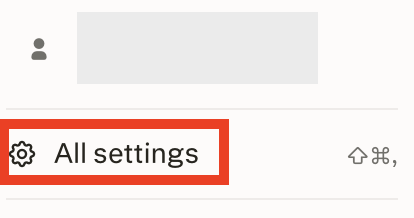
Click on your profile name in the bottom left corner.

2. Click “All settings”
From the pop-up menu that appears, click the “All settings” link.
3. Click “Preferences”
From the menu on the left side, select “Preferences.”
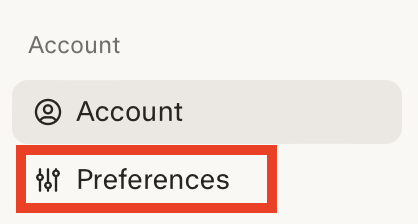
4. Toggle off the ‘AI data retention’ setting
Next to the ‘AI data retention’ setting, check whether the toggle is turned on or off.
If the toggle is on, toggle it off.

Once this toggle is off, your future logged-in activity is excluded from model training.
However, the data training opt-out applies only going forward, which means that anything already used in training will not be pulled back out.
Also worth noting is that basic tracking, needed for the service to function, continues regardless.
Use Perplexity’s Incognito Mode for Sensitive Searches
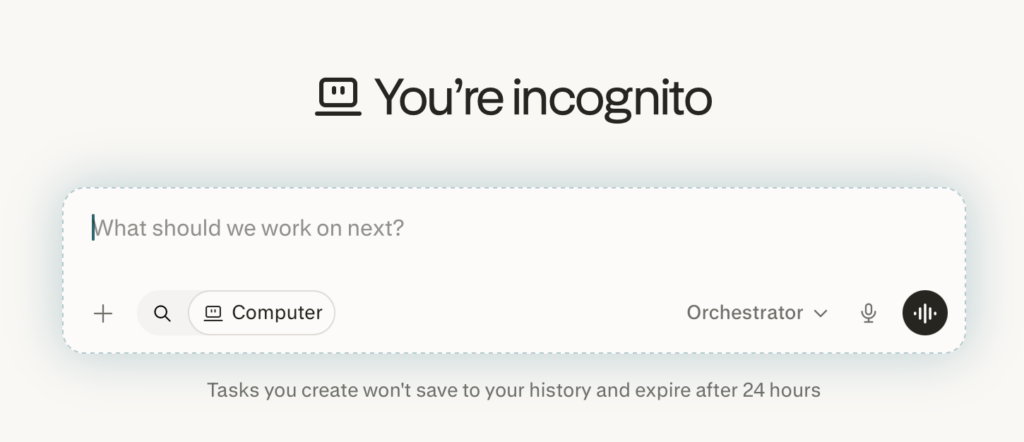
For one-off questions you do not want saved, Perplexity offers an Incognito Mode.
These conversations are excluded from your account history and expire after 24 hours.
How to turn on Incognito Mode in Perplexity
Start an Incognito Mode chat in one step.
1. Click the incognito icon in the top right
In your Perplexity dashboard, click the incognito icon in the top right of the screen.

That’s it!
You can now have a private conversation with Perplexity.
Turn Off Memory Or Clear Specific Memories
If you have Perplexity’s Memory feature turned on, then Perplexity can retain information across your conversations.
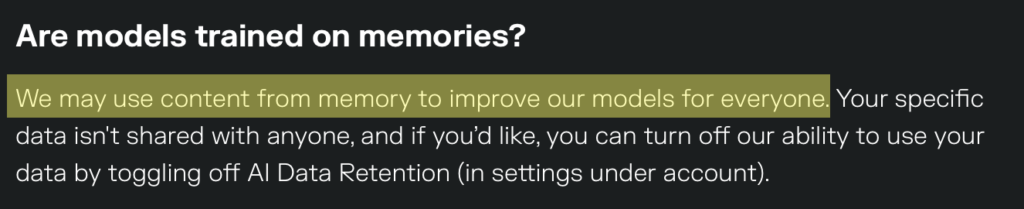
The benefit of this is that it can personalize future responses. The downside is that whatever details you share are being kept rather than deleted after each session. Perplexity also states that it may use content from memory to improve its models for everyone.
You can clear any specific memory at any time in settings, or clear all of them at once with a single button, after which they won’t be used in future Perplexity responses.
However, Perplexity may retain a log of cleared memories for up to 30 days for safety, debugging, and to prevent memories from being recreated immediately after deletion, so deletion isn’t instantaneous.
You can also toggle off the option to reference memory and search history. Just note that turning Memory off doesn’t delete existing memories.
Perplexity says it has taken steps to reduce the ability for memory to retain things like health or financial details, but memory is generated by a model that favors the frequency of questions and information you provide, so sensitive data could still be captured if it comes up often.
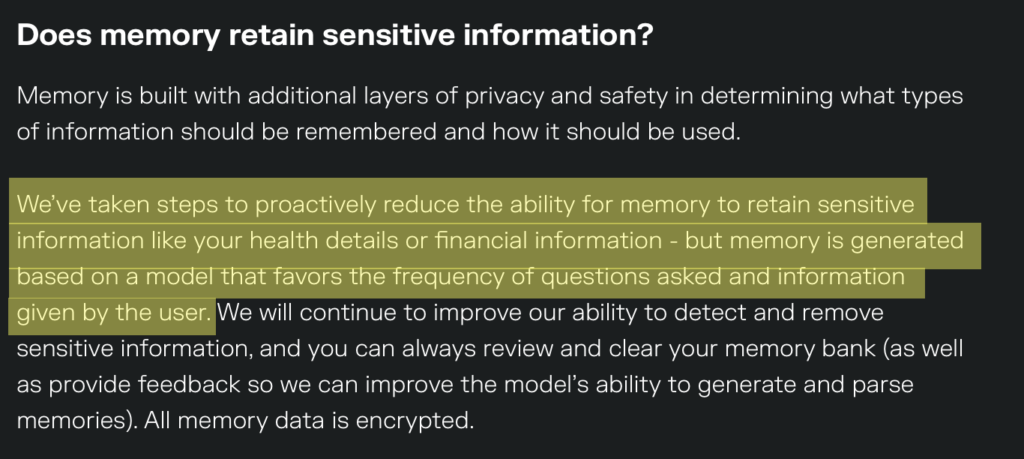
The company says that all memory data is encrypted.
How to turn off memory in Perplexity
Here’s how you can turn off Perplexity’s memory feature.
1. Click “Memory”
In Perplexity ‘Settings,’ select “Memory” from the left side menu.
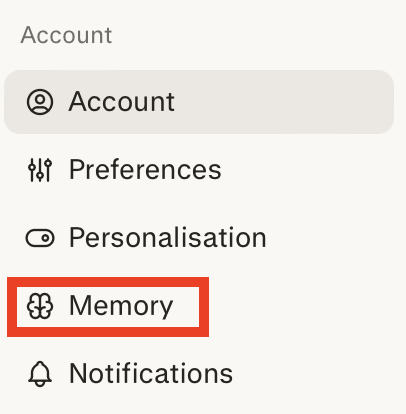
2. Toggle the ‘Use search history’ setting off
Check if the toggle beside the ‘Use search history’ setting is set to on or off.

If it’s set to on, toggle it off.

That’s it!
Delete Your Perplexity History and Chats
Standard Perplexity accounts keep history indefinitely, but you can delete any chats you no longer want to keep.
How to delete history and chats in Perplexity
Here’s how you can delete your history and chats in four steps.
1. Click “History”
In your Perplexity dashboard, select “History” from the left side menu.
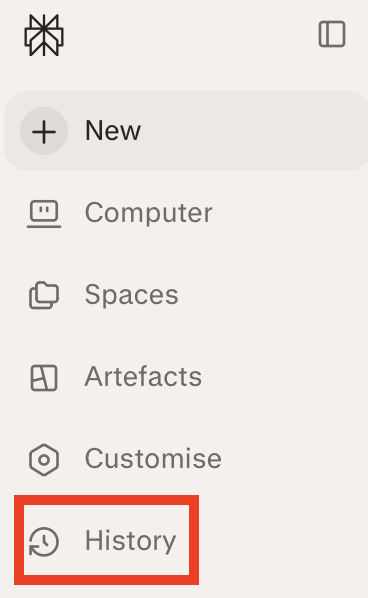
2. Select the thread(s) you want to delete
You will see a list of chats or threads.
Click the checkbox beside the thread you want to delete.

Note: If you want to delete a specific thread and can’t see it, use the search function (magnifying glass icon).

Alternatively, you can also search for threads by type. To do so, click the “Type” drop-down menu in the upper left.
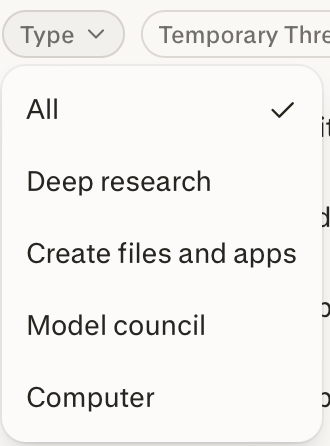
3. Click “Delete”
Click “Delete”
Once you’ve selected the chat(s) you want to delete, click the “Delete” button in the top right corner.

4. Click “Delete” (again)
A pop-up will appear asking if you want to delete the thread(s).
Click the “Delete” button.
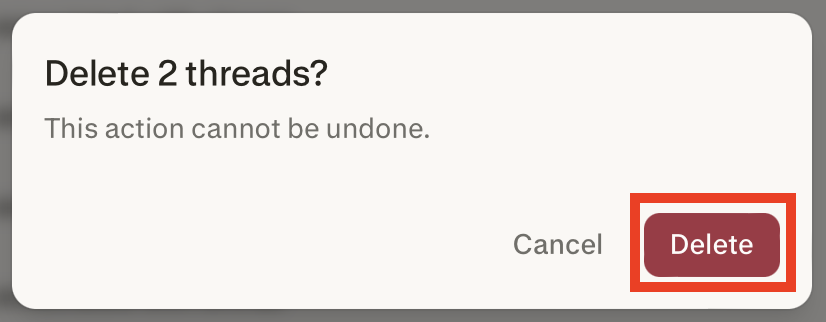
That’s it!
Your selected threads have been deleted.
Review Third-Party Services That Perplexity Can Access
When you connect a cloud-storage service to Perplexity, it can see the data you have access to in that app, which allows it to give you answers based on it.
Perplexity states that it does not use files from your connected accounts to train its AI models.

How to review third-party services connected to Perplexity
Below are step-by-step instructions on how to review whether you have any third-party services connected to Perplexity (and how to disconnect them if so).
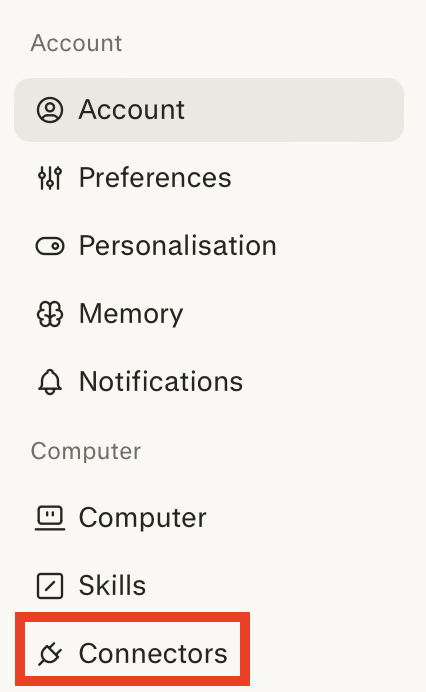
1. Click “Connectors”
In ‘Settings,’ select “Connectors” from the menu on the left side.
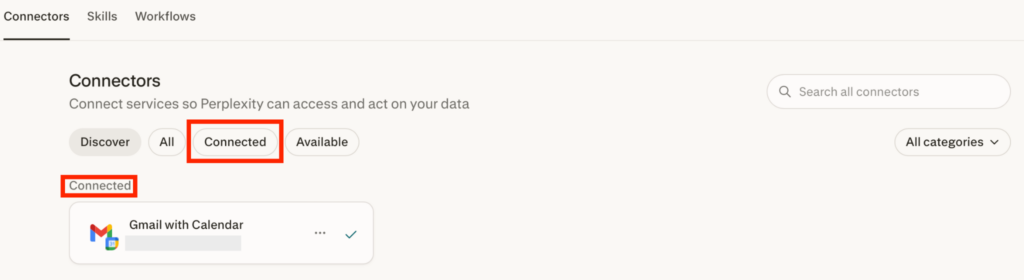
2. Click the connected service
You will see your connected services at the top under ‘Connected.’
Alternatively, you can click the “Connected” button.
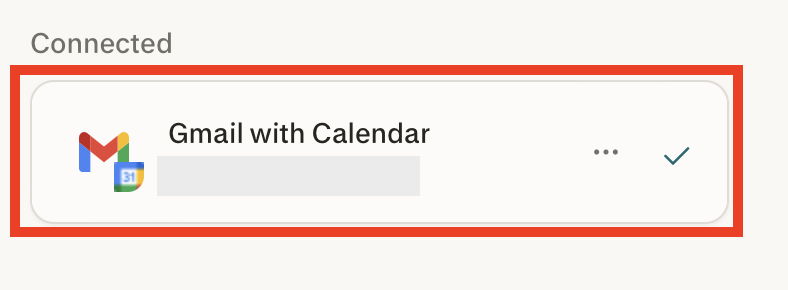
Select the service that’s connected to Perplexity.
3. Click the three dots icon in the top right, click “Disconnect,” and click “Disconnect” again
A pop-up window with information about your connected service will appear.
You can either turn off certain tools by clicking the “Disable” button.
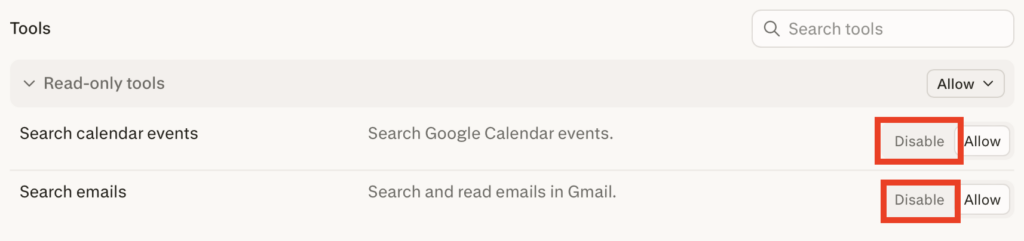
Or, you can disconnect the service completely.
To disconnect the service, click the three dots icon in the top right.
Click “Disconnect.”
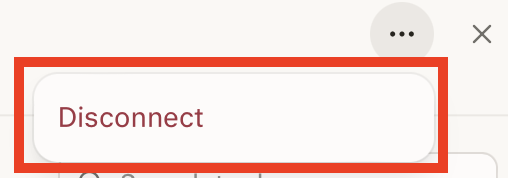
Then, click “Disconnect” again.
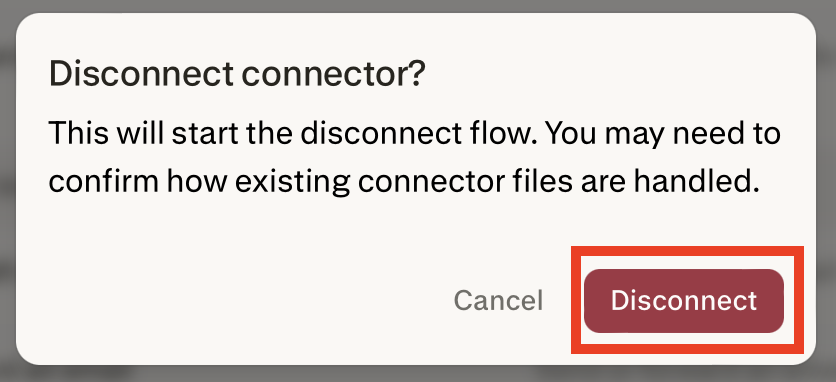
That’s it! The service was disconnected, and you will no longer see it in the ‘Connected’ services list.
Delete Your Perplexity Account
The best way to protect your privacy on Perplexity is to not have a Perplexity account at all.
How to delete your Perplexity account
If you’re ready to delete your Perplexity account altogether, here’s how to do it.
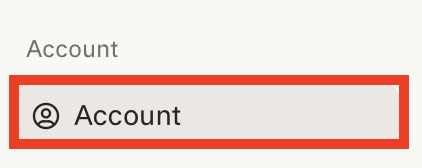
1. Click “Account”
In ‘Settings,’ click “Account” from the left side menu.
2. Click “Learn more”
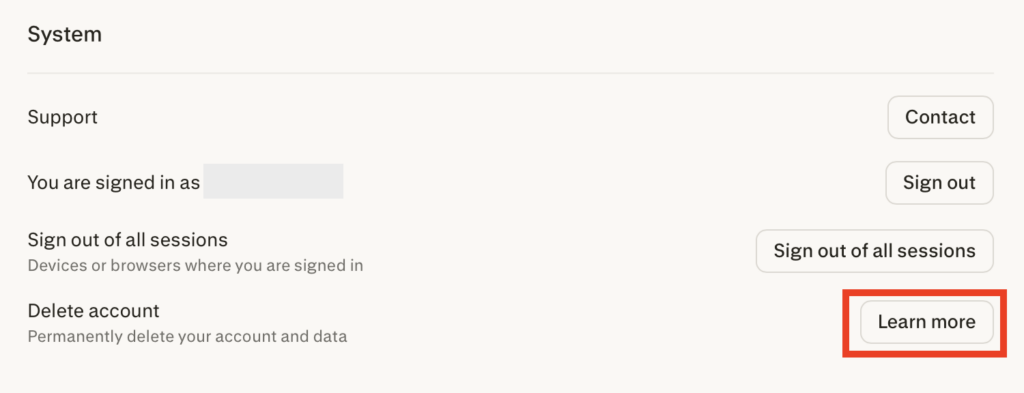
Scroll down until you see the ‘System’ section
Click the “Learn more” button next to ‘Delete account.’
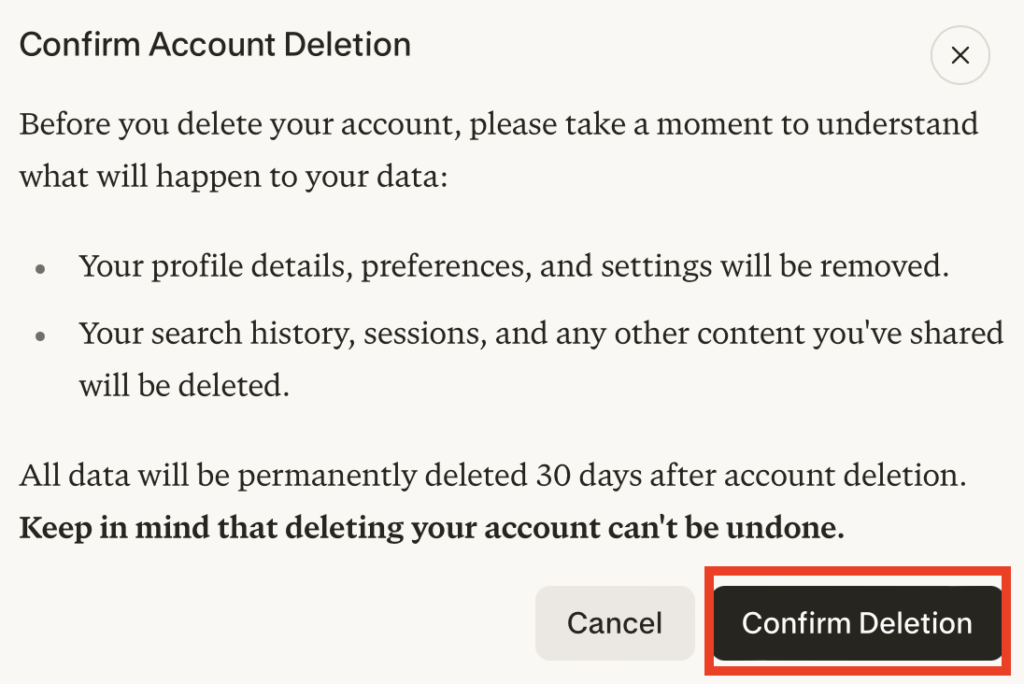
3. Click “Confirm Deletion”
A pop-up window will appear with information about what deleting your Perplexity account means.
After you delete your Perplexity account, your data (including your profile details, preferences, settings, search history, sessions, and any other content you’ve shared with the LLM) will be deleted.
Click the “Confirm Deletion” button if you’re sure you want to delete your Perplexity account.
That’s it.
All the data associated with your Perplexity account will be deleted permanently after 30 days.
Don’t Forget Data Brokers and People Search Sites
Setting your Perplexity settings to maximum privacy is important, but it only protects your data within Perplexity. To really protect your privacy, there’s one more thing you should do: opt out of data brokers and people search sites.
- Turning your Perplexity privacy controls to their strictest setting reduces how much of your activity is used to improve Perplexity’s AI.
- Opting out of data brokers and people search sites stops your personal details from being sold off to just about anyone willing to pay.
Data brokers and people search sites are companies that gather your details from various sources (e.g., public records, social media), combine them into comprehensive profiles, and then sell these profiles to just about anyone.
Through sites like Whitepages, Spokeo, Intelius, and similar, anyone can find out your personal information, including where you live, how to contact you, and who you’re related to, among other things.
If the thought of your data being exposed online makes you uneasy, you’ll be happy to know that you can opt out of these sites. See our people search site opt-out guides here for step-by-step instructions on how to.
Keep in mind that opt-outs are not forever. As soon as data brokers and people search sites find more of your data, they will typically relist your profile, even if you previously opted out. For this reason, opt-outs need to happen regularly for optimal privacy protection.
Don’t have the time? A subscription to a data broker removal company like DeleteMe will handle it for you. Our privacy experts opt you out of people search sites on your behalf and check back regularly to make sure you stay off them.

news?

Don’t have the time?
DeleteMe is our premium privacy service that removes you from more than 750 data brokers like Whitepages, Spokeo, BeenVerified, plus many more.
Save 10% on DeleteMe when you use the code BLOG10.
Related Posts


Julius AI Data Privacy Settings Guide