Microsoft Copilot Privacy Settings Guide


Table of Contents
As someone who doesn’t use Microsoft Copilot that often (unlike the other AI chatbots), I haven’t thought about Microsoft Copilot’s privacy too much.
But in an effort to improve my privacy across all AI chatbots and other services using generative AI features, I realized that Copilot shouldn’t get a pass just because I use it less.
So I finally sat down and went through every privacy setting Copilot offers for personal accounts. As always, when doing this, I was surprised to find that I have more control than I expected.
Below, I’ll walk you through exactly what I changed and where to find each setting, so you can also improve your privacy when using Microsoft Copilot.
Stop Your Chats from Training Microsoft’s AI Models
Microsoft can use your text and voice conversations to train Copilot’s generative AI models, unless you are:
- Signed in with a work or school (Entra ID) account, which is governed by enterprise data protection rather than these consumer settings.
- Using Copilot inside Microsoft 365 home apps such as Word, Excel, PowerPoint, or Outlook with a Personal or Family subscription.
- Not signed in at all.
- Under 18 and signed in.
- Located in Brazil, China (excluding Hong Kong), Israel, Nigeria, South Korea, or Vietnam, where conversation data isn’t used for training for now.
If you fall into one of those groups, the training toggle either won’t appear or isn’t relevant to you.
If you do not fall into one of these groups and don’t want Microsoft to use your data to train its AI models, you can turn this setting off.
Note that opting out of AI model training only applies to your future conversations.
Also, turning this setting off does not stop Microsoft from using your data for general product improvement, security, safety, and compliance, which are covered separately in the Microsoft Privacy Statement.
Some conversations may be reviewed by people or automated systems for safety and quality, especially if a chat is flagged for violating Microsoft’s code of conduct. You cannot opt out of this safety review, which is why the single best privacy habit is simply not sharing confidential or sensitive information with Copilot in the first place.
Note regarding Copilot Vision: When you let Copilot look at your screen or camera, those images are processed only to answer your request. They are not used to train AI models or stored after your session ends. Text transcripts of those sessions may be kept so you can revisit them, and you can delete them at any time.

How to stop your chats from training Microsoft’s AI models
Here’s how you can stop Microsoft from using your Copilot conversations to train its generative AI models.
1. Click your Copilot profile icon
In Copilot, select your profile icon in the bottom left.

2. Click “Settings” and select “Privacy”
From the pop-up menu that appears, click “Settings.”
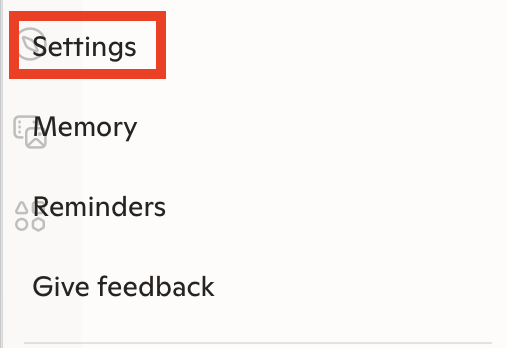
Then, select “Privacy” from the menu on the left.
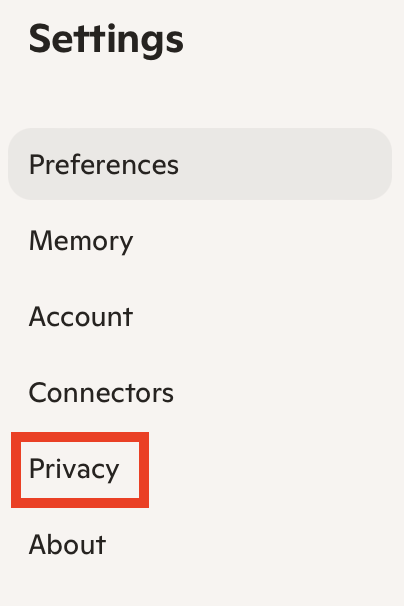
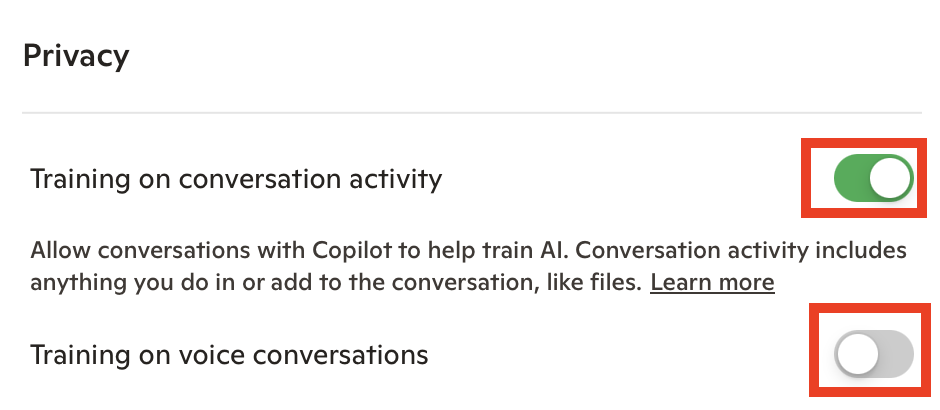
3. Toggle off ‘Training on conversation activity’ and ‘Training on voice conversations’
Review whether the settings to train on your conversation activity and voice conversations are toggled on.
If yes, toggle them off.
For me, the toggle ‘Training on conversation activity’ was on, so I toggled it off.
The ‘Training on voice conversations’ toggle was off by default, so I left it as it is.
That’s it!
Turn Off Copilot Personalization and Memory
Personalization is what lets Copilot “remember” you between chats.
When you turn this setting off, Copilot forgets what it has learned about you and stops tailoring its responses to you. Your past conversations stay visible, but they no longer impact future Copilot answers.
You can turn it back on at any point if you want Copilot to start learning again from your conversations.
How to turn off Copilot personalization and memory
Here’s how you can turn off Copilot personalization and memory.
1. Click your Copilot profile icon
In Copilot, select your profile icon in the bottom left.
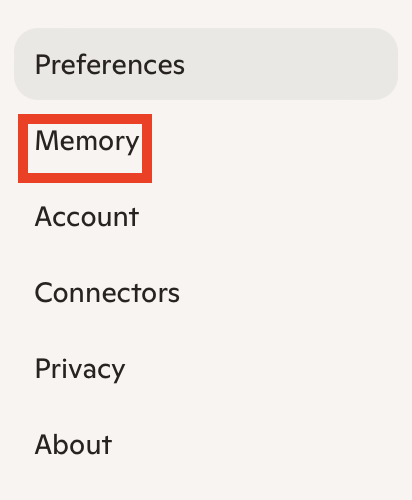
2. Click “Settings” and select “Memory”
From the pop-up menu that appears, click “Settings.”
Then, select “Memory” from the menu on the left.
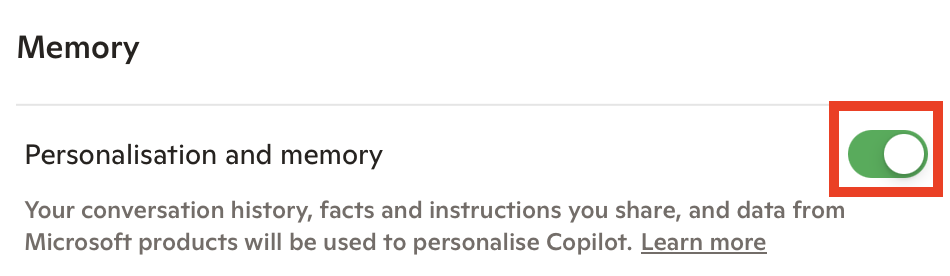
3. Toggle off ‘Personalisation and memory’
If the toggle next to ‘Personalisation and memory’ is on, toggle it off.
That’s it.
Turn Off Microsoft Usage Data
Separate from your chats, Copilot can use data from other Microsoft products you use, such as Bing, MSN, and Edge, to further personalize your experience.
How to turn off Microsoft Usage Data
Here’s how you can turn off the ‘Microsoft Usage Data’ setting.
1. Click your Copilot profile icon
In Copilot, select your profile icon in the bottom left.
2. Click “Settings” and select “Memory”
From the pop-up menu that appears, click “Settings.”
Then, select “Memory” from the menu on the left.
3. Toggle off ‘Microsoft usage data’
If the toggle next to ‘Microsoft usage data’ is on, toggle it off.

That’s it!
Turn Off Personalized Ads
The personalization setting above does not control advertising. There’s a separate setting that turns off ads that applies across Copilot and other Microsoft services.
Regardless of your settings, Microsoft says that it does not show personalized ads to signed-in users under 18.
How to turn off personalized ads
Here’s how you can turn off personalized ads.
1. Go to your personalized ad settings
Go to your personalized ad settings at account.microsoft.com/privacy/ad-settings.
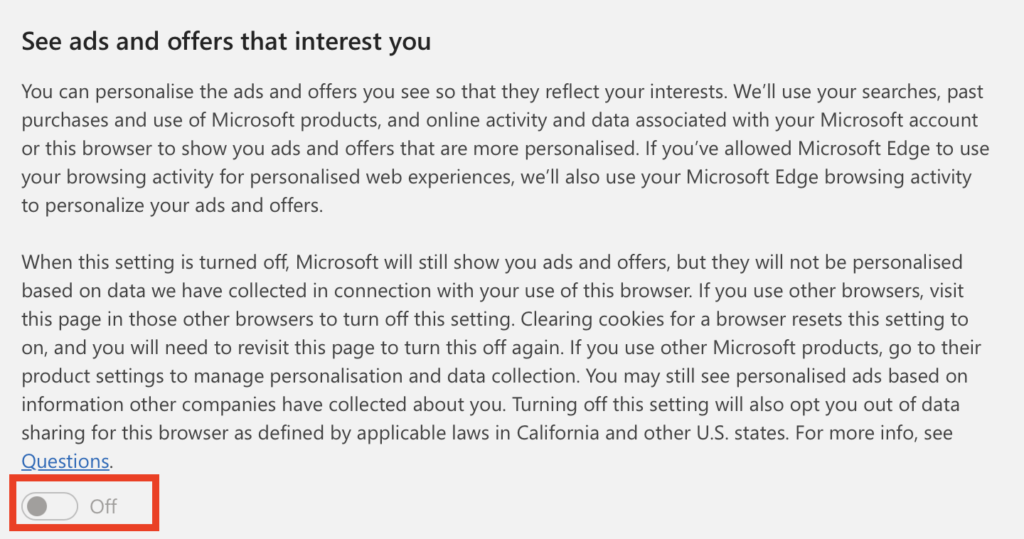
2. Turn off the ‘See ads that interest you’ toggle
If the toggle under ‘See ads that interest you’ is on, toggle it off.
For me, the toggle was off by default, so I didn’t have to do anything.
Control What Copilot Remembers About You
Copilot is designed to avoid building a profile around sensitive attributes such as age, gender, race, sexual orientation, health, or political views, even when personalization is on.
That said, you should still avoid sharing anything you wouldn’t want stored.
How to control and delete specific things Copilot remembers about you
Here’s how you can control and delete specific things that Copilot remembers about you.
In a Copilot conversation
You can ask Copilot to tell you what it knows about you directly in a conversation.
To do so, ask it “What do you know about me” to get a summary of its memory.
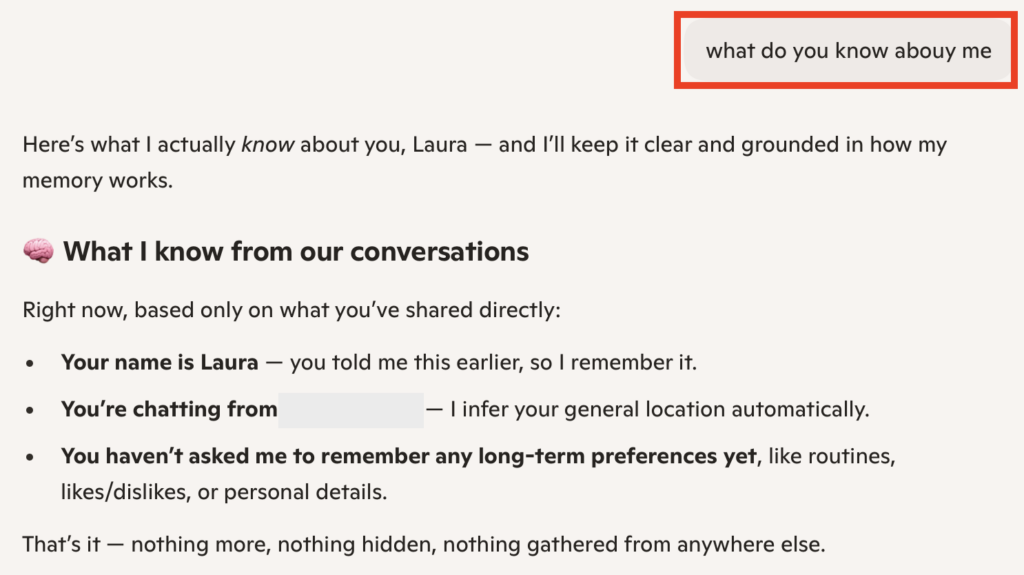
Then, you can ask it to forget a specific thing. For example, “Forget that I like romantic comedies.”
In Copilot settings
Alternatively, you can see what Copilot remembers about you and delete each memory one by one through your Copilot settings.
1. Click your Copilot profile icon
In Copilot, select your profile icon in the bottom left.
2. Click “Settings” and select “Memory”
From the pop-up menu that appears, click “Settings.”
Then, select “Memory” from the menu on the left.
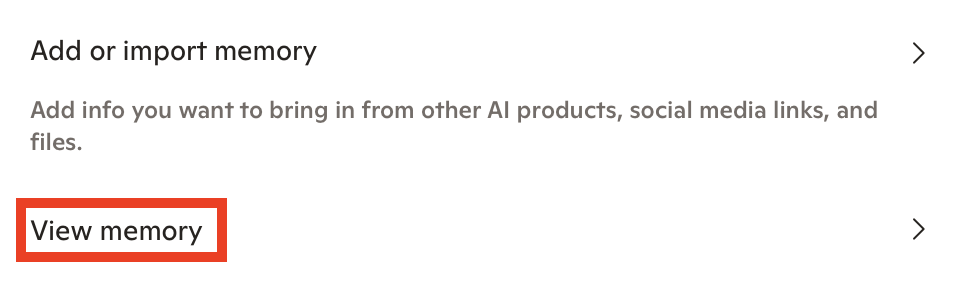
3. Click “View memory”
Select “View memory.’
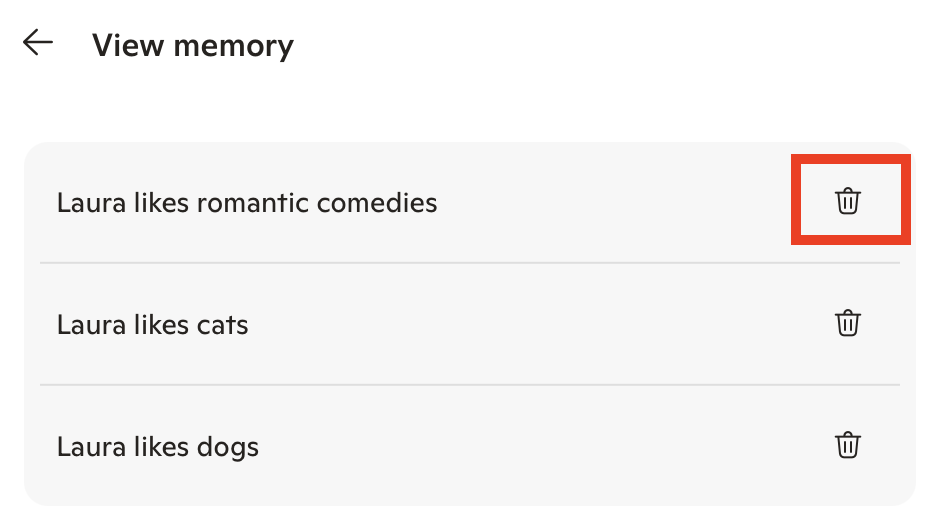
4. Click the bin icon next to the memory you want to delete from Copilot’s memory
You will see a list of memories that Copilot has about you.
Select the bin icon next to the memory you want it to forget.
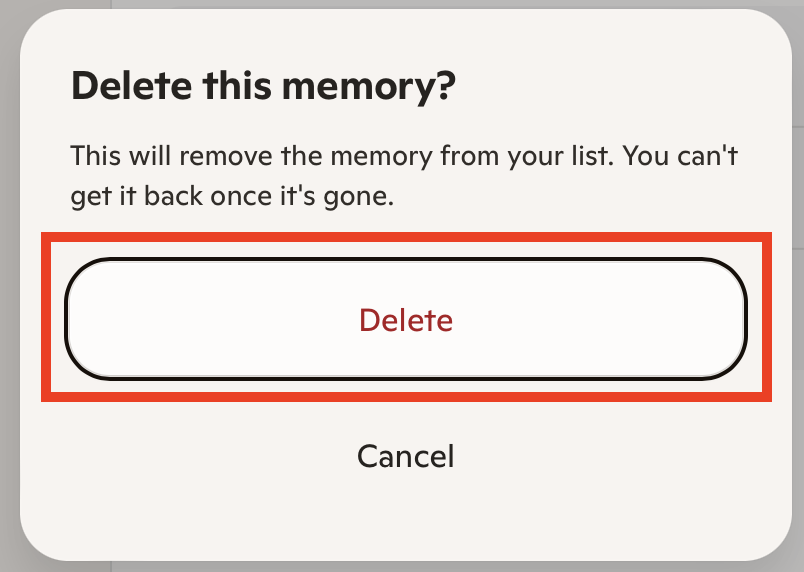
5. Click “Delete”
A pop-up will appear asking if you are sure you want to delete the memory.
Click the “Delete” button.
That’s it!
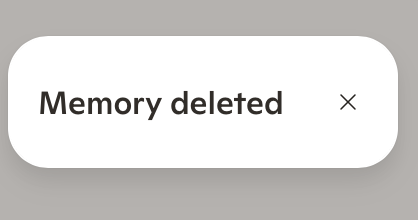
A pop-up message will appear briefly in the top right saying “Memory deleted.”
Delete Your Copilot Conversation History
Even with everything switched off, your chats are saved for 18 months by default, but you can delete them whenever you want.
How to delete one Copilot conversation
Here’s how you can delete specific Copilot conversations.
1. Click the “Open sidebar” icon
In Copilot, click the “Open sidebar” icon in the upper left corner.

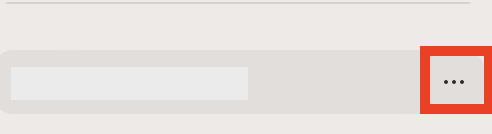
2. Click the three dots next to a past Copilot conversation
Click the three dots icon next to the conversation you want to delete.
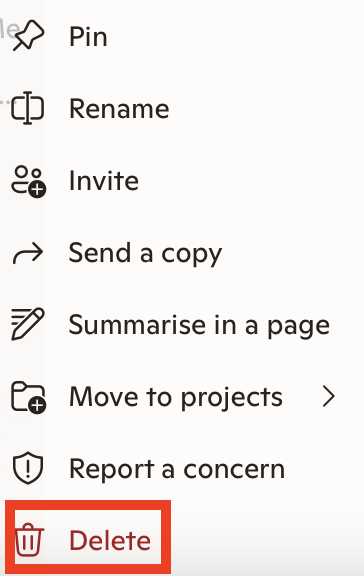
3. Click “Delete”
A menu will appear.
Click “Delete” from the list of options.
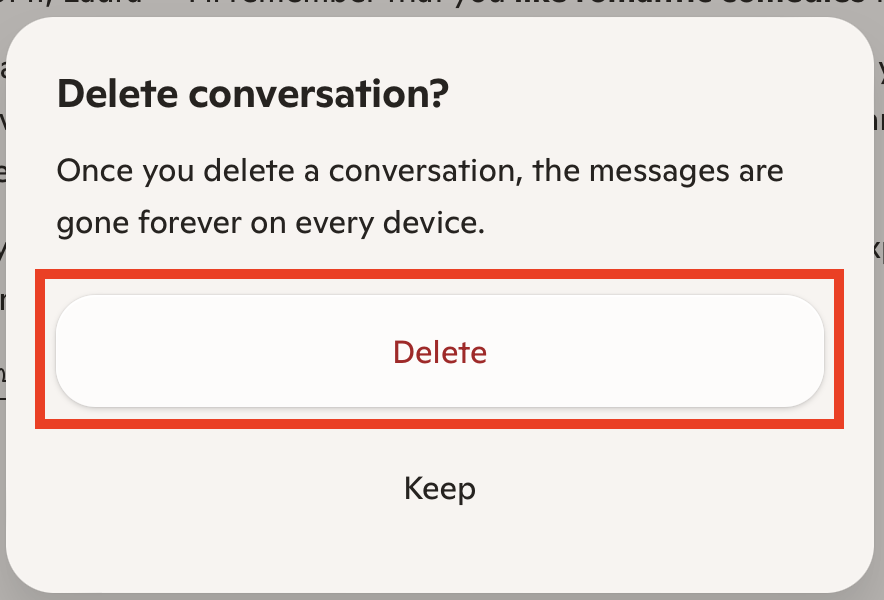
4. Click “Delete” (again)
A pop-up will appear asking if you’re sure you want to delete a conversation and warning that once you delete a Copilot conversation, the message will be gone forever on every device.
Click the “Delete” button.
That’s it! That specific Copilot conversation has been deleted.
How to delete the entire Copilot conversation history
If you’d rather delete your entire Copilot conversation history, here’s how you can do it.
1. Click your Copilot profile icon
In Copilot, select your profile icon in the bottom left.
2. Click “Settings” and select “Memory”
From the pop-up menu that appears, click “Settings.”
Then, select “Privacy” from the menu on the left.
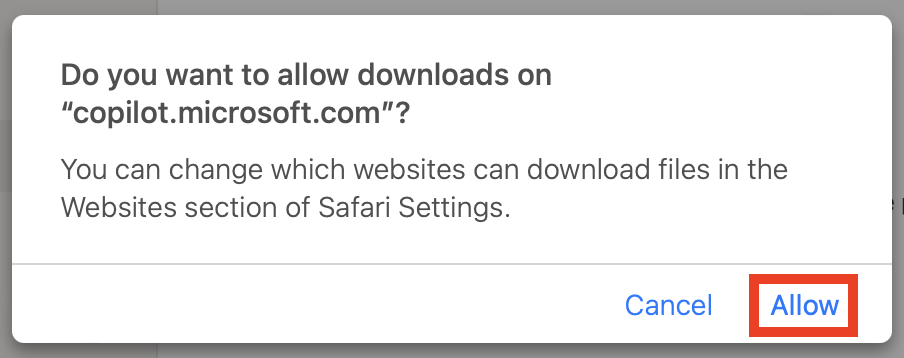
3. Optional – Click “Export history” and click “Allow”
If you’d like to export your Copilot history before you clear it, click the “Export history’ link.

Then, click “Allow” to download your Copilot history onto your device.
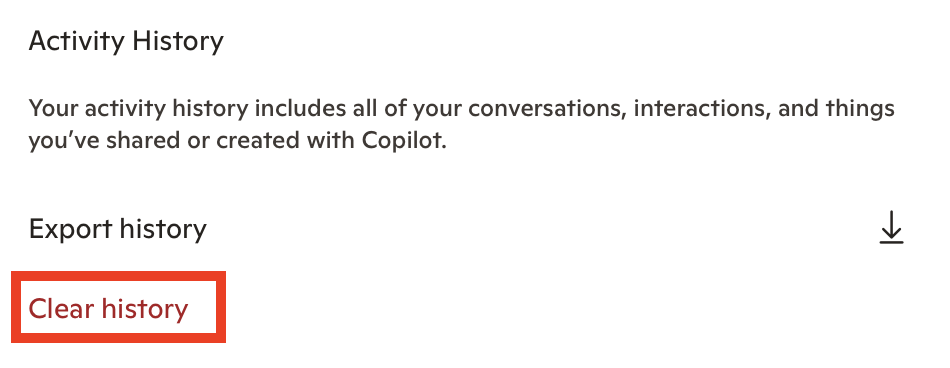
4. Click “Clear history”
Scroll to the ‘Activity History’ section.
Click the “Clear history” link.
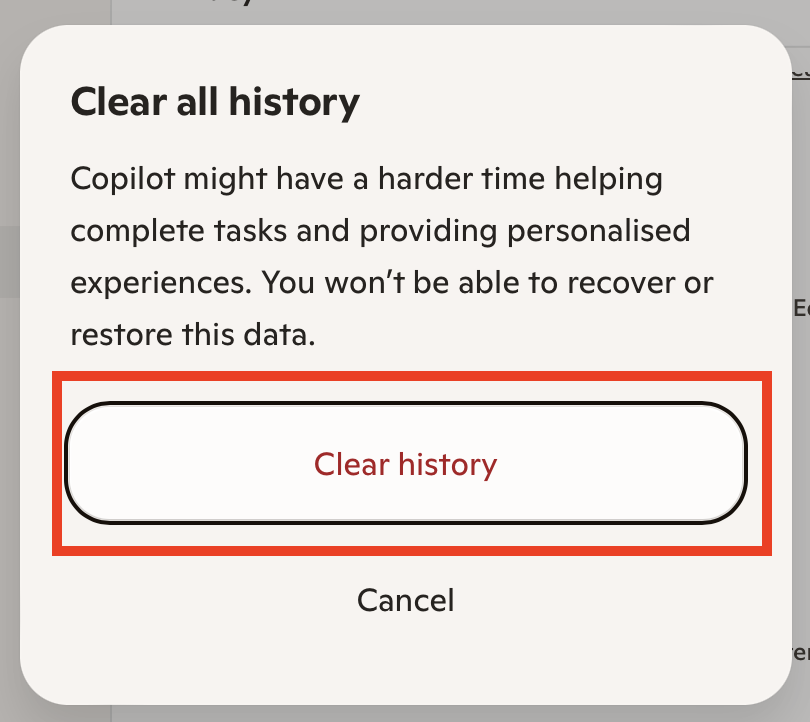
5. Click “Clear history” (again)
A pop-up will appear, noting that if you clear all history, Copilot might find it hard to help you complete tasks and provide personalized experiences.
It also warns you that recovering or restoring deleted history is impossible.
If you’re sure you want to clear all Copilot history, click the “Clear history” button.
That’s it!
Manage Shared Copilot Links
If you’ve shared your Copilot pages with others, they’ll have access to them and their content unless you revoke that access.
How to manage shared Copilot links
Here’s how you can revoke access to Copilot links you’ve shared with others.
1. Click your Copilot profile icon
In Copilot, select your profile icon in the bottom left.
2. Click “Settings” and select “Privacy”
From the pop-up menu that appears, click “Settings.”
Then, select “Privacy” from the menu on the left.
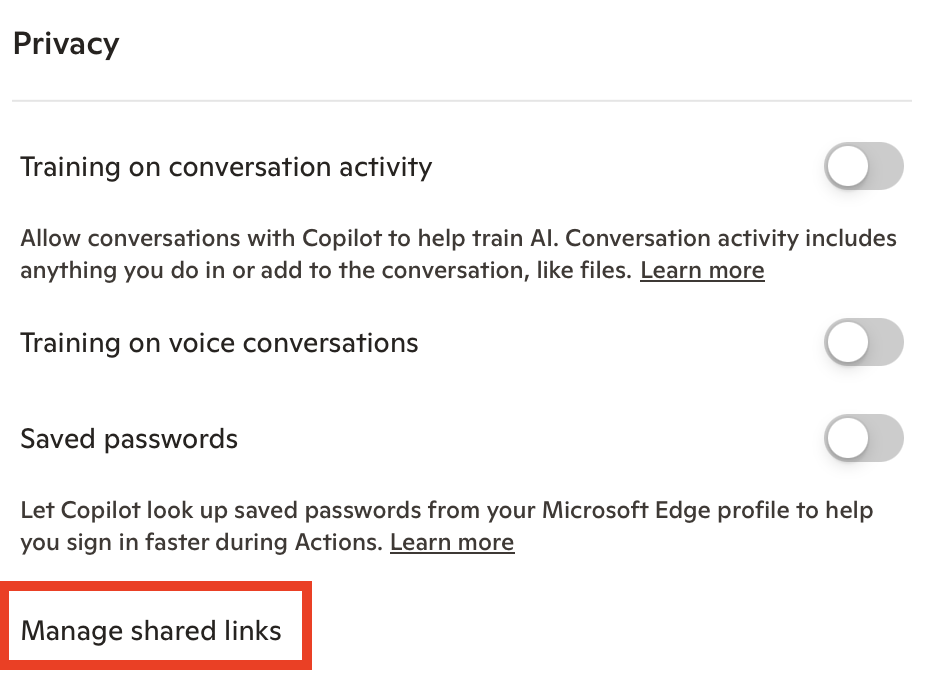
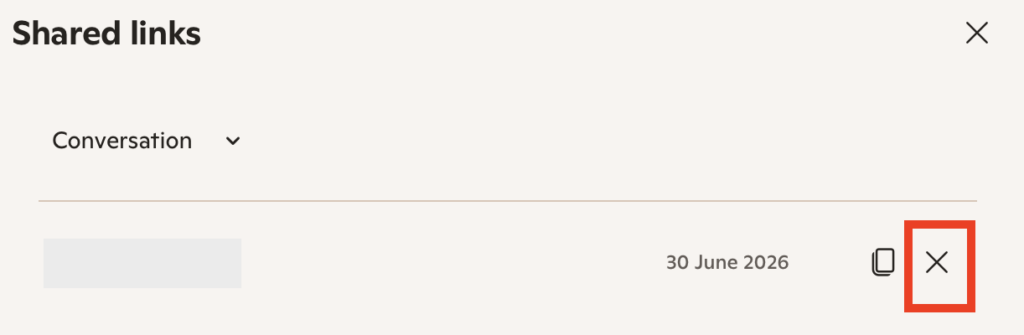
3. Click “Manage shared links”
Select “Manage shared links.”
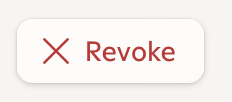
4. Click “x” next to the link you want to delete and click “Revoke”
Click “x” beside the link you want to delete.
Then, click “Revoke.”
That’s it!
Disconnect External Content (“Connectors”)
If you connected other apps to Copilot, like your Google Calendar or Outlook, it could search across all of them at once to answer your questions.
How to disconnect external content (“Connectors”)
Here’s how you can disconnect external apps and services you’ve connected to Copilot.
1. Click your Copilot profile icon
In Copilot, select your profile icon in the bottom left.
2. Click “Settings” and select “Connectors”
From the pop-up menu that appears, click “Settings.”
Then, click “Connectors” from the menu on the left side.
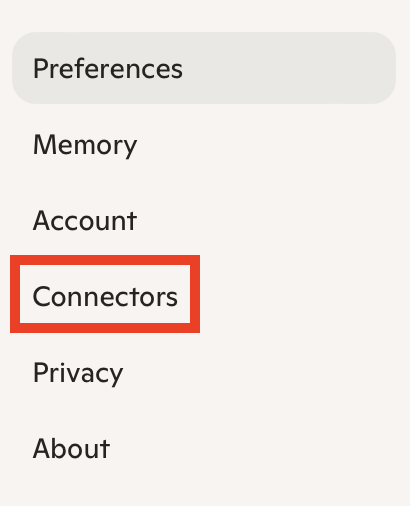
3. Review whether you have any Connectors connected to your Copilot account
You will see a list of possible Connectors.
If you have any of them connected to your Copilot account, you will see a turned-on toggle next to them.
Otherwise, you will see a “Connect” button.
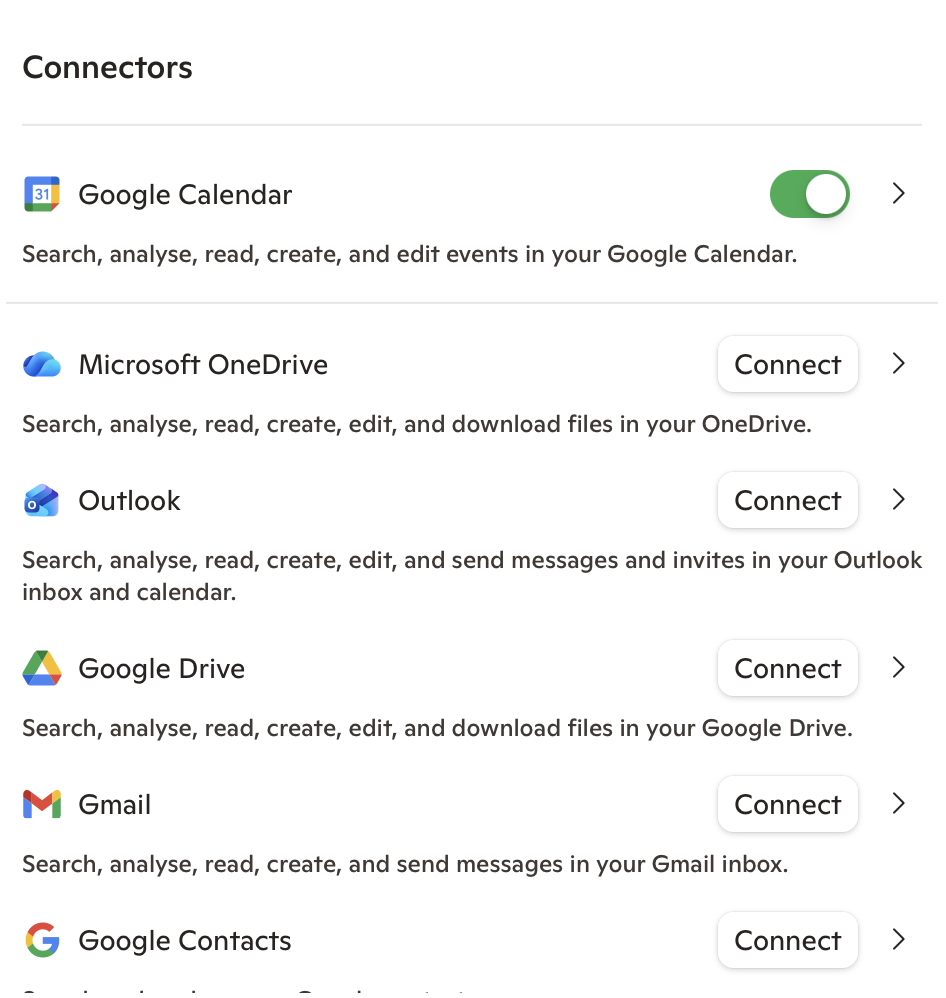
4. Toggle off unwanted Connectors
For any Connector you no longer need, toggle it off.

That’s it!
Use the Microsoft Privacy Dashboard to Delete Your Copilot Activity History
You can also go to your Microsoft privacy dashboard to delete your Copilot activity history, including activity history when you use:
- Copilot apps.
- Copilot in Microsoft 365 apps or Copilot Chat in the Microsoft 365 Copilot app.
How to use the Microsoft privacy dashboard to delete your Copilot activity history
Here’s how you can access your Microsoft privacy dashboard from which you can delete your Copilot activity history.
1. Go to your Microsoft privacy dashboard
Navigate to https://account.microsoft.com/privacy/.
2. Click “Copilot”
Scroll until you see “Copilot”
Click “Copilot.”

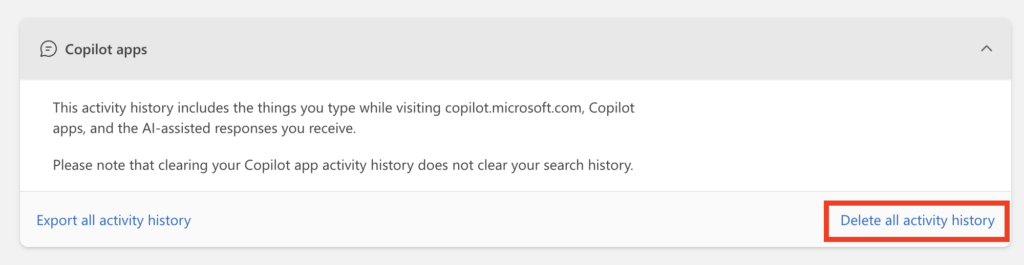
3. Click “Delete all activity” history beside each setting
Select “Delete all activity history” next to each setting.
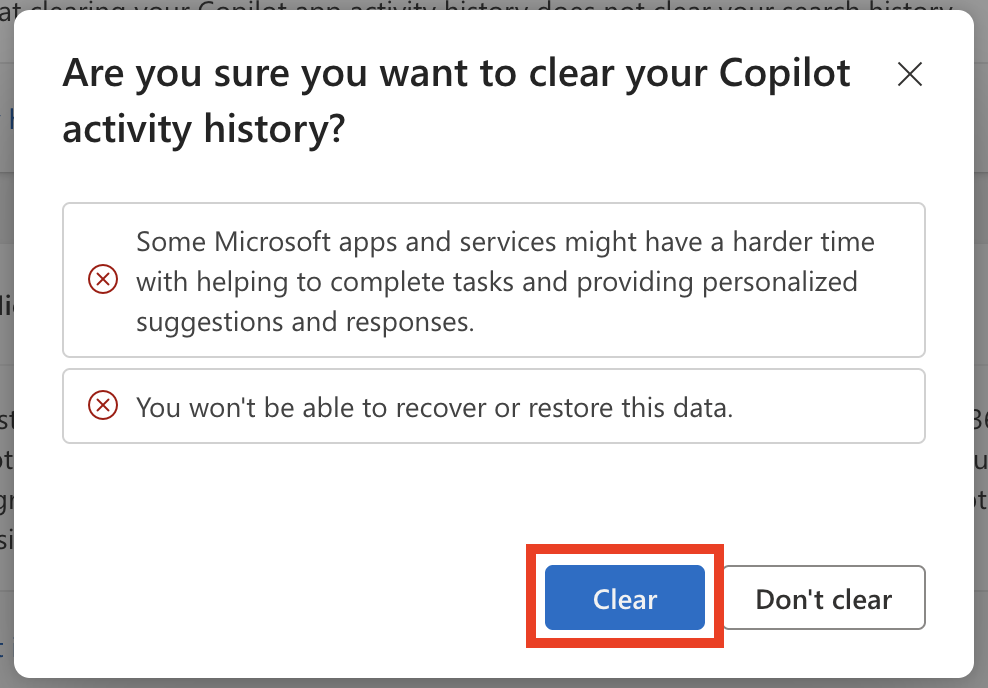
4. Click “Clear”
A pop-up will appear warning you that by deleting your Copilot activity history, Microsoft apps and services might find it more difficult to help complete tasks and provide personalized suggestions and responses.
It also warns you that you won’t be able to recover this data.
Click the “Clear” button.
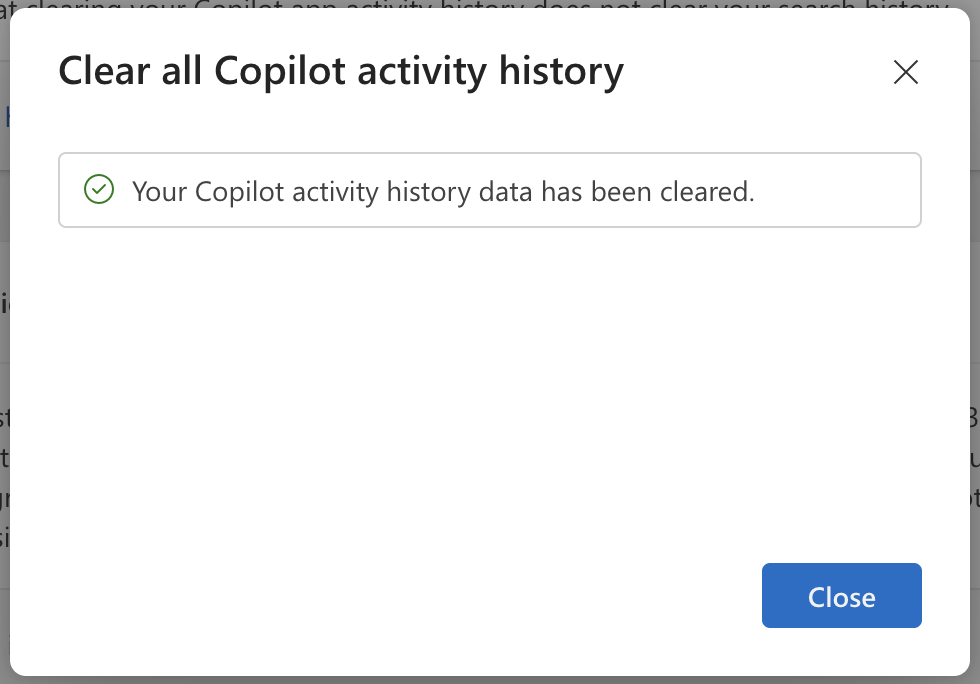
That’s it!
Now do the same for the other setting.
Delete Your Copilot Account
The best thing you can do for your privacy is not keep any accounts you don’t need. So if you’re not using Copilot, delete it.
How to delete your Copilot account
Here’s how you can delete your Copilot account.
1. Click your Copilot profile icon
In Copilot, select your profile icon in the bottom left.
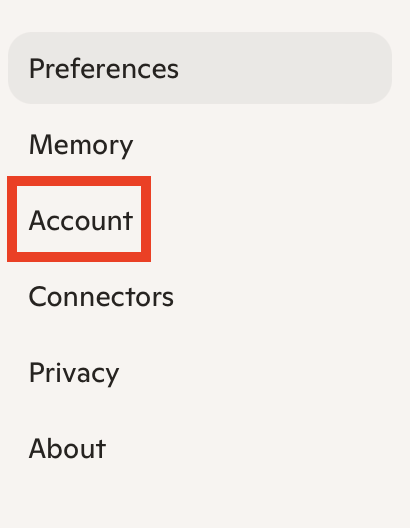
2. Click “Settings” and select “Account”
From the pop-up menu that appears, click “Settings.”
Then, click “Account.”
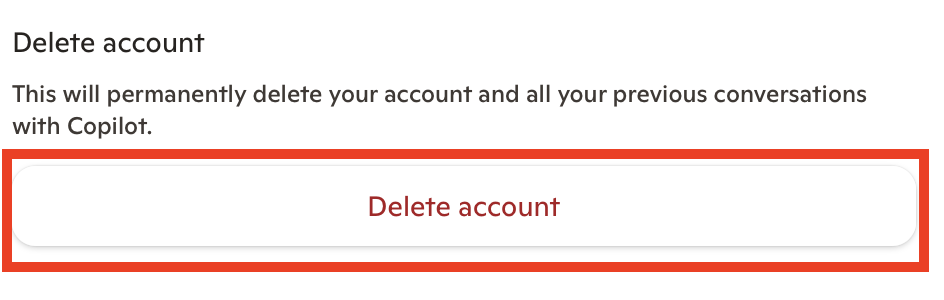
3. Click “Delete account”
Click the “Delete account” button.
4. Click “Delete Copilot”
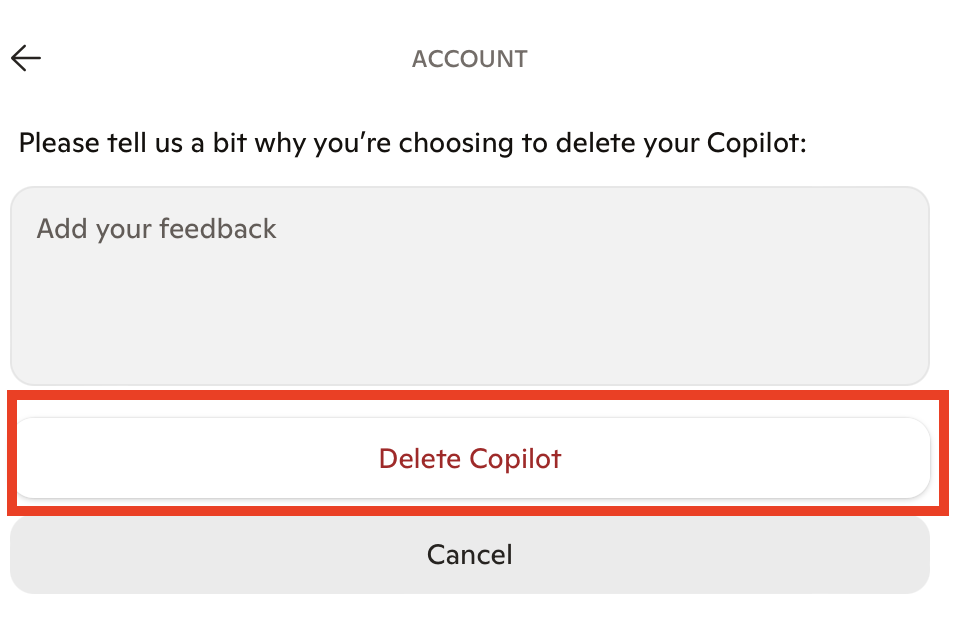
Leave feedback on why you’re deleting your Copilot account (optional).
Click the “Delete Copilot” button.
That’s it!
You’ve deleted your Copilot account.
Don’t Forget Data Brokers and People Search Sites
Reviewing your privacy settings on Microsoft Copilot is important, but there’s more you can do if you want to keep your data even more private.
One of the biggest privacy moves you can make? Opt out of data brokers and people search sites. These are companies that collect and sell your personal information without asking you or even telling you.
- Adjusting your Microsoft Copilot privacy settings lets you control what data Copilot can access and how your interactions are used, so you can limit what it sees and stop some of your information from being used to improve Microsoft’s services.
- Opting out of data brokers and people search sites reduces your personal information exposure.
Anyone can use a data broker or people search site to find out more information about you, including your full name, where you live, what your phone number or email address is, and who you’re related to, among other things.
The good news is that you can opt out of data brokers and people search sites. Our people search site opt-out guides walk you through the “how.”
For best results, opt-outs need to be continuous. That’s because data brokers republish people’s data when they come across more of it, even if you previously opted out.
If you’d rather spend your time on something else, a data broker removal service like DeleteMe can opt you out of data brokers on your behalf.

news?

Don’t have the time?
DeleteMe is our premium privacy service that removes you from more than 750 data brokers like Whitepages, Spokeo, BeenVerified, plus many more.
Save 10% on DeleteMe when you use the code BLOG10.
Related Posts

Julius AI Data Privacy Settings Guide