Midjourney Privacy Settings Guide


Table of Contents
Do you care about your Midjourney privacy? I do, though for several years(!) I had completely forgotten I even had an account with them that I used for generating funny images and cover photos for online blogs.
But now that I’m on a mission to improve my privacy across my online accounts, I went back to Midjourney to take a careful look at all the Midjourney privacy settings I could find.
Here’s everything I found about how to keep your identity and your content private on Midjourney.
Midjourney Privacy Settings You Should Turn On
There’s one privacy setting in particular you should turn on if you want to use Midjourney privately, i.e., without anything seeing what you create.
It’s called “Stealth mode.”
Stealth mode
Stealth mode is Midjourney’s main privacy control.
On its website, Midjourney says:
“If privacy is a priority for you, consider using Stealth mode.”

Stealth Mode hides whatever you make with Midjourney from other users on the website. This setting is only available to users on the Pro and Mega plans.
How to turn on Stealth mode in Midjourney
You can turn Stealth mode on in three ways.
- On the website, open the settings panel from the button in the Imagine bar and switch Stealth mode on or off.
- In Discord, type /stealth to turn it on and /public to turn it back off. You can also use the settings command and toggle the Public Mode button in the menu. Green means you are in public mode.
- For a single prompt, add –stealth or –public at the end of it.
How to make existing creations private after you upgrade Midjourney plans
Stealth mode is only available if you’re on a Pro or Mega plan. If you switch to one of these plans later, you can make your previous creations private. However, note that simply turning on Stealth mode does not make your past public creations private.
To make individual images or videos on Midjourney private:
- Go to your Create or Organize page.
- Click into the item you want to work with.
- Click the options button beside the prompt text.
- Select “Make Private.”
To make multiple images or videos on Midjourney private in one go:
- Go to your Organize page.
- Select multiple images and videos (click and drag, or use shift + click).
- Click the More button in the bulk change pop-up window.
- Select “Make Private.”
What happens to your privacy if you cancel your Pro or Mega Midjourney plan
Stealth mode requires Pro or Mega, so if you downgrade or cancel plans, you will lose the ability to turn stealth mode on for new creations, but any images you already made private will stay private.
What Stealth mode does not cover
Stealth mode only affects your gallery on midjourney.com. It does not apply to public Discord channels. If you generate an image in a shared channel, anyone in that channel can see it and copy the prompt, regardless of what your stealth setting is.
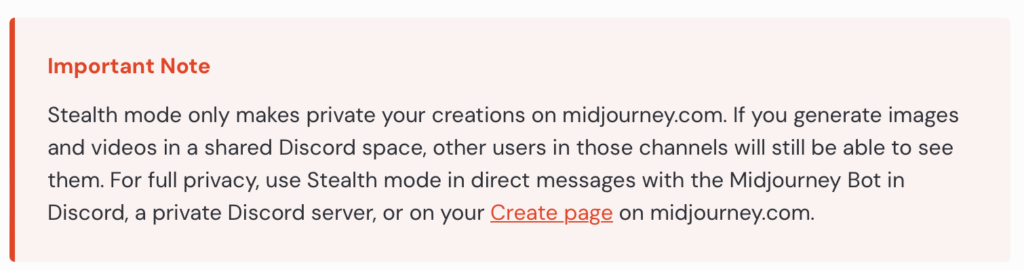
If you want maximum privacy, my recommendation is to create images in one of these places instead:
- Direct messages with the Midjourney bot in Discord.
- A private Discord server.
- Your own Create page on midjourney.com.
How to check what is public on Midjourney
Here’s how you can see exactly what is currently visible to other Midjourney users:
- Go to your Organize page.
- Use the filter checkboxes to select published images.
Other Midjourney Privacy Tips You Should Know About
Besides Stealth mode, there are a few other privacy practices you can follow to have a more private experience on Midjourney.
Remember that your Midjourney profile is public
Even if you make your Midjourney images and/or videos private, a logged-in Midjourney member may still be able to find your Midjourney profile and learn things about you (e.g., your display name, username, bio, social media links, any public creations, and spotlighted images).
To stop this from happening, use a pseudonym, don’t include links to your social accounts, and don’t spotlight any images you don’t want to be public.
Don’t make private images part of your Midjourney profile
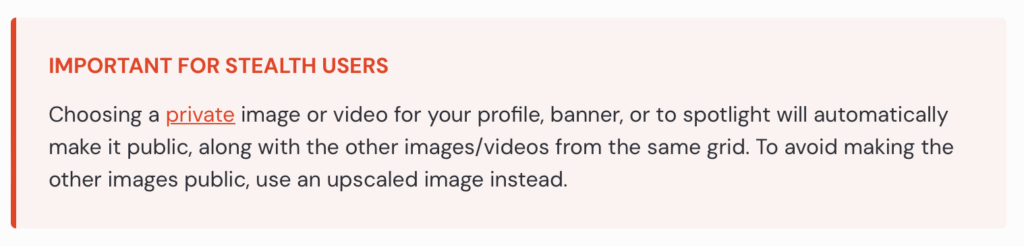
If you make a private image your Midjourney profile picture, banner, or spotlight, then that image (and other images and/or video from the same grid) will become public automatically. As a result, Midjourney recommends using upscaled images instead.
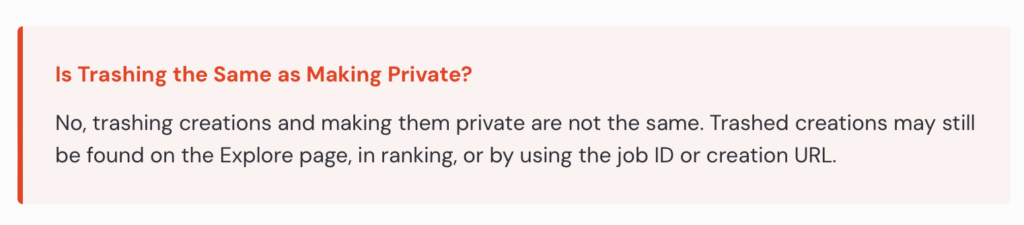
Keep in mind that trashing images or videos is not the same as making them private
Midjourney explicitly warns users that trashing an image or video is not the same as making it private. In fact, anything you put into trash may still be discoverable through the Midjourney Explore page, in search or rankings on Midjourney, via its job ID, and through its direct URL.
Don’t use identifying information in your Midjourney prompts
If someone can see the images or videos you made through Midjourney, they can also see the prompt you used for it.
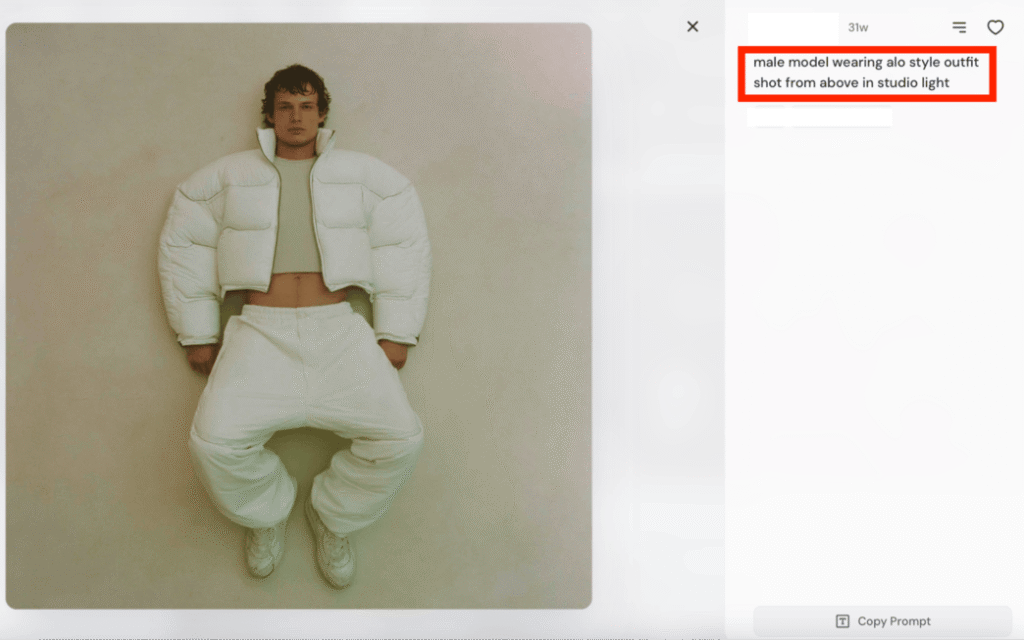
It’s a good idea to never include any personal information in your Midjourney prompts.
Review your Midjourney email preferences
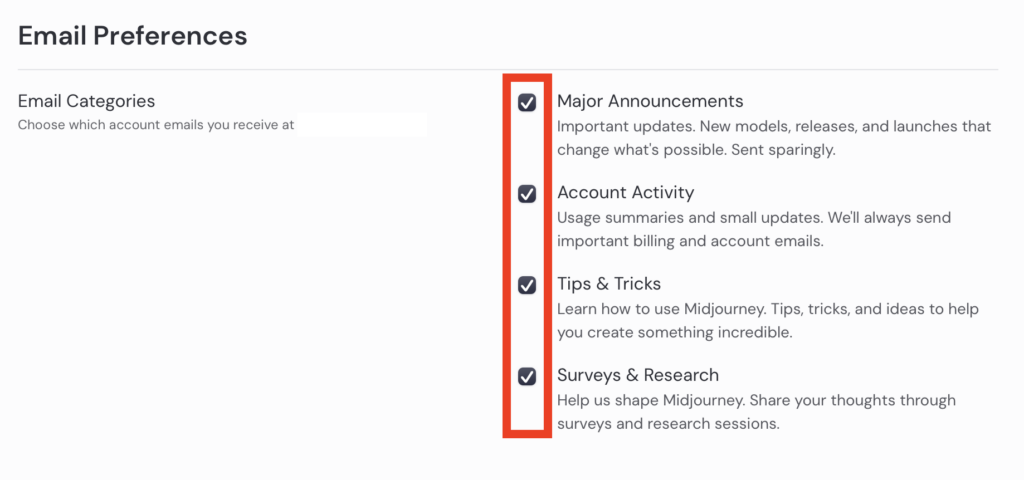
Your account settings let you choose which emails Midjourney sends you.
There are four categories.
- Major announcements cover new models and releases.
- Account activity covers usage summaries and account updates. Billing and account emails are sent regardless of this setting.
- Tips and tricks cover guidance on using Midjourney.
- Surveys and research cover requests for feedback.
You can turn any of these off except billing and account emails, which always go out.
Adjust your Midjourney cookie and data settings
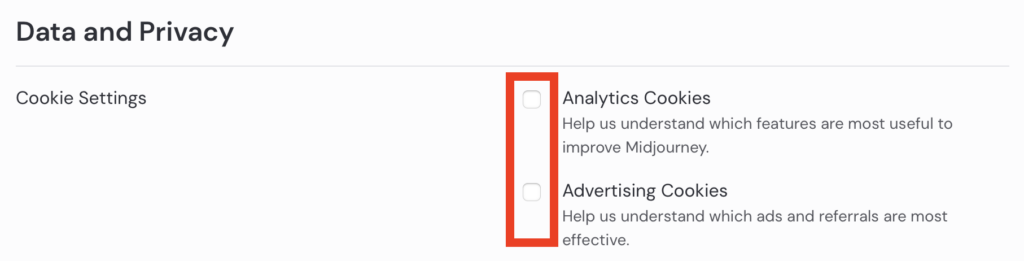
Under data and privacy in account settings, you can also control two cookie categories.
Analytics cookies help Midjourney see which features get used. Advertising cookies help them measure which ads and referrals work.
Export your Midjourney analytics
You can export your Midjourney data through your account settings, but at the moment, this covers your analytics data only.

If you want to download the images and videos you have made, that has to be done from the Organize page, not through data export.
Delete Your Midjourney Account
If you’re no longer using Midjourney, delete your account. Closing unused accounts can reduce the amount of personal data you have stored online and eliminate another account that could be compromised.
Here’s how you can delete your Midjourney account:
- Click the three dots next to your profile name in the bottom left corner.
- Select “Manage Subscription.”
- Scroll to ‘Frequently Asked Questions’ at the bottom of the page and click “How can I delete my account?”
- Click the “initiate this process here” hyperlink.
- Click “Review account deletion.”
- Select the two checkboxes and click the “Delete my account” button.
That’s it. You have seven days to change your mind before your Midjourney account is deleted.
Don’t Forget Data Brokers and People Search Sites
Your Midjourney privacy settings only cover Midjourney. Data brokers and people search sites are a separate problem.
- By changing your Midjourney privacy settings, you can adjust who can see your images and videos.
- By opting out of data brokers and people search sites, you reduce the amount of information that is findable about you online.
Data brokers and people search sites are companies that scrape your details from social media, public records, and anywhere else they can find them, then compile these details into a profile about you, which can include your contact details, education and employment history, and who you’re related to, then sell it to whoever wants to pay for it.
All someone needs to find your profile is your name/phone number/email address. Sometimes, even just a username is enough.
The good news is that the vast majority of data brokers and people search sites give you the option to opt out of their databases. Our people search site opt-out guides walk you through the process for each one.
However, you can’t just opt out once and forget about it. Data brokers and people search sites are known for republishing people’s information when they come across more of it. As such, opt-outs need to happen on a regular basis.
Don’t have the time? Subscribe to a data broker removal company like DeleteMe, and we’ll opt you out of data brokers and people search sites on your behalf.

news?
Don’t have the time?
DeleteMe is our premium privacy service that removes you from more than 750 data brokers like Whitepages, Spokeo, BeenVerified, plus many more.
Save 10% on DeleteMe when you use the code BLOG10.
Related Posts
Julius AI Data Privacy Settings Guide