DeepSeek Privacy Settings Guide


Table of Contents
While DeepSeek is not my preferred AI chatbot for various reasons, I still have an account with the company. So why have I not thought about DeepSeek’s privacy settings before today?
The answer is simple: I forgot that my DeepSeek account existed.
But today, I’m fixing that.
In this guide, I’ll walk you through DeepSeek’s privacy settings one by one so you can improve your privacy on DeepSeek.
Stop DeepSeek From Training on Your Conversations
By default, DeepSeek may use your inputs and outputs to develop and improve its models. The good news is that, as is the case with most other LLMs, you can opt out of having your data used for training.
How to stop DeepSeek from training on your conversations
Here’s how you can opt out of DeepSeek using your conversations for AI model training.
1. Log in to your DeepSeek account
Navigate to https://chat.deepseek.com/sign_in.
Sign in to your DeepSeek account.
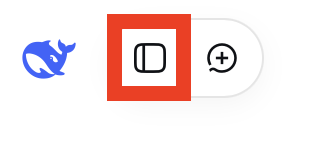
2. Click the sidebar icon in the top left corner
From the top left corner, select the sidebar icon.
3. Click the three dots next to your name
From the bottom left corner, select the three dots beside your profile picture and name.

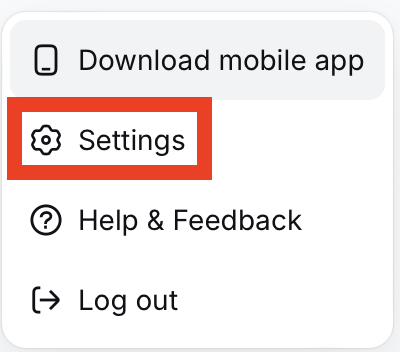
4. Select “Settings”
From the pop-up menu that appears, select “Settings.”
5. Select “Data”
From the menu on the left side, select “Data.”
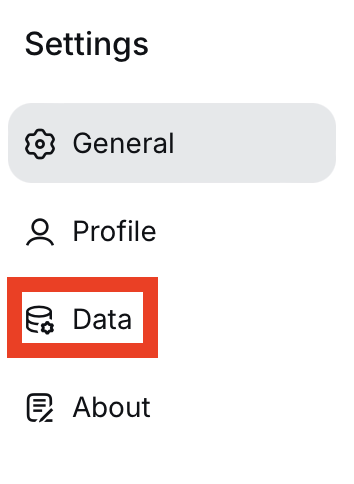
6. Toggle off ‘Help improve the model for everyone’
You will see a toggle next to the “Help improve the model for everyone” setting.

If it is toggled on (as it was for me), toggle it off.
Once this is toggled off, new conversations should not be used to train DeepSeek’s AI models. However, the chats you already shared cannot be pulled back.
Delete Your DeepSeek Chat History
DeepSeek saves your conversations so you can return to them later. That is convenient, but it also means your history sits on the company’s servers until you remove it.
Clearing your chat history regularly is one of the simplest privacy habits you can build.
How to delete individual DeepSeek conversations
Here’s how you can delete a single DeepSeek conversation.
1. Click the sidebar icon in the top left corner
In your DeepSeek dashboard, select the sidebar icon from the top left corner.
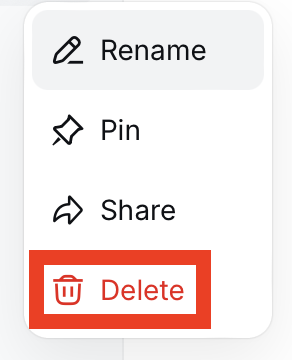
2. Click the three dots next to the conversation and then click “Delete”
Hover over a conversation in the sidebar and click the three dots.

Then, select “Delete.”
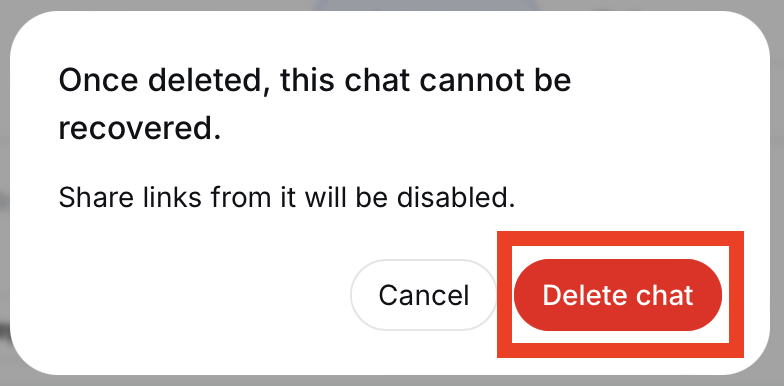
3. Click “Delete chat”
A pop-up window will appear, warning you that once a chat is deleted, it cannot be recovered and that any share links from it will also be disabled.
Click the “Delete chat” button to proceed.
That’s it! That particular chat has been deleted.
How to delete all DeepSeek chats
Here’s how you can delete all DeepSeek chats.
1. Click the sidebar icon in the top left corner
From the top left corner, select the sidebar icon.
2. Click the three dots next to your name
From the bottom left corner, select the three dots beside your profile picture and name.
3. Select “Settings”
From the pop-up menu that appears, select “Settings.”
4. Select “Data”
From the menu on the left side, select “Data.”
5. Click “Delete all”
Next to ‘Delete all chats,” click the “Delete all” button.

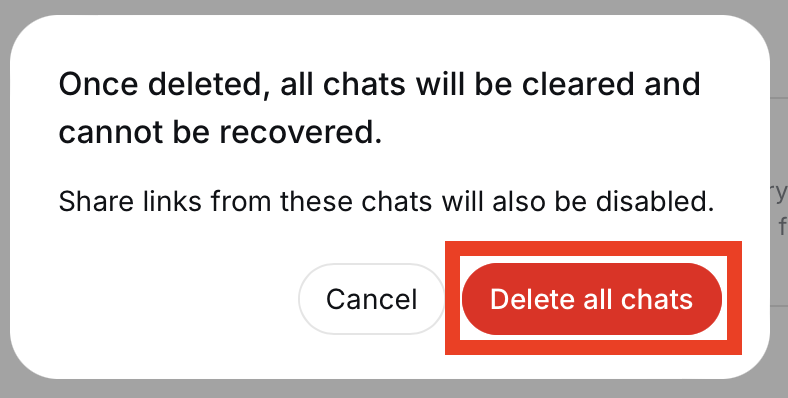
6. Click “Delete all chats”
A pop-up window will appear, warning you that once you delete all chats, you will not be able to recover them.
Click the “Delete all chats” button.
That’s it! All of your DeepSeek chats have been deleted.
Manage Shared DeepSeek Chat Links
DeepSeek lets you share a conversation by generating a unique link.
Once a shared link is published on the open web, it can be discovered by third parties using automated tools such as web crawlers.
How to manage shared DeepSeek chat links
Here’s how you can delete shared chat links.
1. Click the sidebar icon in the top left corner
From the top left corner, select the sidebar icon.
2. Click the three dots next to your name
From the bottom left corner, select the three dots beside your profile picture and name.
3. Select “Settings”
From the pop-up menu that appears, select “Settings.”
4. Select “Data”
From the menu on the left side, select “Data.”
5. Click “Manage” next to ‘Shared links’
Select the “Manage” button beside ‘Shared links.’

6. Click the bin icon next to a shared link
Click the bin icon next to the shared link you want to delete.

7. Click “Delete”
A pop-up will appear warning you that once a link is deleted, no one can access the conversation through it anymore.
Click the “Delete” button to proceed with the deletion.
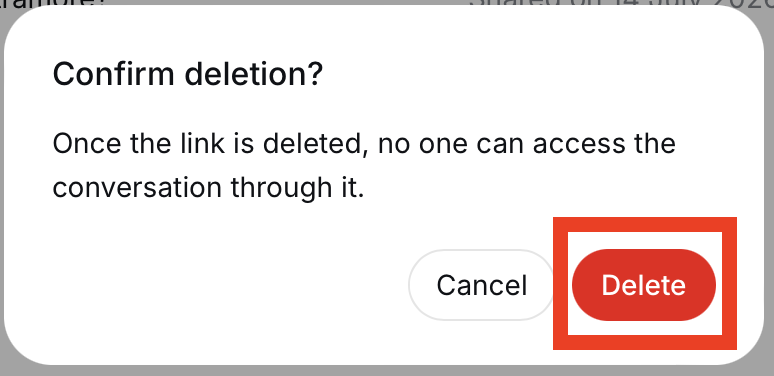
That’s it! The shared link has been deleted.
Delete Your DeepSeek Account
The best thing you can do for your privacy with DeepSeek (or any LLM or service) is to delete your account completely. This is permanent: once done, you cannot reactivate the account or recover its content, so export or copy anything you want to keep first.
How to export DeepSeek data
Here’s how you can export your DeepSeek data, including your account information and chat history.
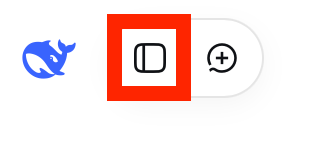
1. Click the sidebar icon in the top left corner
From the top left corner, select the sidebar icon.
2. Click the three dots next to your name
From the bottom left corner, select the three dots beside your profile picture and name.
3. Select “Settings”
From the pop-up menu that appears, select “Settings.”
4. Select “Data”
From the menu on the left side, select “Data.”
5. Click “Export” next to ‘Export data’
Click the “Export” button next to the ‘Export data’ setting.

6. Click “Download”
The “Export” button will not change to a “Download” button.
Click the “Download” button to download your data.
Note: The download link is available for seven days. After seven days, you will need to repeat the above steps.

How to delete your DeepSeek account
If you’re ready, here’s how you can delete your DeepSeek account.
1. Click the sidebar icon in the top left corner
From the top left corner, select the sidebar icon.
2. Click the three dots next to your name
From the bottom left corner, select the three dots beside your profile picture and name.
3. Select “Settings”
From the pop-up menu that appears, select “Settings.”
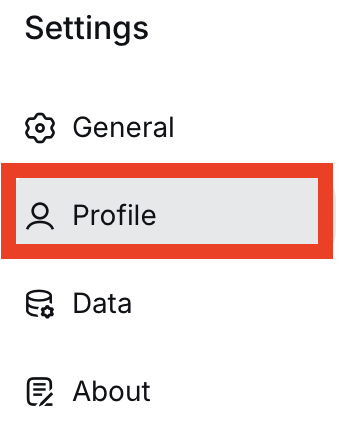
4. Select “Profile”
From the menu on the left side, select “Profile.”
5. Click “Delete” next to ‘Delete account’
Click the “Delete” button beside ‘Delete account.’

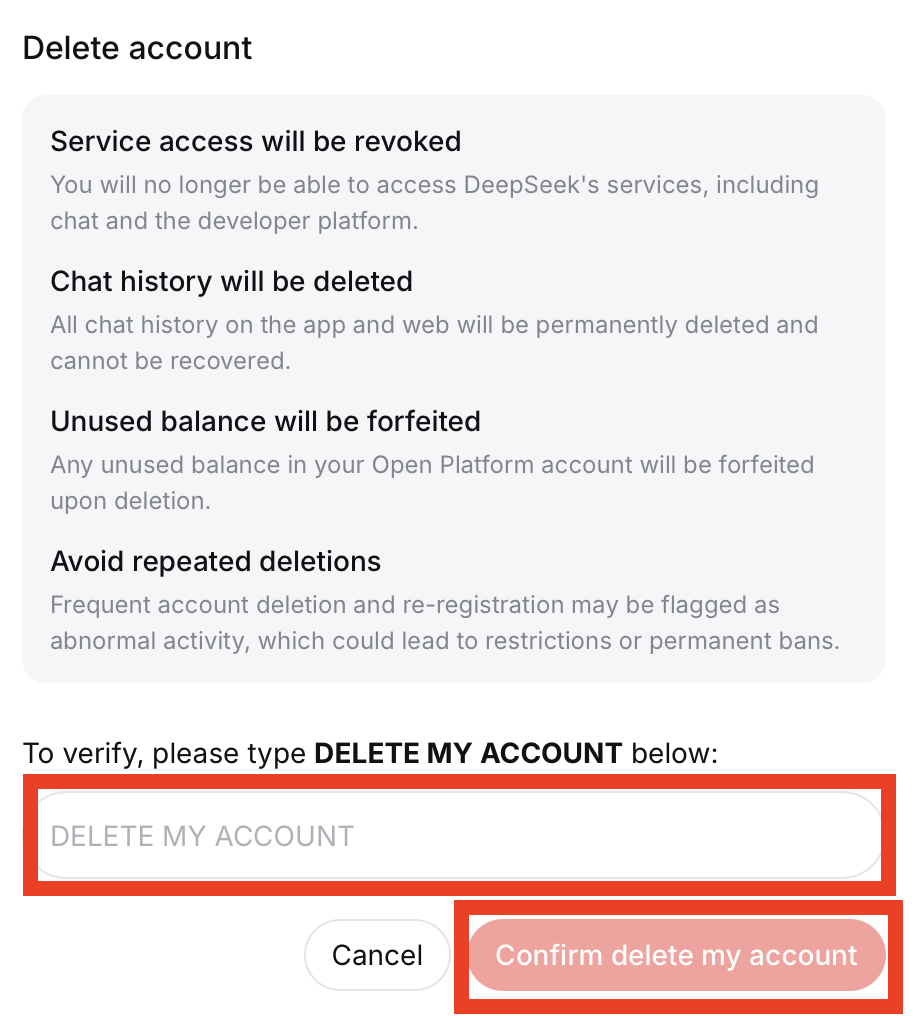
6. Type in “DELETE MY ACCOUNT” and click “Confirm delete my account”
A pop-up will appear explaining what deleting your DeepSeek account means. For example, you will no longer be able to access DeepSeek, your chat history will be deleted, and any unused balance will be forfeited.
If you still want to go ahead with deleting your DeepSeek account, enter “DELETE MY ACCOUNT.”
Then, click the “Confirm delete my account” button.
How to Contact DeepSeek
You can contact DeepSeek by emailing them at [email protected].
Don’t Forget Data Brokers and People Search Sites
Locking down your DeepSeek settings is a smart move, but privacy doesn’t begin and end with one account.
There’s a whole industry whose business model is based on sharing/selling your personal information. Data brokers and people search sites collect your personal data from various sources (e.g., social media, public records) and collate it into detailed profiles, which they then sell to anyone willing to pay.
As long as someone knows your name (or some other identifying detail, like your phone number or address), they can find out more about you.
A lot of the time, people search profiles also show up on the first page of Google.
So it’s worth thinking of these as two separate tasks:
- Tightening your DeepSeek settings controls how the company uses your conversations to train and refine its models.
- Removing yourself from data brokers keeps your personal details from being shared/sold to strangers.
The good news is that you can opt out of data brokers and people search sites. Our people search site opt-out guides walk you through it.
Note that opting out isn’t a one-time fix. These sites tend to republish your profile as soon as new data becomes available, so you’ll want to check back and repeat the process periodically.
If that sounds like too much work, a data broker removal service such as DeleteMe can handle the opt-outs for you and monitor them going forward.

news?

Don’t have the time?
DeleteMe is our premium privacy service that removes you from more than 750 data brokers like Whitepages, Spokeo, BeenVerified, plus many more.
Save 10% on DeleteMe when you use the code BLOG10.
Related Posts

Julius AI Data Privacy Settings Guide