Facebook AI Privacy Settings Guide


Table of Contents
If, like me, you use Facebook but care about your privacy, you’ll want to make sure your Facebook AI privacy settings are set the way you want them, not left on Meta’s defaults.
When I went looking for Facebook’s AI privacy settings, I was not surprised to learn that Facebook uses users’ public content to train its AI models.
However, I was taken aback to learn that one of these settings could upload photos from my camera roll, including ones I never posted, straight to Meta’s servers. Luckily for me, mine was already switched off when I checked. It’s worth making sure yours is too.
Another setting I didn’t know about was “Allow message sharing,” which, by default, allows anyone I’m messaging on Messenger to share our chat with Meta AI, getting it to summarize the conversation or edit a photo someone sent.
Here are the Facebook AI privacy settings you’ll want to check.
Opt Out of Meta AI Training
One of the most important Facebook AI privacy settings is its AI model training using your public data.
Facebook (and its parent company, Meta, in general) uses your public content, such as your public posts and comments, for generative AI model training.
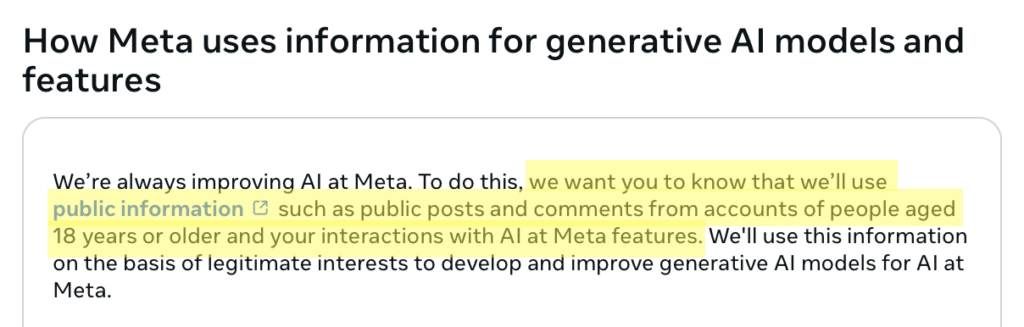
Note the emphasis on “public.” Facebook does not use your private messages to train its AI. The only exception is if someone in the conversation actively shares it with Meta’s AI features.
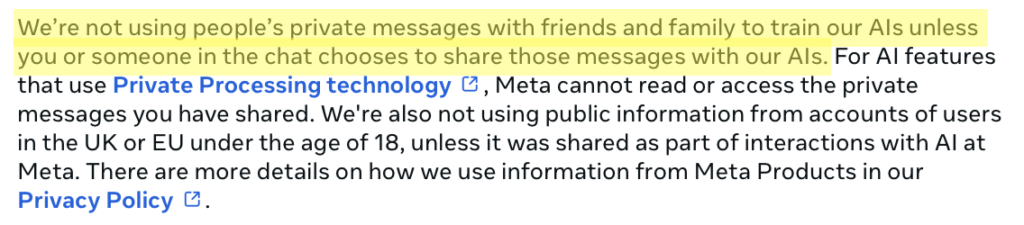
Note: You don’t have to be the person who posted something for Meta to use it. If you appear in or are mentioned in public content, like a friend’s public photo of you or a public post that tags you, that content could end up being used to train Facebook’s AI.
How to opt out of Meta AI training
Here’s how you can opt out of Facebook AI training. Opting out of Facebook AI training will also opt you out of Instagram AI training if you have an account on that platform, as well.
1. Go to Facebook and navigate to the Privacy Center
Log in to your Facebook account and select your profile.
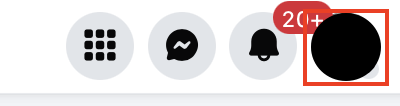
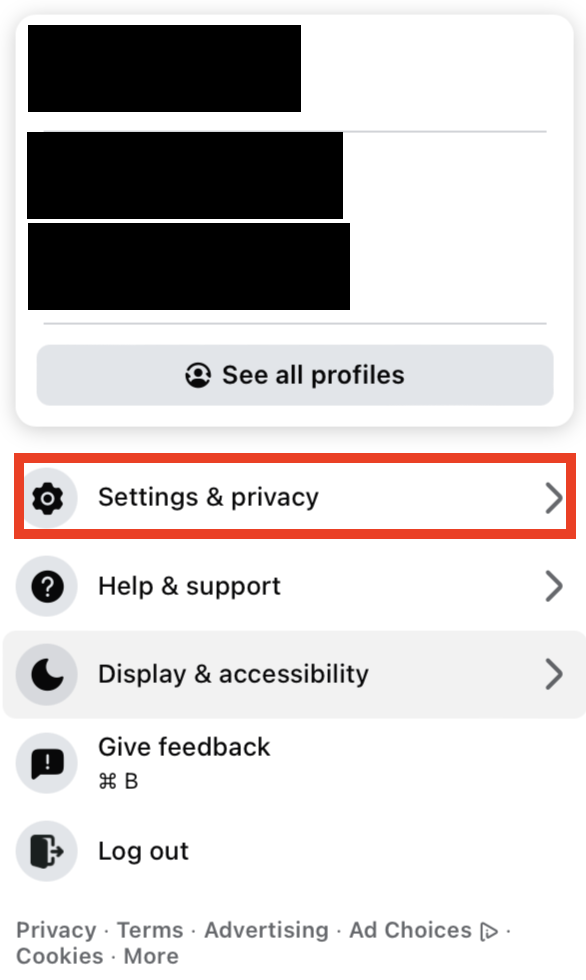
From the pop-up menu that appears, select “Settings & privacy.”
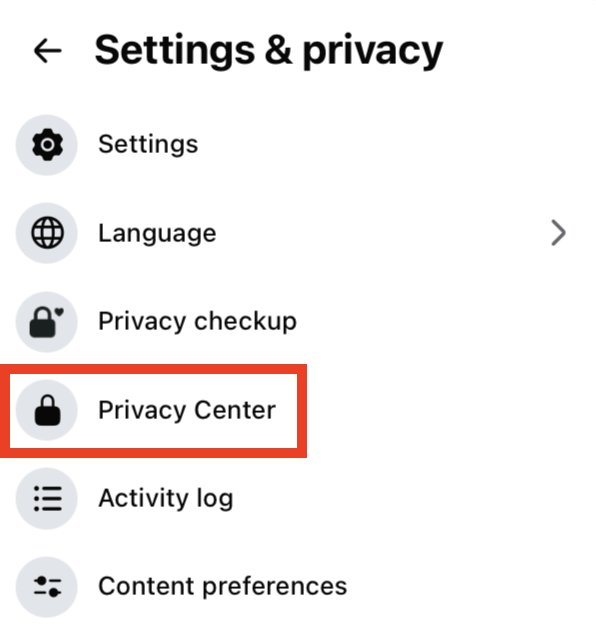
Select “Privacy Center.”
You can also go straight to the Meta Privacy Center by following this link: https://www.facebook.com/privacy/center/.
2. Select “Privacy topics”
From the menu on the left, click “Privacy Topics.”
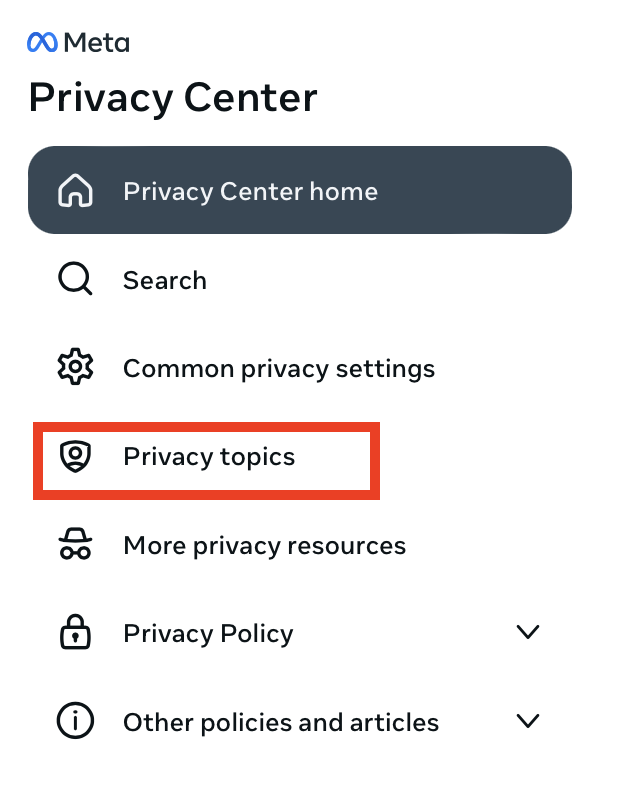
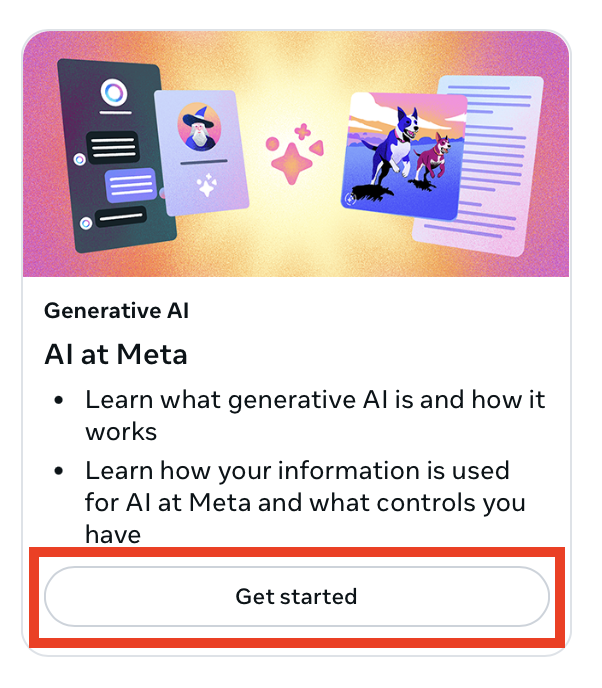
3. Select the “Get started” button under ‘AI at Meta’
Scroll down to ‘Generative AI’ or ‘AI at Meta’ and click “Get started.”
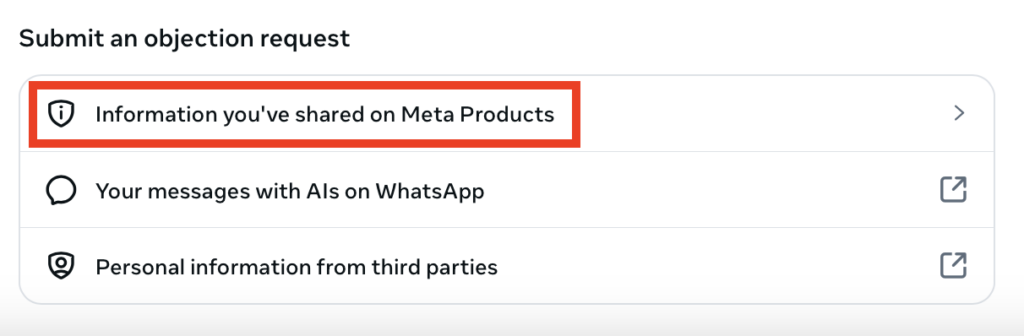
4. Click “Information you’ve shared on Meta Products”
Scroll down until you see the ‘Submit an objection request’ section.
Click the arrow next to “Information that you’ve shared on Meta products.”
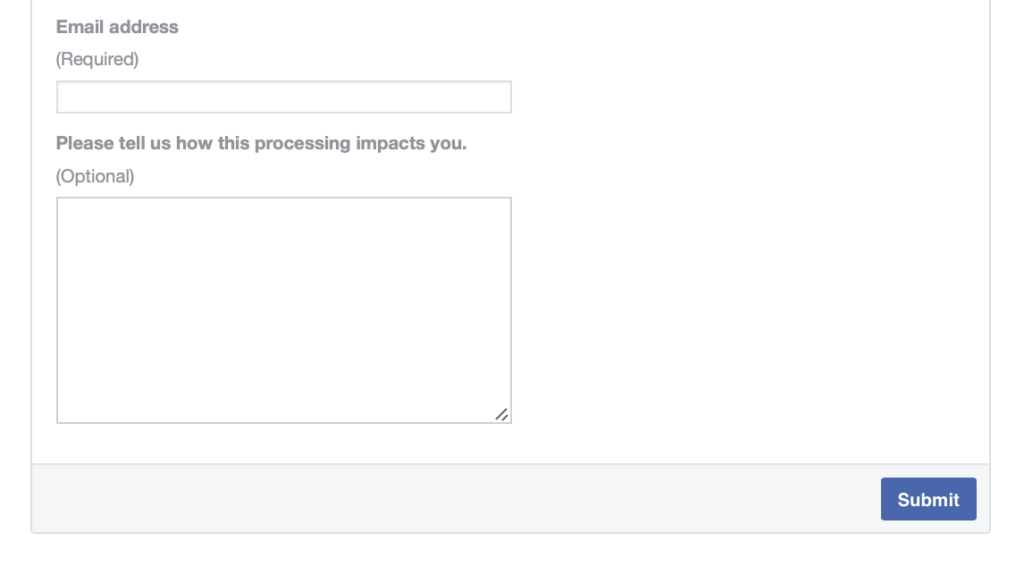
5. Complete the form
You’ll be taken to a page that explains your right to object to Meta using your public information for AI training.
Scroll down until you see a form and complete it by typing in your email address, explaining how Facebook’s processing affects you (optional but may strengthen your case), and hit “Submit.”
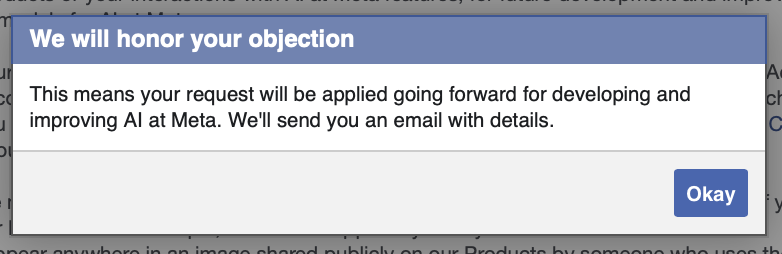
A pop-up message will appear confirming that your objection has been submitted. You’ll also get a confirmation email from Meta telling you that your public content from Facebook will no longer be used for AI training going forward.
That said, Meta notes that in certain situations it may continue to process your information to build and refine its AI, even after you object.
I’ve mentioned one of these exceptions above (namely, if your information shows up in someone else’s public content), but it also extends to if your data has already gone into training Facebook’s AI models before you filed your objection or Meta decides its legitimate interests outweigh your objection (which applies mainly to users outside the EU and UK).
Turn off Facebook Message Sharing
Another Facebook setting worth knowing about is the “Allow message sharing” toggle, which controls whether messages in a particular chat can be used to train Meta’s AI.
When the setting is on (by default), people in the chat can use AI features that pull in the conversation, like asking Meta AI to summarize the thread or edit a photo someone else sent.
When you turn it off for a chat, the AI features that rely on sharing messages stop working for everyone in that chat, i.e., nobody can summarize the conversation with Meta AI or have Meta AI edit another person’s photo from it, and auto-saving photos from the chat also gets switched off as a side effect.
Note: Turning this setting off blocks the built-in Meta AI features inside that chat. It does not stop people from sharing your messages in other ways, like forwarding them to other people or to Meta AI manually. They can also still report the chat to Meta.
How to turn off Facebook message sharing
Here’s how to turn off Facebook message sharing.
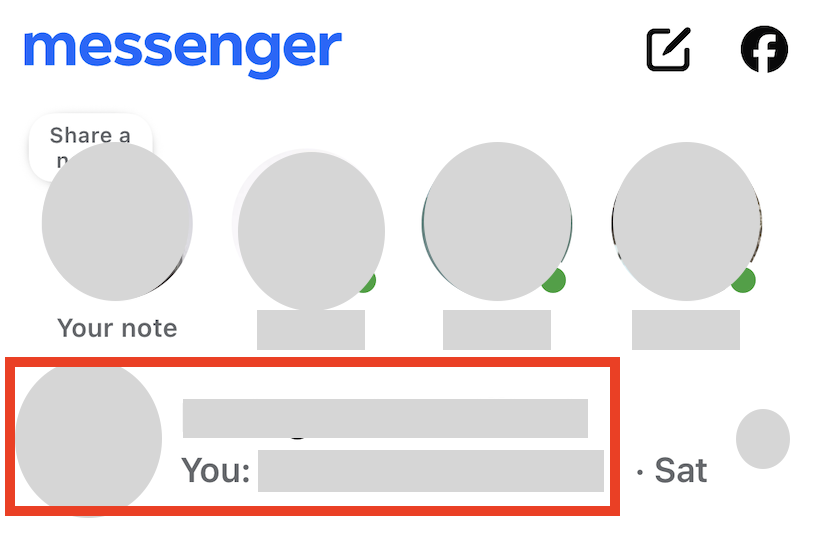
1. Go to Messenger and select a chat
Go to the Facebook Messenger app on your phone.
Select an individual chat where you want to turn the message sharing feature off.
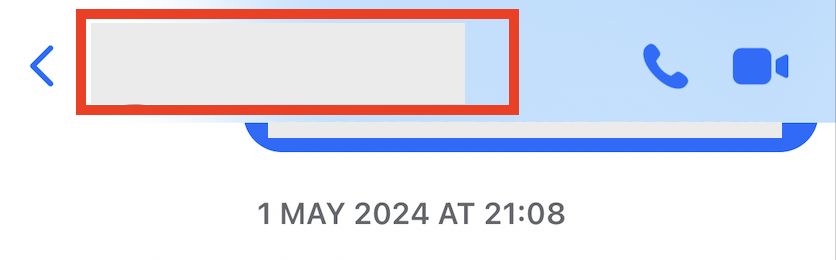
2. Click the person’s name at the top
At the top of the chat, click the person’s name.
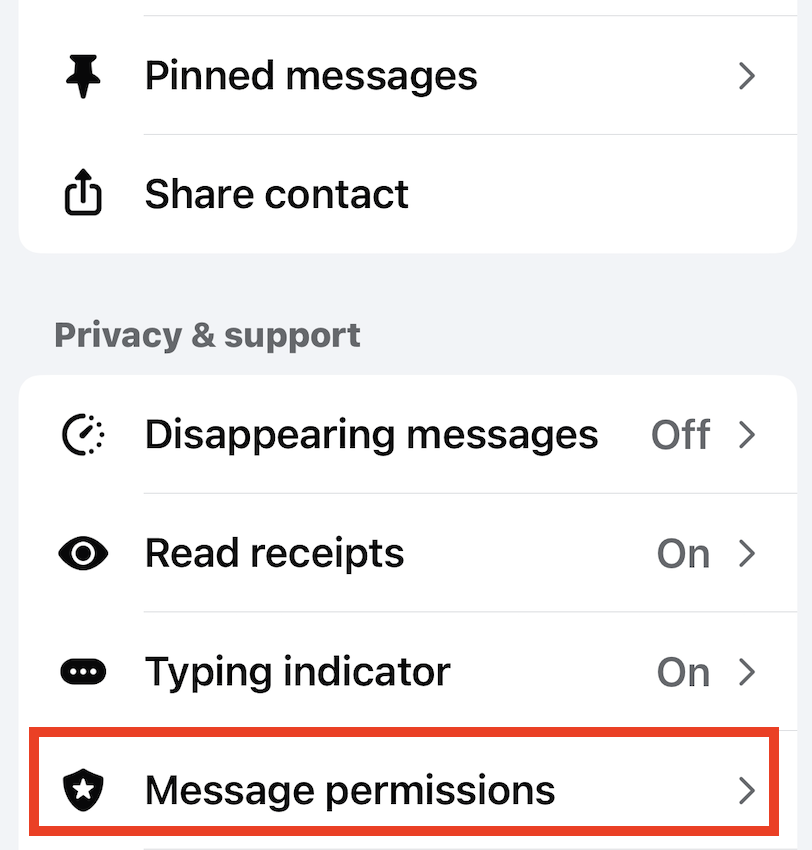
3. Select “Message permissions”
Scroll down until you see the ‘Privacy & support” section.
Click the “Message permissions” link under it.
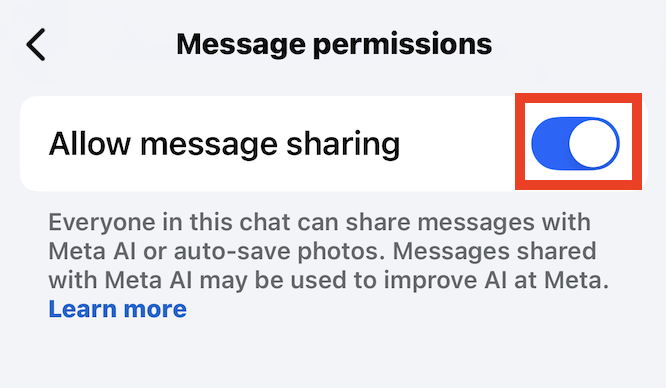
4. Toggle off “Allow message sharing”
If the “Allow message sharing” setting is toggled on, as it was for me, toggle it off.
That’s it!
Turn Off Camera Roll Cloud Processing
Facebook has been rolling out a feature that scans your camera roll, including photos you haven’t posted, and uploads them to Meta’s servers to suggest collages, recaps, and AI edits.
Meta says the suggestions stay private and aren’t used for ad targeting, but agreeing to it accepts Meta’s AI Terms, which let it analyze your images, including facial features.
How to turn off camera roll cloud processing
Here’s how you can check if Facebook’s camera roll cloud processing setting is turned on (and turn it off if it is).
Note: This setting is only available through the Facebook mobile app.
1. Go to the Facebook app and click your profile icon
Open the Facebook app on your phone.
Click your profile icon in the bottom right.

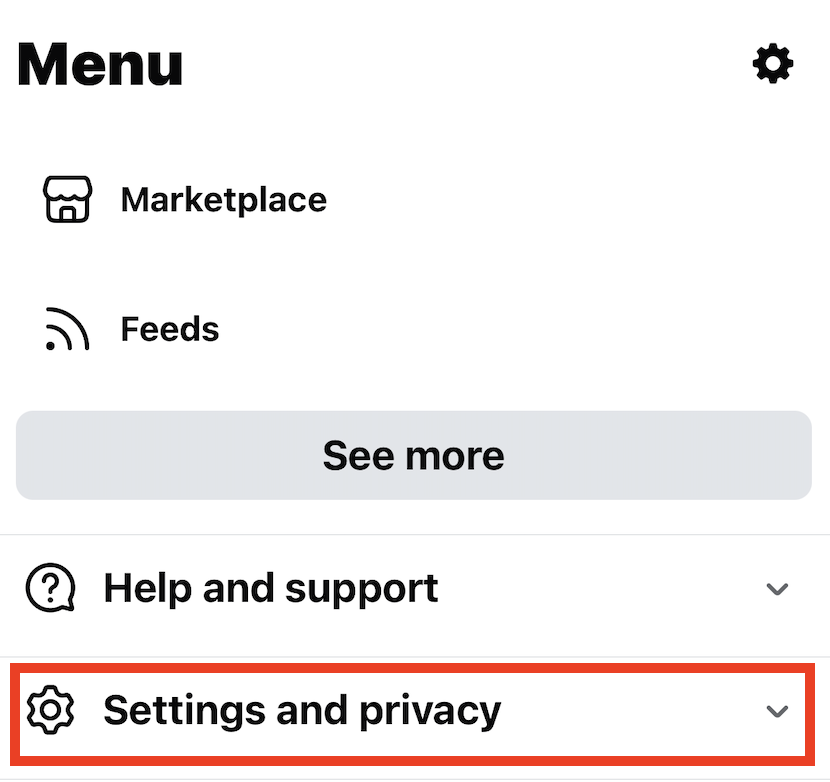
2. Click “Settings and privacy”
Select the “Settings and privacy” link.
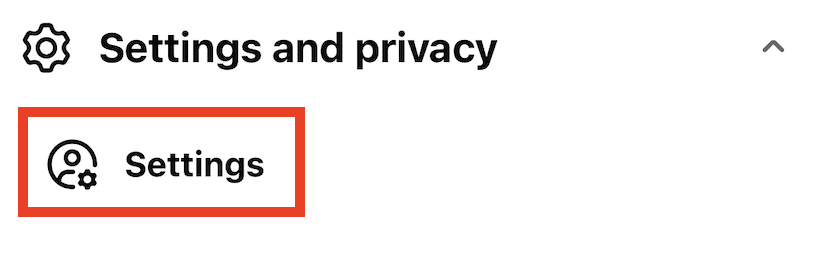
3. Click “Settings”
From the pop-up menu that appears, select “Settings.”
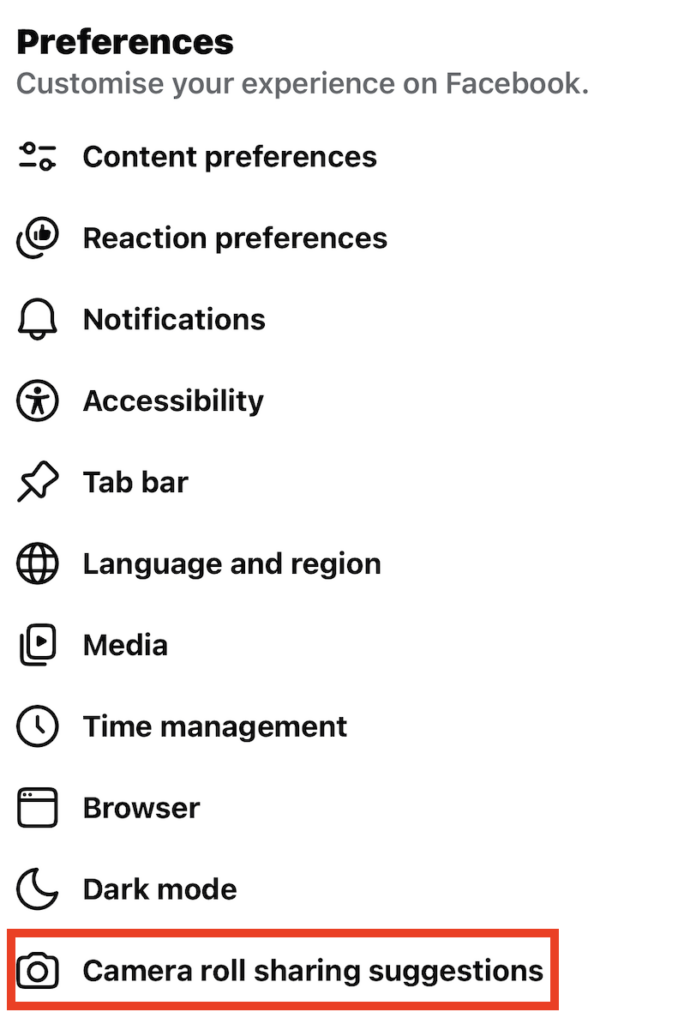
4. Click “Camera roll sharing suggestions”
Scroll down to ‘Preferences.’
Select the “Camera roll sharing suggestions” link.
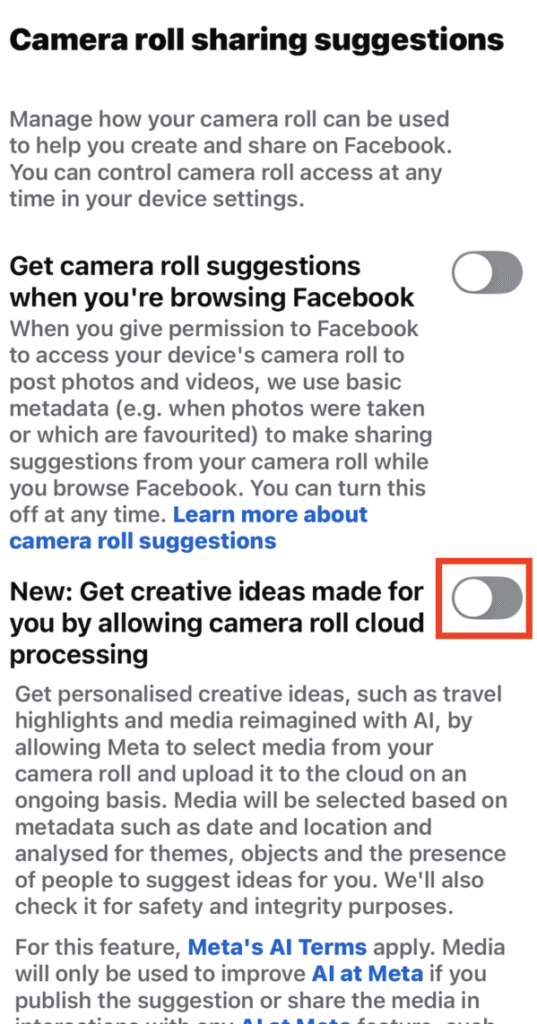
5. Toggle off the “New: Get creative ideas made for you by allowing camera roll cloud processing” setting
Check if the “New: Get creative ideas made for you by allowing camera roll cloud processing” setting is toggled on or off.
If it is toggled on, toggle it off.
I found the setting toggled off.
That’s it.
Don’t Forget Data Brokers and People Search Sites
Maxing out your Facebook’s AI privacy settings is a solid step toward better privacy, but there’s another layer of data exposure you shouldn’t overlook: data brokers.
- Setting your Facebook AI settings to maximum privacy limits how much of your public data Meta can pull into its AI training.
- Opting out of data brokers and people search sites keeps your data from being sold and exposed to strangers, scammers, and spammers.
These are companies that collect your personal information from sources like public records and social media, collate this information into comprehensive profiles (which contain your full name, address, phone number, who you’re related to, and more), and sell these profiles to more or less anyone. And all of this happens without your consent, and in most cases, without your knowledge.
Luckily, you can opt out of data brokers and people search sites by following our step-by-step data broker and people search site opt-out guides.
Opting out once isn’t enough, though. A lot of the time, data brokers and people search sites republish people’s personal information when they find more of it. So it’s worth re-checking these sites periodically and opting out again if you find you’ve been relisted.
Or, subscribe to a data broker removal company like DeleteMe to have your data broker profiles deleted on your behalf.

news?

Don’t have the time?
DeleteMe is our premium privacy service that removes you from more than 750 data brokers like Whitepages, Spokeo, BeenVerified, plus many more.
Save 10% on DeleteMe when you use the code BLOG10.
Related Posts


Julius AI Data Privacy Settings Guide