Cursor AI Privacy Settings Guide


Table of Contents
If you use Cursor AI, you’ll want to check its privacy settings.
Here is exactly what Cursor collects, what each privacy control actually does, and how to turn the right ones on.
Turn On Cursor AI Privacy Mode
When you create a Cursor AI account, you get to decide whether you want Privacy Mode on or off.
If you choose to turn Privacy Mode off or allow training (as I accidentally did), the company may use and store your codebase data, prompts, editor actions, code snippets, and other code data to improve its AI features and train its models.
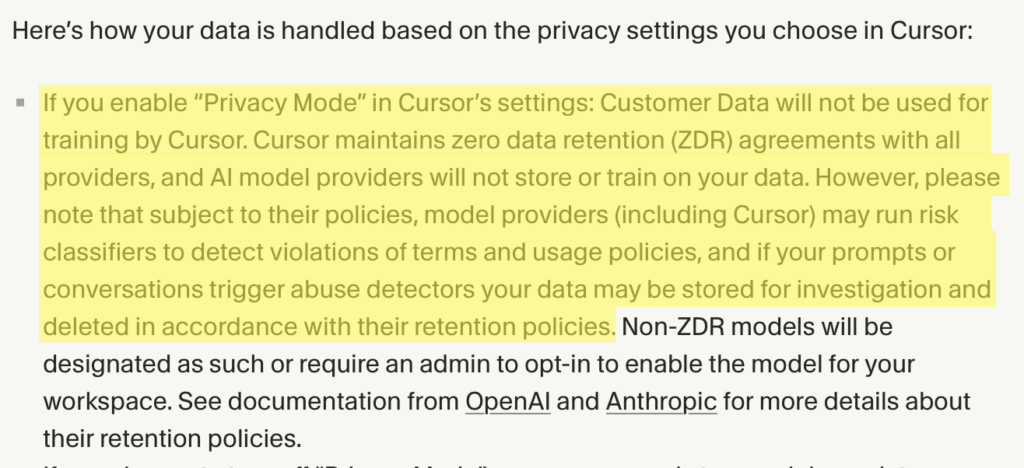
When Privacy Mode is on, Cursor’s documentation states that your code is never used for training, and that Cursor enforces zero data retention (ZDR) agreements with its model providers, specifically OpenAI, Anthropic, Google Vertex AI, and xAI Grok. Under those agreements, the providers cannot store your data or train on it.
However, Cursor’s data use page notes that even with Privacy Mode on, model providers may run risk classifiers to detect policy violations. If your prompts trigger an abuse detector, the data may be stored for investigation and then deleted in accordance with the provider’s retention policy.
Note: Cursor’s documentation states that ZDR does not apply when you use your own API key. In that case, your data handling follows your provider’s own privacy policy, not Cursor’s ZDR agreement. And as Cursor’s data use page explains, even with your own key, your requests still route through Cursor’s backend, because that is where the final prompt gets assembled.
Cursor’s Privacy Mode is available to anyone, free or Pro, and you can turn it on in your settings.
For Enterprise and team accounts, Cursor’s documentation says Privacy Mode is on by default, and admins can enforce it across the whole organization, so individual members cannot turn it off.
How to turn on Cursor AI Privacy Mode
You can set this setting in two places: the Cursor AI app or the web dashboard. You don’t need to do it in both (setting it in one changes it in the other, as well).
How to turn on Privacy Mode in the Cursor AI app
Here’s how you can turn on Privacy Mode in the Cursor AI app.
1. Click your profile name
In the Cursor AI app, click your profile name and icon in the bottom left.

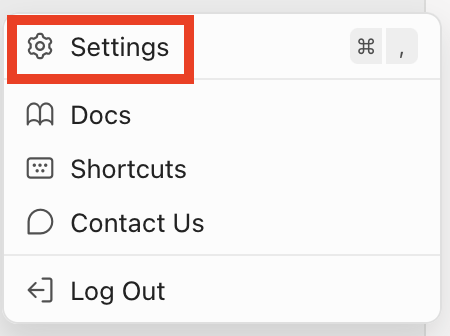
2. Click “Settings”
From the pop-up menu that appears, select “Settings.”
3. Click “Share Data” under ‘Privacy’
Under ‘Privacy,’ you will see either ‘Data Sharing’ or ‘Privacy Mode.’
If the ‘Data Sharing’ feature is turned on (as it was for me), click “Share Data” next to the setting.

4. Select “Privacy Mode”
From the pop-up that appears, select “Privacy Mode.”
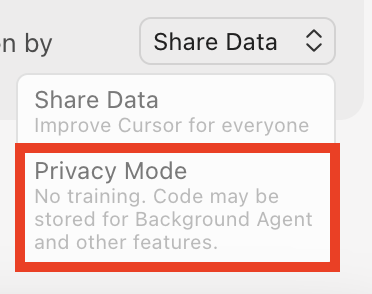
That’s it!
You will see the setting change to “Privacy Mode.”

How to turn on Privacy Mode in the Cursor AI web dashboard
Alternatively, you can turn on Privacy Mode via Cursor AI web dashboard.
1. Sign in to your Cursor account
Go to https://authenticator.cursor.sh/ and sign in to your Cursor account.
2. Click “Settings”
From the menu on the left side, click “Settings.”
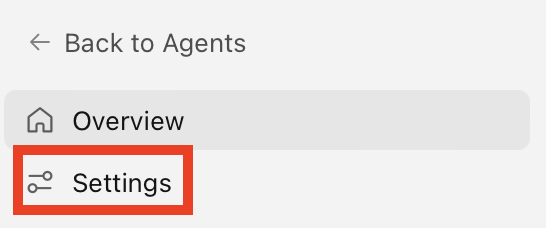
3. Click “Edit” next to ‘Share Data’
Under ‘Privacy,’ you will see either ‘Share Data’ or ‘Privacy Mode.’
If the ‘Share Data feature is turned on, click “Edit” next to the setting.

4. Select “Privacy Mode” and click “Done”
In the pop-up that appears, select “Privacy Mode.”
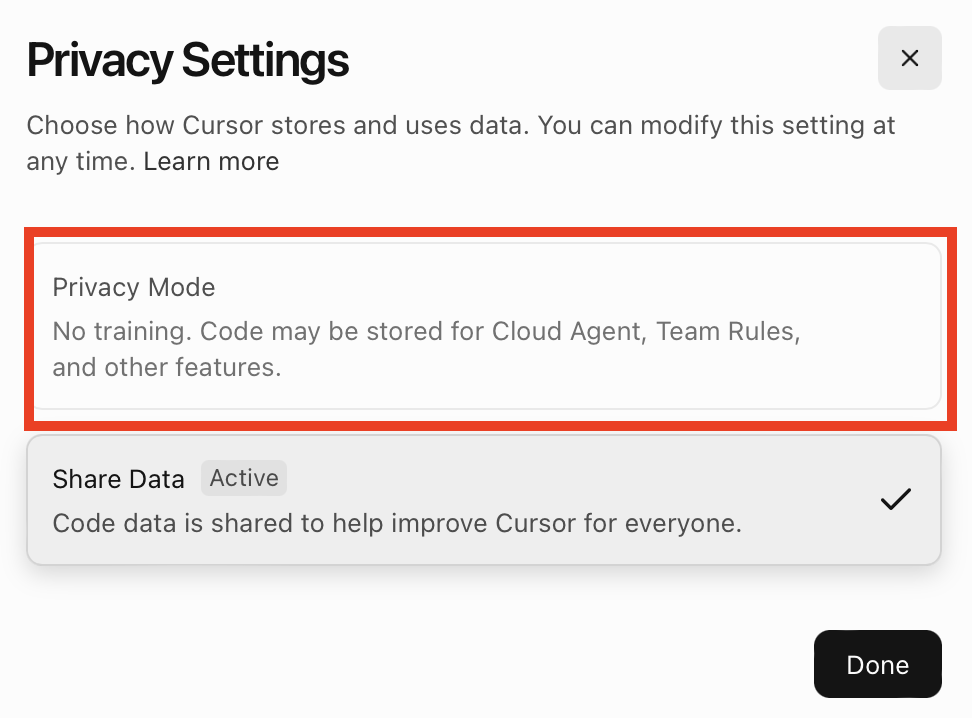
Type in “Privacy Mode.”
Then, click the “Done” button.
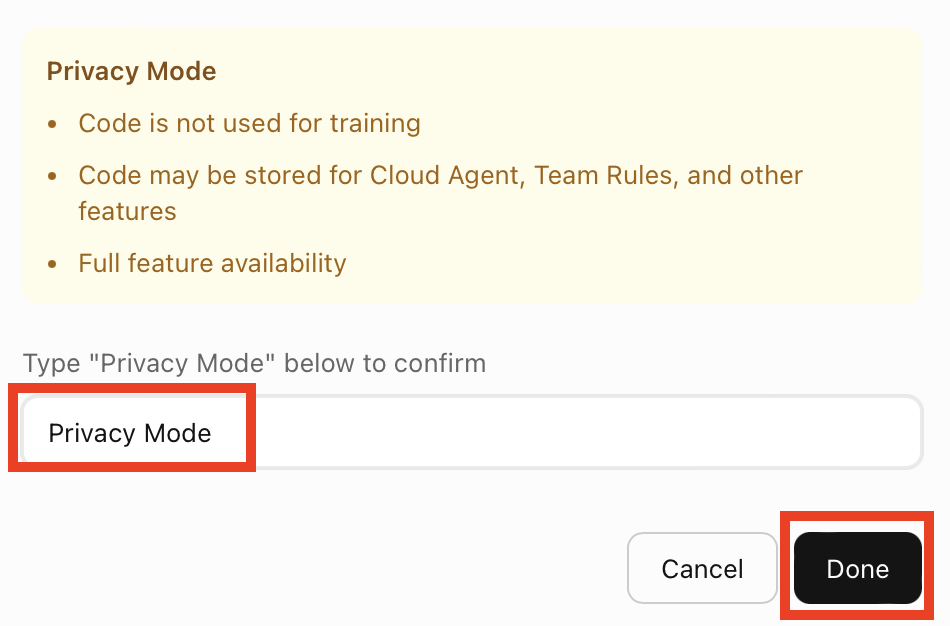
That’s it! You’ve successfully turned on Privacy Mode.

How to Control What Cursor AI Can Read and Index
Privacy Mode decides whether your data trains Cursor’s models, but it does not change what Cursor reads in the first place. If there are files you don’t want sent to the AI or indexed at all (e.g., a credentials file or anything sensitive), Cursor gives users two ignore files they can use for that.
According to Cursor’s ignore-file documentation, you can add a .cursorignore file to your project’s root folder, which makes a best-effort attempt to exclude the files you list from both AI features and indexing.

There is also a .cursorindexingignore file, which only controls what gets indexed for search and context.
Both work like a .gitignore: you list the files or folders you want excluded.
How to Delete Your Cursor AI Account
If you’re ready to delete your Cursor AI account, here’s how you can do so.
1. Sign in to your Cursor account
Go to https://authenticator.cursor.sh/ and sign in to your Cursor account.
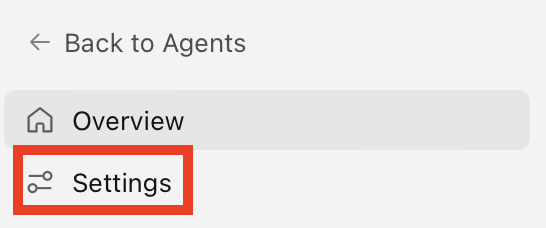
2. Click “Settings”
From the menu on the left side, click “Settings.”
3. Click “Delete” next to ‘Delete Account’
Scroll down to the very bottom.
Under ‘More,’ you’ll see ‘Delete Account.’
Click the “Delete” button.

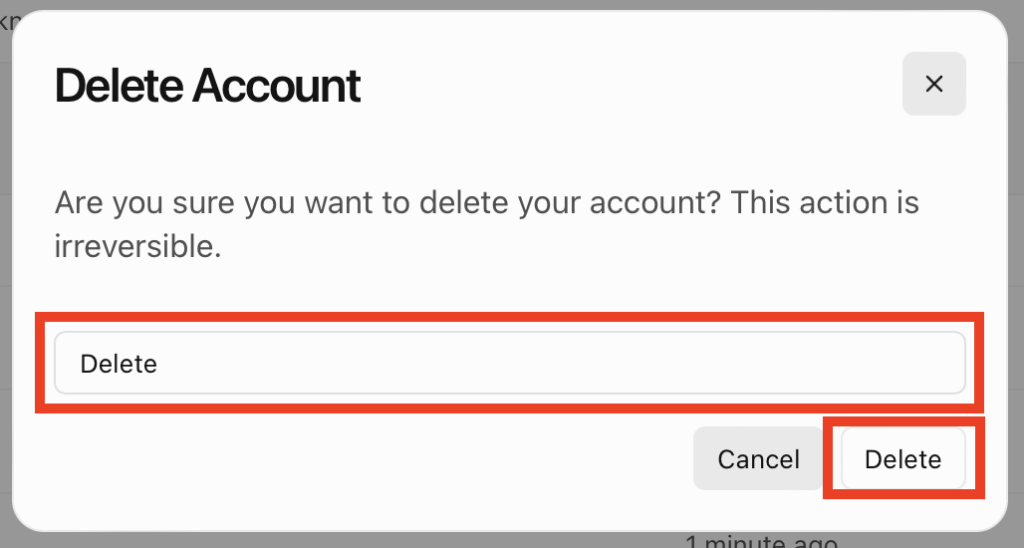
4. Type “Delete” and click “Delete”
A pop-up will appear asking if you’re sure you want to delete your Cursor AI account and warning that this action is irreversible.
Type in “Delete” and click the “Delete” button if you’re sure.
That’s it!
Don’t Forget Data Brokers and People Search Sites
Reviewing Cursor AI’s privacy settings is worth doing, but it doesn’t address a massive source of exposure elsewhere: data brokers.
- Turning on Privacy Mode, limiting what Cursor indexes, and clearing out chats you no longer need cuts down how much of your data Cursor keeps and what it can access.
- Getting yourself off data broker sites stops your personal details from being bundled together and sold to strangers, scammers, and spammers.
Data brokers are companies that collect information about you from sources like public records and social media. They combine those details into one profile, often displaying your full name, home address, phone number, relatives, and more, and then sell it to whoever is willing to pay for it.
The good news is that you can opt out. Our step-by-step opt-out guides take you through the process one data broker at a time.
A single round of opt-outs will not keep you off these sites for good, though. Data brokers tend to rebuild your profile whenever they come across new information about you, so it is worth re-checking these sites every few months and opting out again when you’ve reappeared.
If staying on top of that sounds like too much, a service like DeleteMe can find and remove your broker profiles for you.

news?

Don’t have the time?
DeleteMe is our premium privacy service that removes you from more than 750 data brokers like Whitepages, Spokeo, BeenVerified, plus many more.
Save 10% on DeleteMe when you use the code BLOG10.
Related Posts


Julius AI Data Privacy Settings Guide