Julius AI Data Privacy Settings Guide


Table of Contents
I don’t use Julius AI nearly as often as other AI chatbots, but I do have an account. So as part of my ongoing effort to improve my privacy across the AI tools I use, I went looking for its data privacy settings.
Here’s what I found.
Does Julius Train Its AI On Your Data?
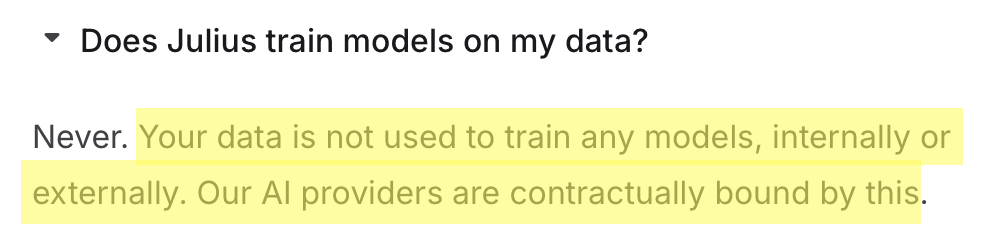
No, Julius does not train its AI on your data.
The company says that your data is never used to train any models, internally or externally, and that its AI providers are contractually bound by this commitment.
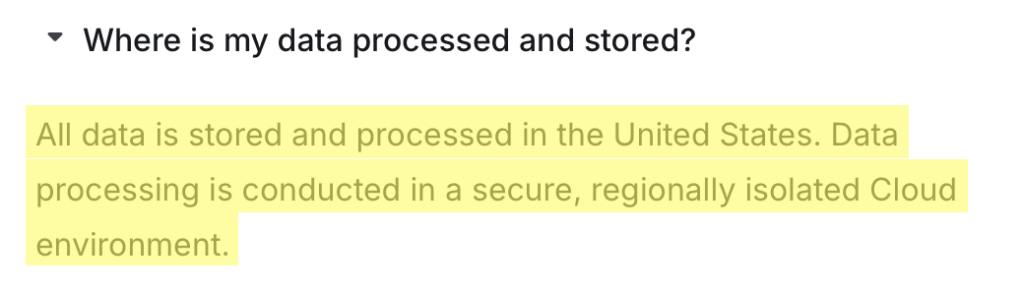
Where the data you upload to Julius AI lives
All of your data is stored and processed in the United States, in what Julius describes as a secure, regionally isolated cloud environment.
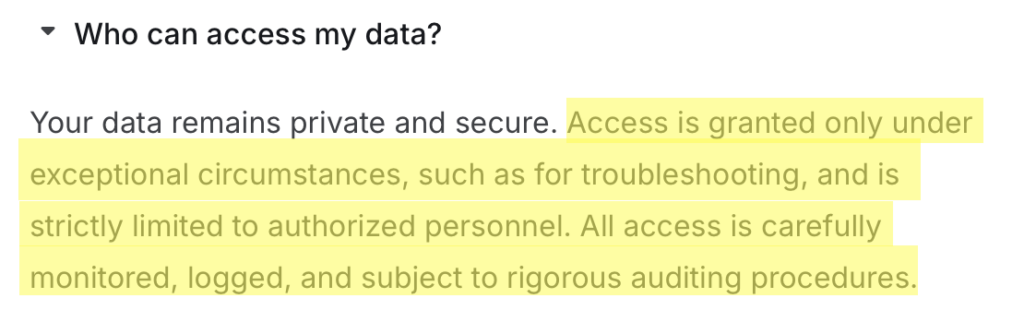
Julius says your data stays private and that internal access is granted only in exceptional cases, such as for troubleshooting, is limited to authorized personnel, and is logged and audited.
Delete Julius AI Chats
Even though Julius AI doesn’t use your data to train its AI models, it’s still worth deleting the chats you no longer need, since those conversations stay in your account until you remove them.
How to delete a single Julius AI chat
Here’s how you can delete a single Julius AI chat.
1. Sign in to Julius AI
Log in to your Julius AI account.
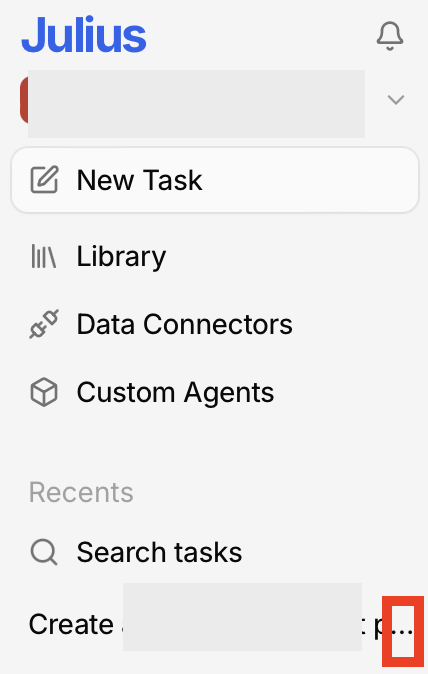
2. Click the three dots next to the chat you want to delete
From your Julius AI dashboard, move your cursor to the left side of your screen.
From the menu that appears, click the three-dot icon next to the chat you want to delete.
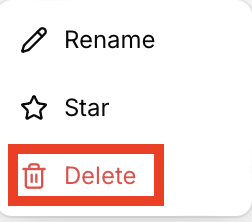
3. Click “Delete”
From the pop-up menu that appears, click the “Delete” link.
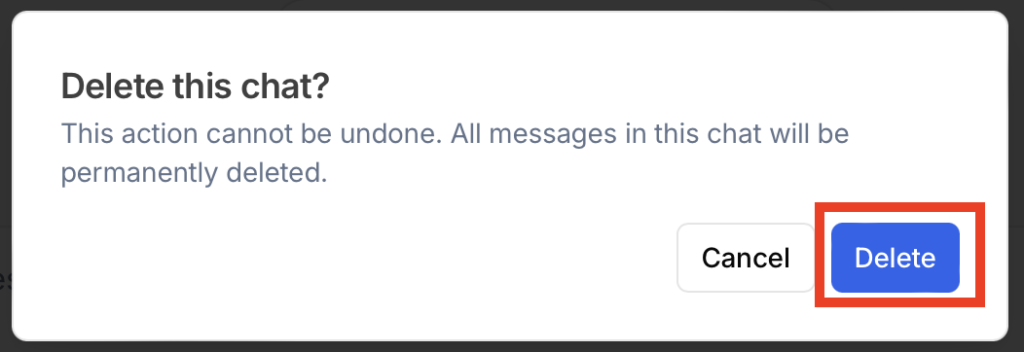
4. Click “Delete” (again)
Julius AI will now ask you if you’re sure you want to delete this chat, as this action cannot be undone.
Select the “Delete” button if you’re sure.
That’s it!
How to delete all Julius AI chats
If you’re ready to delete all of your Julius AI chats, you’ll need to go to your Julius AI account settings. Here’s the exact step-by-step process.
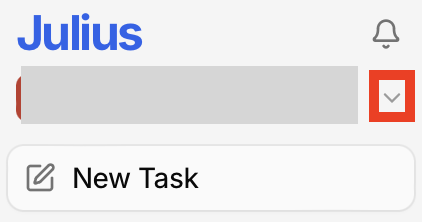
1. Log in to Julius AI and click the dropdown arrow next to your email address
After you log in to Julius AI, move your cursor to the left side of your screen.
From the menu that appears, click the dropdown arrow next to your email address (top of the screen).
2. Click “Account Settings”
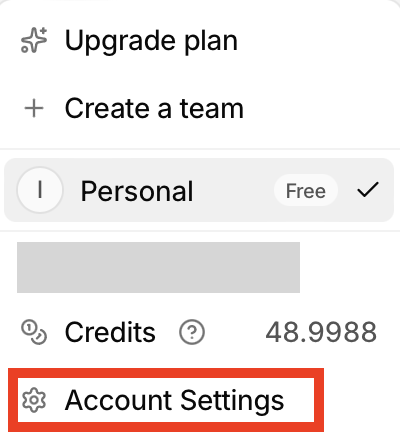
From the menu that appears, select “Account Settings.”
3. Click “Account”
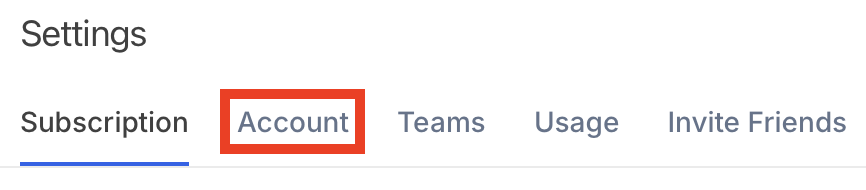
Click the “Account” link from the top menu.
4. Click “Delete All Chats”
Scroll down to the very bottom until you see ‘Danger Zone.’
Click the “Delete All Chats” button.

5. Click “Delete All Chats” (again)
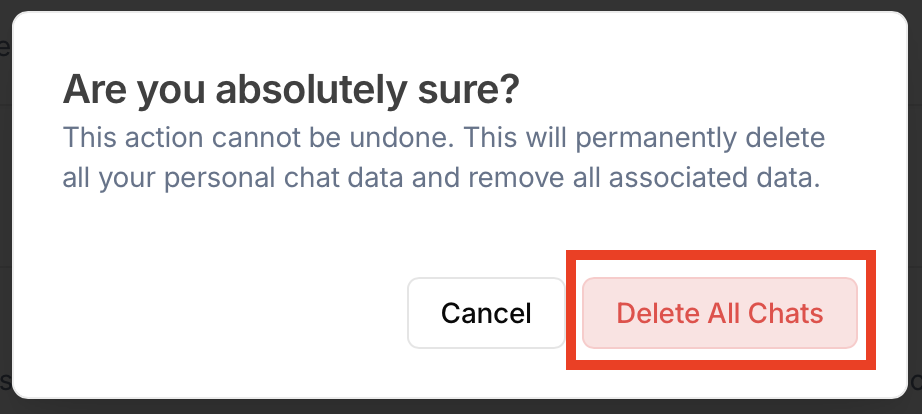
A pop-up will appear asking if you’re sure you want to delete all chats, as this action cannot be undone and will result in the permanent deletion of all your personal chat data and associated data.
Click the “Delete All Chats” button if you’re sure.
That’s it!
All of your Julius AI chats have been deleted.
How to Delete Julius AI Notebooks
You can also delete your notebooks (saved, reusable workflows) in Julius AI.
Here’s how.
1. Log in to Julius AI and click the dropdown arrow next to your email address
After you log in to Julius AI, move your cursor to the left side of your screen.
From the menu that appears, click the dropdown arrow next to your email address (top of the screen).
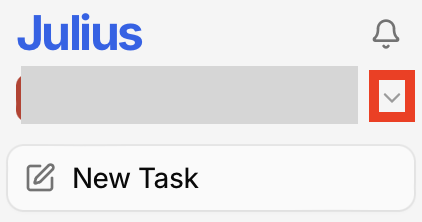
2. Click “Account Settings”
From the menu that appears, select “Account Settings.”
3. Click “Account”
Click the “Account” link from the top menu.
4. Click “Delete All Notebooks”
Scroll down to the very bottom until you see ‘Danger Zone.’
Click the “Delete All Notebooks” button.

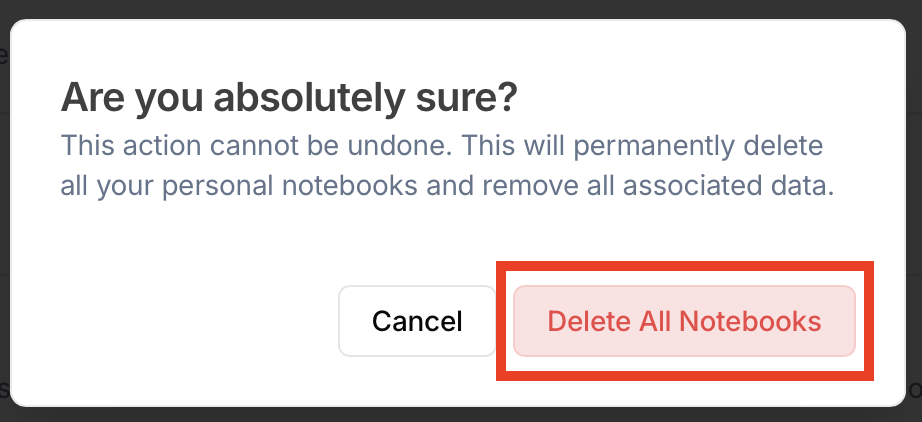
5. Click “Delete All Notebooks” (again)
A pop-up will appear asking if you’re sure you want to delete all your personal notebooks, as this action cannot be undone and will result in the permanent deletion of all your personal notebooks and any associated data.
Click the “Delete All Notebooks” button if you’re sure.
That’s it!
How to Disconnect a Julius AI Connector
Disconnect any connectors you’re not actively using on Julius AI to cut off standing access to sensitive data if your account or Julius AI is ever compromised.
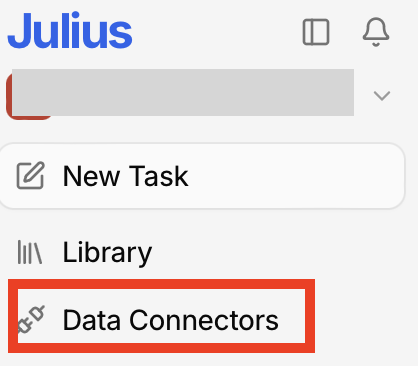
1. Log in to Julius AI and click “Connectors”
After you log in to Julius AI, move your cursor to the left side of your screen.
From the menu that appears, click “Data Connectors.”
2. Click “Disconnect” next to any connection you’ve made
Scroll through the page to see if you’ve turned on any connections.
If you have and want to disconnect them, hover over the “Connected” button.
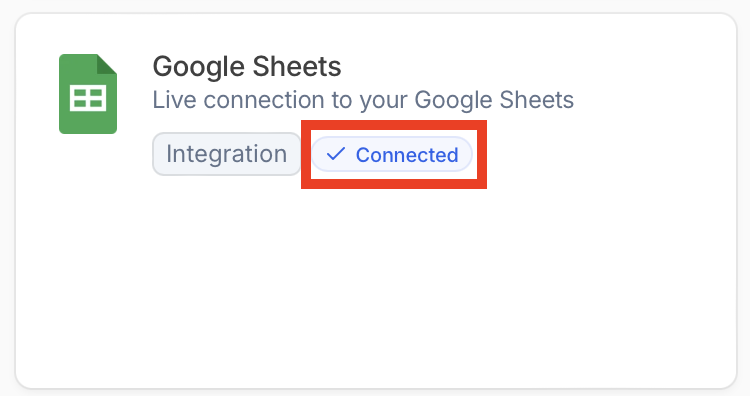
The button will change to “Disconnect.”
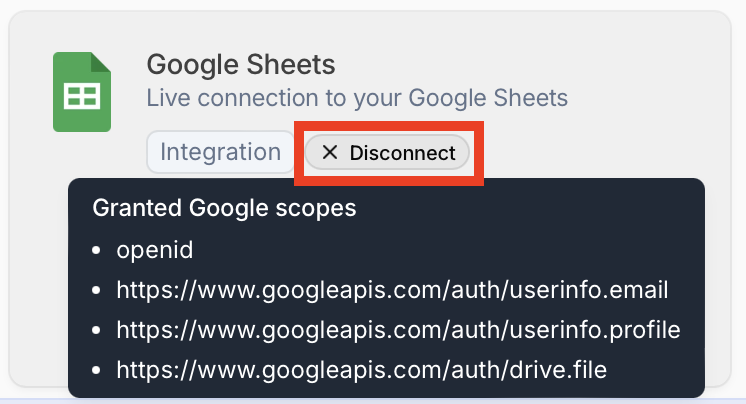
Click the “Disconnect” button.
That’s it!
How to Download Julius AI Data
If you decide you want to delete your Julius AI account, you may want to download your data first. Here’s how to do that.
1. Log in to Julius AI and click “Library”
After you log in to Julius AI, move your cursor to the left side of your screen.
From the menu that appears, select “Library.”
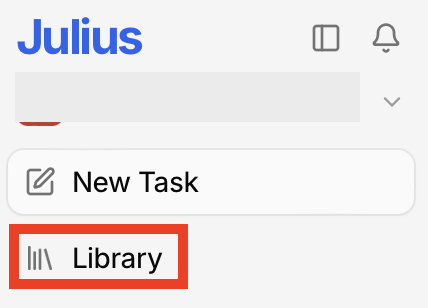
2. Click the type of asset you want to download
Select the type of asset (files, charts, images, reports, slides, and artifacts) you want to download.

3. Tick the box next to the content you want to download
Tick the box beside the content you want to download.
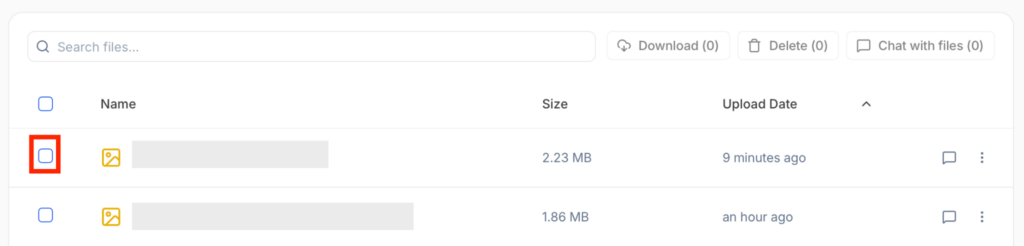
Alternatively, tick the box above the content to select all content in that content type.
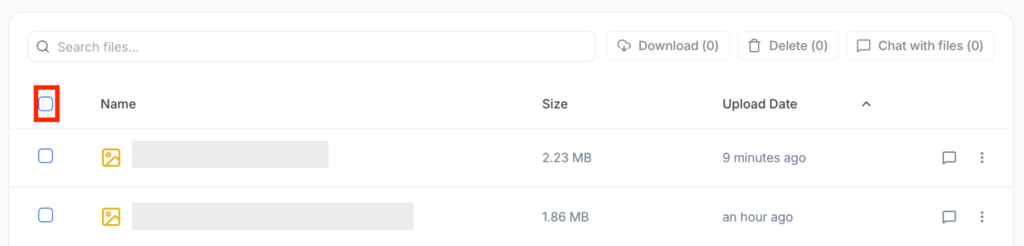
4. Click “Download”
Select the “Download” button next to the search bar.

That’s it!
How to Delete Julius AI Account
Of course, the most complete privacy option is to delete your Julius AI account altogether. Deleting your Julius AI account will delete all of your files, chats, and notebooks.
This action is not reversible, so download any analysis, charts, or notebooks you want to keep first.
1. Log in to Julius AI and click the dropdown arrow next to your email address
After you log in to Julius AI, move your cursor to the left side of your screen.
From the menu that appears, click the dropdown arrow next to your email address (top of the screen).
2. Click “Account Settings”
From the menu that appears, select “Account Settings.”
3. Click “Account”
Click the “Account” link from the top menu.
4. Click “Delete Account”
Scroll down to the very bottom until you see ‘Danger Zone.’
Click the “Delete Account” button.

5. Click “Delete Account”
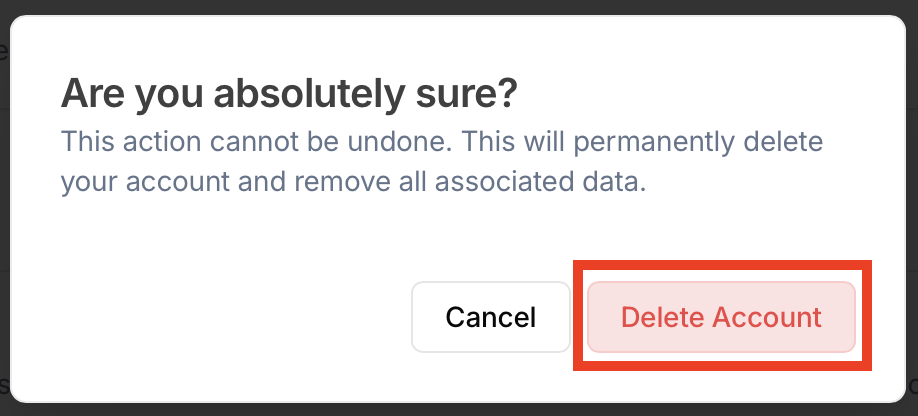
A pop-up will appear asking if you’re sure you want to delete your account, as this action cannot be undone and will result in the deletion of your Julius AI account and all associated data.
Click the “Delete Account” button if you’re sure.
That’s it!
Don’t Forget Data Brokers and People Search Sites
Tightening your Julius AI settings only covers one corner of your digital footprint. A much larger source of exposure sits elsewhere: data brokers.
- Deleting your chats, notebooks, and unused connectors means Julius AI keeps less of your data and has access to less of it.
- Removing yourself from data brokers stops your information from being packaged up and sold to strangers, scammers, and spammers.
Data brokers are businesses that gather details about you from places like public records and social media. They combine those data points into a single profile, often listing your full name, home address, phone number, relatives, and a great deal more, then put it up for sale to anyone who wants it.
The good news is that you can get yourself removed. Our step-by-step opt-out guides walk you through the removal process site by site.
One round of opt-outs won’t keep you off these sites forever, though. The reason why is that data brokers routinely rebuild your profile when they come across more information about you, so it’s a good idea to re-check these sites every few months and opt out again whenever you resurface.
If keeping up with that sounds like a chore, a removal service such as DeleteMe can track down and take down your broker profiles for you.

news?

Don’t have the time?
DeleteMe is our premium privacy service that removes you from more than 750 data brokers like Whitepages, Spokeo, BeenVerified, plus many more.
Save 10% on DeleteMe when you use the code BLOG10.
Related Posts


Julius AI Data Privacy Settings Guide