Google AI Privacy Settings Guide


Table of Contents
Google’s products are part of my daily life, from search and email to maps and translation. However, though useful, I’ve come to realize that all that use means Google can collect a lot of information about me and use it to train its AI.
So, I went looking for Google AI privacy settings. This is what I found.
Turn Off Gemini Keep Activity
If you use Google’s AI assistant Gemini, you’ll want to turn off the ‘Keep Activity’ setting, which is on by default.
This setting allows Google to use your conversations with the AI assistant to train its models.
Additionally, some of these conversations may be reviewed by Google human reviewers, which is why Google warns not to share details “you wouldn’t want reviewed or used.”
!["Human review some saved chats to improve Google AI. [...] If this setting is on, don't enter info that you wouldn't want reviewed or used."](https://joindeleteme.com/wp-content/uploads/2026/07/googleaihumanreview-1024x276.png)
If you turn ‘Keep Activity’ off, your information will no longer be used for AI model training (except if you share feedback on a specific Gemini response).
That said, it’s important to highlight that regardless of whether ‘Keep Activity’ is on or off, your conversations are still saved for 72 hours so that the company can give responses, protect individuals from abuse, and process feedback.
How to turn off Gemini Keep Activity
Follow the steps below to turn off Gemini’s ‘Keep Activity.’
1. Navigate to Gemini Apps activity
Go to the ‘Gemini Apps activity’ page located at the following URL: https://myactivity.google.com/u/1/product/gemini.
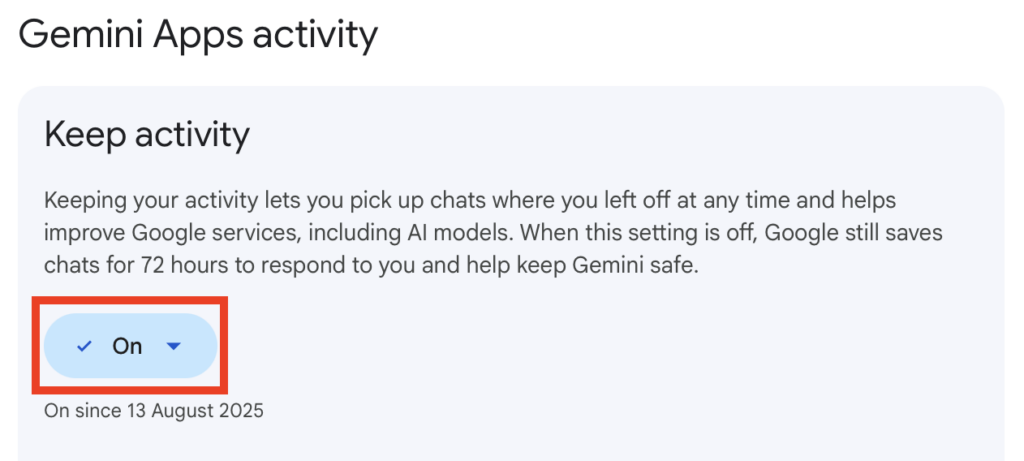
2. Select “On”
‘Gemini Apps activity’ is the page where you can see whether the ‘Keep activity’ setting is on or off.
If it is “Off,” you don’t need to do anything, as this means the ‘Keep activity’ setting is already off for you.
However, if it is “On,” you will need to switch it off.
To do that, click “On.”
3. Click “Turn off” or “Turn off and delete activity”
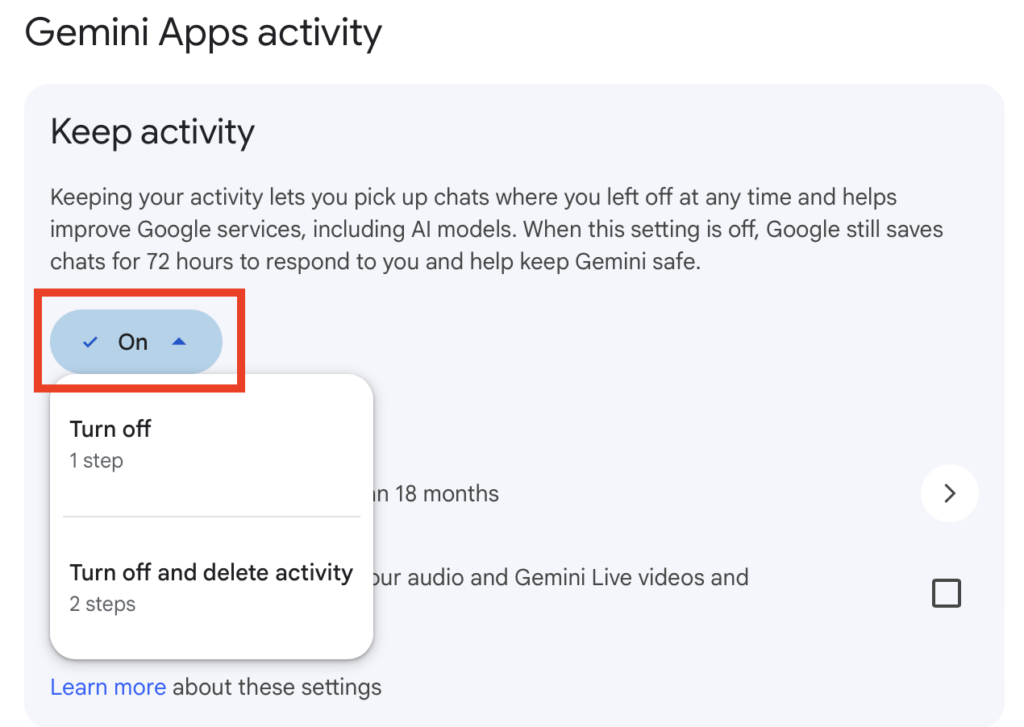
You have a choice between:
- Simply turning the Gemini ‘Keep activity’ setting off.
- Turning the setting off and also deleting activity.
I’ll walk you through both options below.
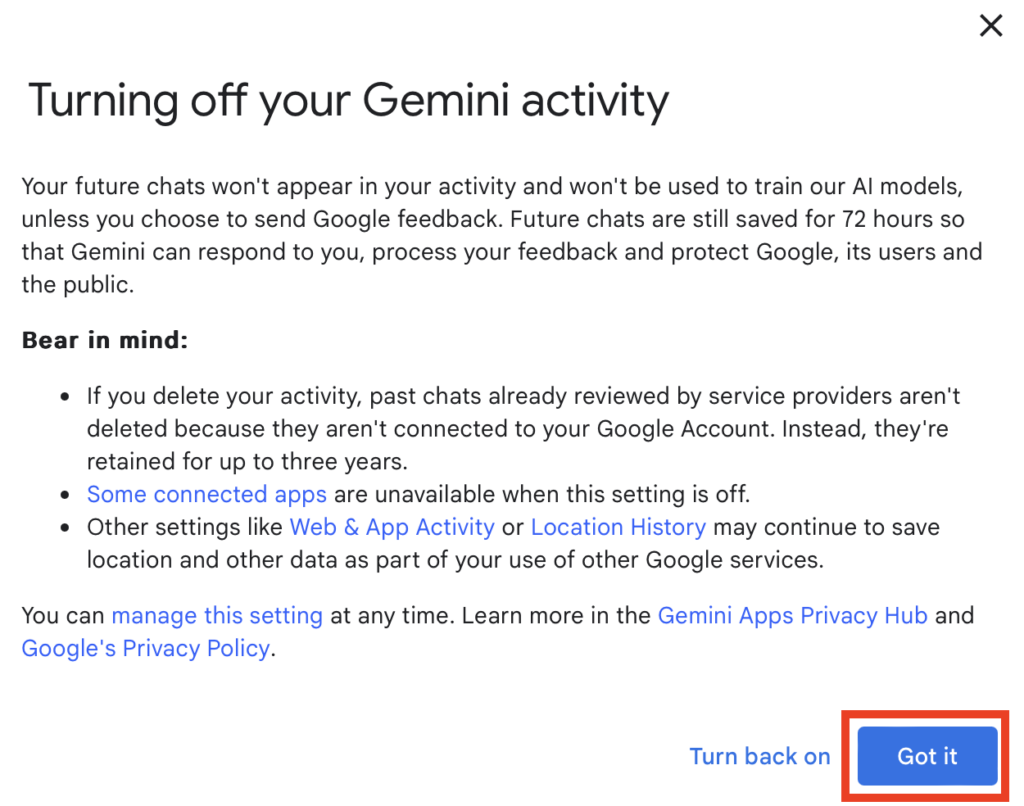
3a. Hit “Turn off” and click “Got it”
To just turn off Gemini’s’Keep activity,’ hit “Turn off.”
Then, on the informational pop-up that appears, click “Got it.”
3b. Click “Turn off and delete activity,” “Next,” and “Delete”
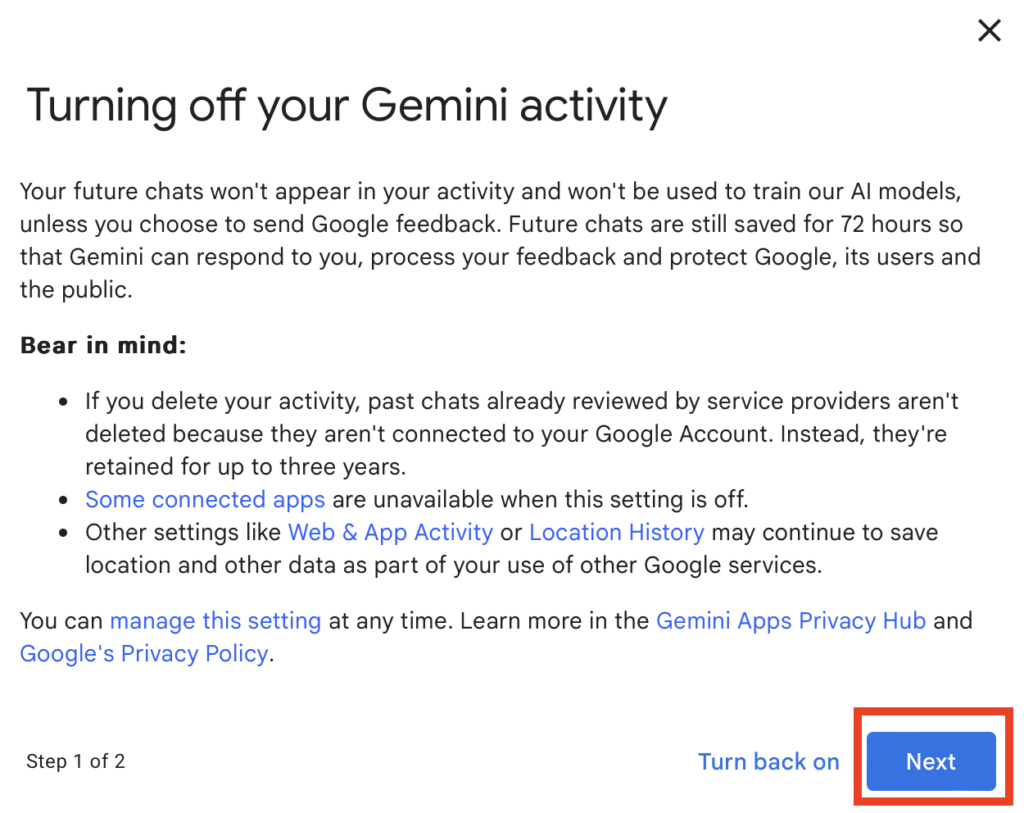
To turn off and also delete activity, select “Turn off and delete activity.”
Then, on the informational pop-up that appears, click “Next.”
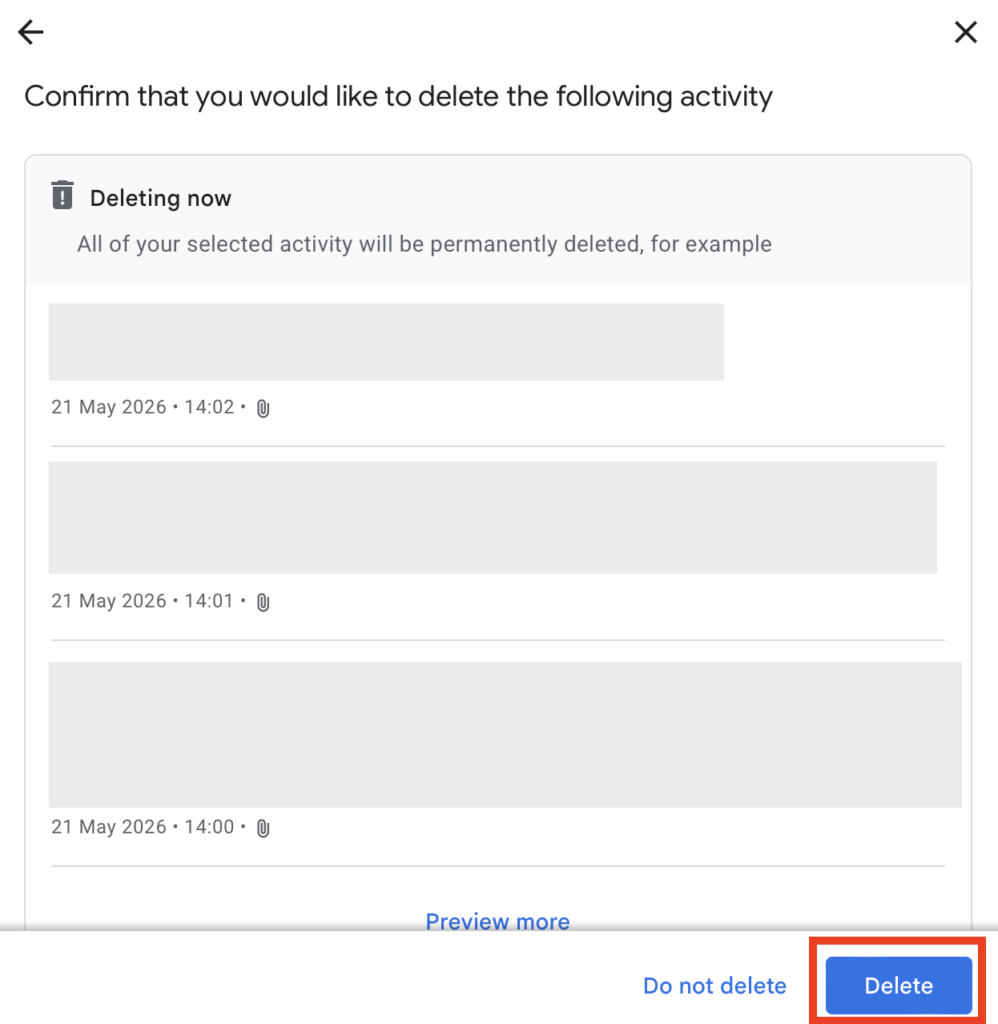
Then, click “Delete” to confirm your choice.
That’s it!
Note: For more information on Gemini privacy settings, see our dedicated guide.
Opt Out of Smart Features In Gmail and Google Workspace
Google’s “smart features” is a setting that, if turned on, can use your Workspace content and activity to personalize your experience in Gmail, Chat, and Meet, and across other Google products, as well as to improve its services.
How to opt out of smart features in Gmail
If Google’s “smart features” setting is turned on in your Gmail, then Google’s AI can scan your emails and give you personalized assistance, such as reply suggestions and inbox sorting.
Here’s how you can opt out of the smart features setting in your Gmail.
1. Go to your Gmail and click the cog icon
Log in to your Gmail inbox.
In the top right corner of your screen, click the cog (“settings”) icon.

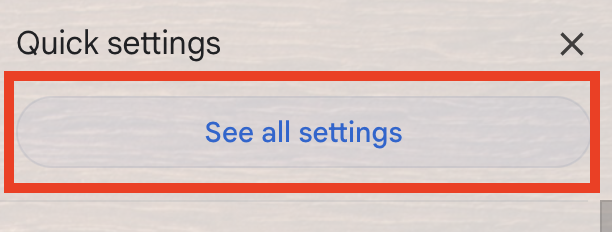
2. Hit “See all settings”
A pop-up menu will show up.
Select “See all settings.”
3. Untick the “Smart features” checkbox
Untick the checkbox next to the ‘Smart features’ setting.

4. Click the “Turn off and reload” button
In the pop-up window that appears, click “Turn off and reload.”
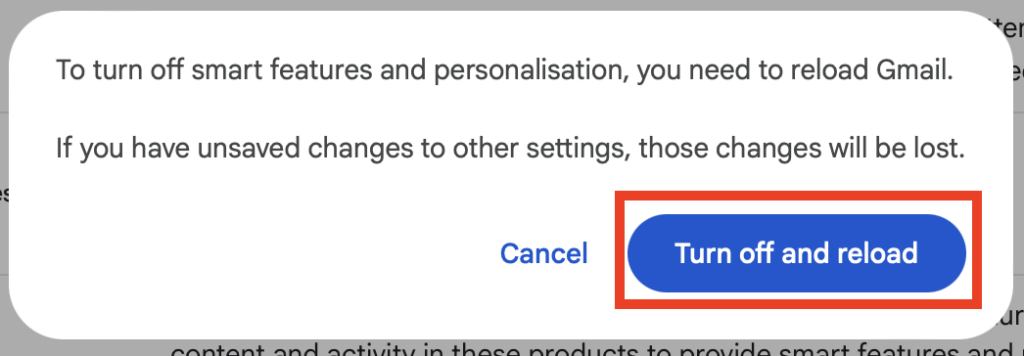
Your Gmail will reload automatically, and the smart features setting will no longer be active.
Opt out of smart features in Google Workspace
If Google’s “smart features” setting is turned on in your overall Google Workspace, then Google can scan your documents and other content to personalize your experience and improve its own services.
Here’s how you can turn smart features off in your Google Workspace.
1. Go to your Gmail and click the cog icon
Log in to your Gmail inbox.
In the top right corner of your screen, click the cog (“settings”) icon.
2. Hit “See all settings”
A pop-up menu will show up.
Select “See all settings.”
3. Click the “Manage Workspace smart feature settings” button
Hit the “Manage Workspace smart feature settings” button next to ‘Google Workspace smart features.’

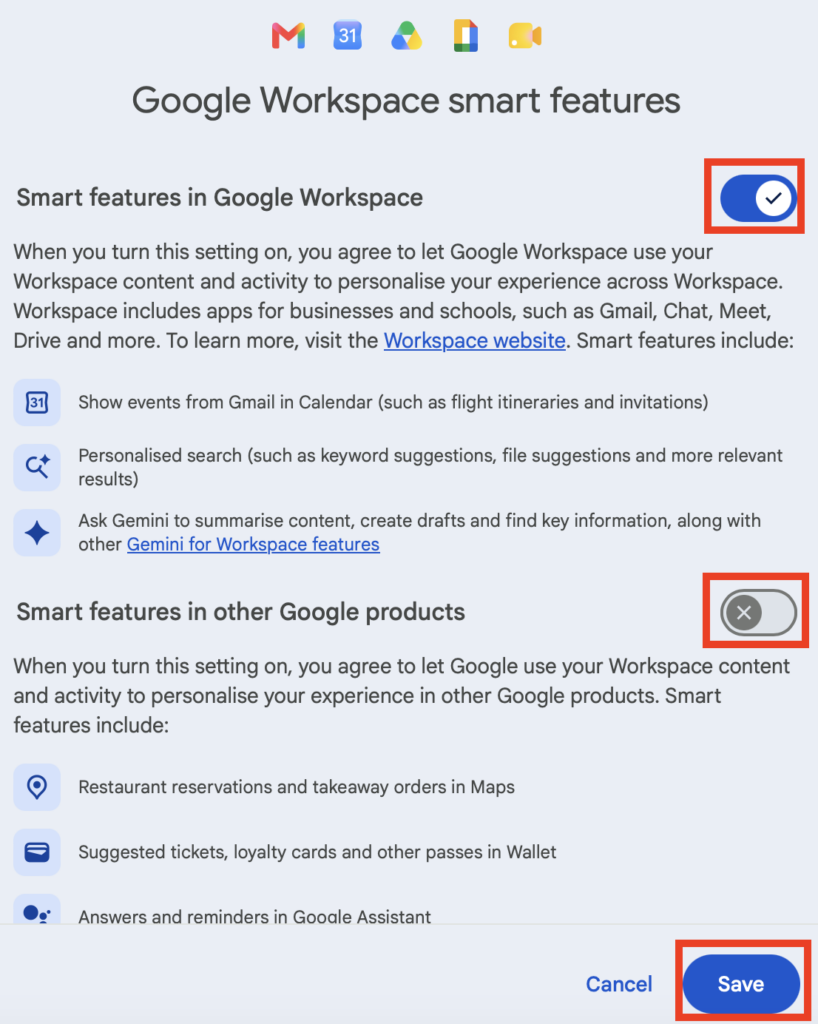
4. Toggle off the smart features settings
In the pop-up that appears, check to see if the smart features setting is on in your Google Workspace and other Google products.
If the settings are on, untoggle them.
Then, hit “Save.”
That’s it!
Your preferences will now be saved.

Opt Out of Search Services History
Google has split its old activity settings into two new controls, and one of them is Search Services History.
It can save the media you share when you use Search features, not just your typed searches. So if you upload a photo to Lens, record a voice query, or submit a video for AI analysis, copies of those can be saved to your account history instead of being processed and discarded.
Whether this is already on for you depends on your previous settings. If your Web & App Activity was turned on before, Search Services History is on now too. Either way, you can turn it off, or keep your history, but switch off just the media-saving part.
Note: If you don’t see this setting, that means it hasn’t been rolled out to your Google account yet.
How to opt out of Search Services history
Here’s how you can opt out of Search Services history.
1. Sign in to your Google account and go to ‘My Google Activity’
Log in to your Google account.
Then, navigate to the ‘My Google Activity’ page: https://myactivity.google.com/myactivity
2. Click “Turn off” beside ‘Search Services History’
Check if the ‘Search Services History’ setting is on.
If it is, click “Turn off.”
3. Click “Turn off” or “Turn off and delete activity”
You can choose between two options:
- “Turn off”
- “Turn off and delete activity”
When you select ‘Turn off and delete activity,’ you’ll be guided through the process of choosing which activity to remove and confirming your selection.”
Don’t Forget Data Brokers and People Search Sites
Changing Google’s AI settings to suit your preferences is a good step, but it only covers one part of your privacy. Once you’ve worked through the settings above, it’s worth opting out of data brokers and people search sites, too.
The two tackle different problems:
- Adjusting Google’s AI settings limits how much of your activity Google can use to personalize your experience and improve its products and services.
- Opting out of data brokers and people search sites limits how much of your personal information is sitting on the web for anyone to find.
Data brokers and people search sites are companies that gather your details from sources like public records and social media, build them into detailed profiles, then sell or share those profiles.
With nothing more than your name, phone number, or address (and sometimes just an email or username), someone can use one of these sites to find out where you work, who you’re related to, and more. They also tend to appear on the first page of Google when someone looks you up.
The good news is you can get yourself removed. Our data broker and people search site opt-out guides walk you through how to do so.
However, it’s worth noting that these sites usually relist you after a while, so a single opt-out won’t keep you off them forever. Set a reminder to recheck them every few months, and send a new removal request anytime you notice that your profile has resurfaced.
If you’d rather not do all this manually, a removal service like DeleteMe can take it off your plate. Our privacy experts handle the opt-outs for you and keep watch so your information stays off these sites.

news?

Don’t have the time?
DeleteMe is our premium privacy service that removes you from more than 750 data brokers like Whitepages, Spokeo, BeenVerified, plus many more.
Save 10% on DeleteMe when you use the code BLOG10.
Related Posts


Julius AI Data Privacy Settings Guide