Adobe AI Assistant Privacy Settings Guide


Table of Contents
Turns out, I’ve been overlooking Adobe AI Assistant privacy settings, even though I open PDFs in Adobe Acrobat almost every day and lean on the AI features without thinking twice.
I’d just click “Ask AI Assistant,” get my summary, and move on to something else. It wasn’t until I read the fine print that I realized the document I was working on had been sent off to Adobe’s servers to make that summary happen.
That sent me looking for what I could actually control via Adobe AI assistant privacy settings.
Here’s what I found.
What Adobe Does With Your Data
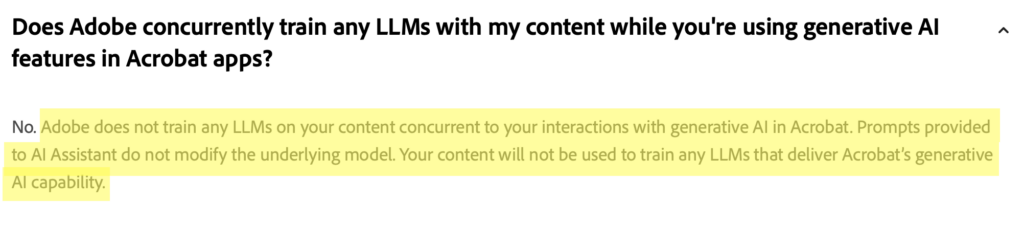
Not much. Adobe says that it does not use your content to train its AI models.
According to Adobe’s generative AI guidelines for Document Cloud, your prompts don’t modify the underlying model, and the content you share with the AI Assistant isn’t used to train the large language models behind the feature.
However, you may still want to adjust your privacy settings. The reason? Adobe’s cloud processing.
When you use the AI Assistant or a generative summary, your document has to leave your computer.
As Adobe’s own documentation explains, Acrobat extracts the content, sends it to Adobe’s servers, and caches it for 12 hours.
After that window, Adobe says it automatically deletes the uploaded documents, your prompts, and the generated responses from its cloud storage. The exception is anything you flag as harmful or offensive, which is kept for 30 days.

Normal Acrobat tasks (opening, editing, signing, searching a PDF) happen locally on your machine, but the AI features send your document to Adobe’s servers to work. Adobe AI Assistant privacy settings let you control whether that happens.
How to Turn Off Adobe Acrobat Generative AI
To stop your documents from being sent to the cloud, toggle off Adobe Acrobat’s generative AI features (turned on by default).
Here’s how.
1. Close all open documents
Close every open PDF in Acrobat first. The setting won’t work if you still have documents open.
2. Open Preferences and go to Generative AI
Depending on what OS you use, the setting is located in a slightly different place.
- In Windows, click “Menu” (the three lines icon) in the top left, then select “Preferences” and then click “Generative AI.”
- In macOS, click “View,” then “Preferences,” and then “Generative AI.”
3. Turn off ‘Enable generative AI features’
Untick the ‘Enable generative AI features in Acrobat’ checkbox.

4. Click “OK”
Select “OK” to save.
Restart Acrobat to make sure the changes are saved.
With this setting ticked off, your documents will no longer be sent to Adobe’s servers for AI processing.
How to Clear AI Assistant Chat History
If you’ve used the assistant before turning it off, you can delete your past sessions rather than leaving them sitting in your history.
Doing so is really simple.
1. Go to a document where you used the AI Assistant
Open up a document in which you’ve used the AI Assistant feature.
2. Click the three-dot icon
Select the three-dot icon (“Options”).
3. Select “Clear chat history” and then “Clear history”
From the pop-up window that appears, select “Clear chat history.”
Then, click “Clear history” to confirm your choice.
That’s it! You’ve cleared your chat.
What Happens After You Change Adobe AI Assistant Privacy Settings
Once the generative AI feature is off, the AI Assistant and generative summaries stop working, and your documents stay on your device when you use Acrobat’s standard tools.
How to Contact Adobe
You can contact Adobe through the Adobe Help Center, which has a “Contact us” option that opens live chat or a support ticket.
For data and privacy requests specifically, you can use the form linked in the Adobe Privacy Policy, which is also how you can ask for earlier deletion of any content you flagged as harmful or offensive, which is by default retained for 30 days.
Don’t Forget Data Brokers and People Search Sites
You’ve reviewed your Adobe AI Assistant privacy settings. Don’t forget to also review your data broker and people search site exposure.
- Adjusting your Adobe AI Assistant privacy settings gives you control over whether the AI features run at all, and over the history they leave behind.
- Opting out of data brokers and people search sites reduces how much information is available about you to anyone who wants it.
Data brokers and people search sites are companies that collect your personal information from sources like public records and social media sites, put this information together in the form of a comprehensive profile, and then share or sell these profiles to anyone who wants them.
Anyone can use data brokers and people search sites to find out your personal details, including your full name, where you live, where you work, what your phone number is, and who you’re related to, among other things.
If you don’t like the idea of your data being so easily accessible, you’ll be happy to know that you can remove yourself from these sites. See our step-by-step data broker and people search site opt-out guides to learn how.
However, note that opting out once may not be enough. Data brokers and people search sites tend to republish people’s profiles when they come across more of their data online. For this reason, opt-outs need to be continuous. If you notice that a people search site has listed your information again, even though you previously opted out, you’ll need to send another opt-out request.
If you don’t have the time for manual opt-outs, you can instead subscribe to a data broker removal service like DeleteMe. We will delete your data from data brokers and people search sites on your behalf and re-submit opt-outs as needed.

news?

Don’t have the time?
DeleteMe is our premium privacy service that removes you from more than 750 data brokers like Whitepages, Spokeo, BeenVerified, plus many more.
Save 10% on DeleteMe when you use the code BLOG10.
Related Posts



Julius AI Data Privacy Settings Guide