ChatGPT Privacy Settings Guide


Table of Contents
Like (probably) most people, I use ChatGPT, but I’ve never actually looked into ChatGPT’s privacy settings.
Until now. Turns out I’d been agreeing to a lot without knowing it.
By default, ChatGPT can use your conversations to train its AI models, remember details about you across chats, hold onto cookies from its browser sessions, and keep any links you’ve shared live indefinitely.
The good news is that you control all of this. In my experience, most of these settings take only a few minutes to change.
In this guide, I’ll walk through every ChatGPT privacy setting I found, explain what each one actually does, and show you how to adjust it, step by step.
Stop ChatGPT from Training On Your Data
First things first: whether ChatGPT uses your data to train its AI models depends on what plan you’re on.
- Personal plan: If you’re on ChatGPT Free, Plus, or Pro, ChatGPT uses your inputs and outputs to train its AI models by default (i.e., you’re automatically opted in).
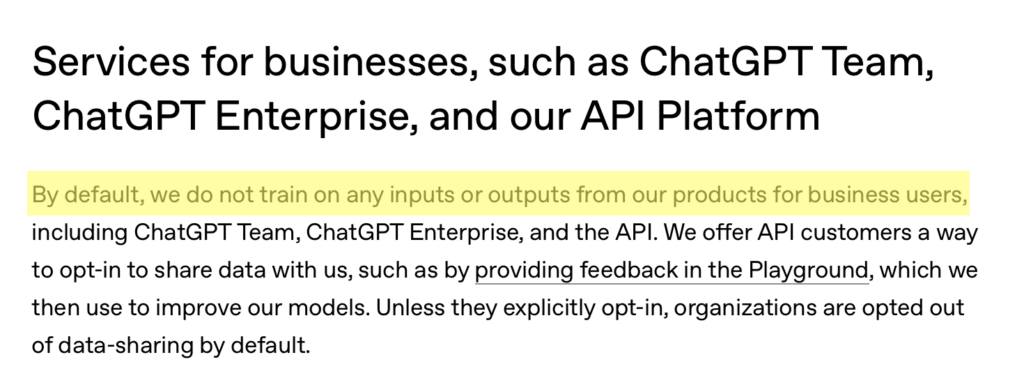
- Business or education plan: If you’re on ChatGPT Teams, ChatGPT Enterprise, ChatGPT Edu, ChatGPT for Teachers, or the API Platform, ChatGPT by default does not train on your inputs and outputs.
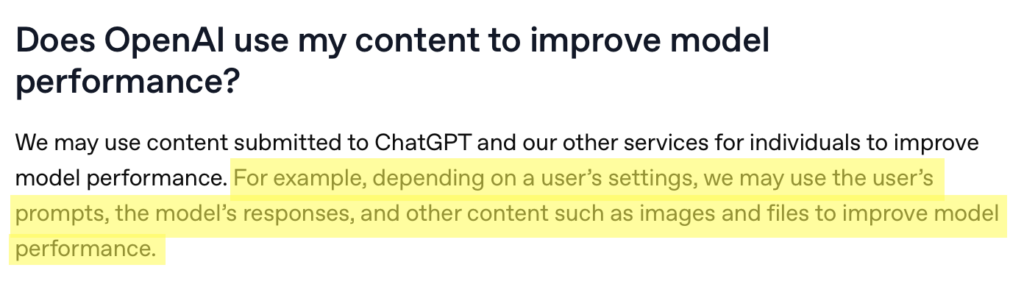
If you’re opted into AI data training, then ChatGPT may use your inputs (i.e., prompts), outputs (i.e., model responses), and other content (like files and images) to improve its model performance.
Note that turning off AI model training does not delete your chat history (i.e., your conversations will still show up in the sidebar). Your inputs and outputs will still be used to train the AI models, but they won’t be fed into the AI models.
How to stop ChatGPT from training on your data
Here’s how you can stop ChatGPT from using your inputs and outputs to train its AI models in 5 easy steps.
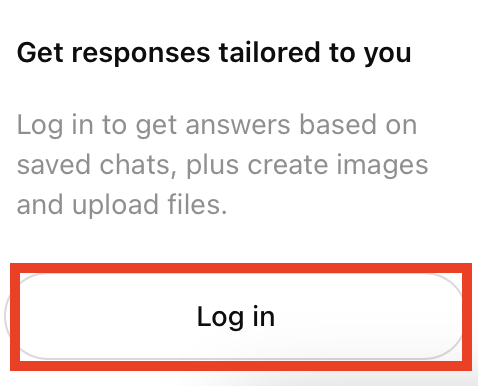
1. Log in to your ChatGPT account
Go to https://chatgpt.com/.
Click the “Log in” button on the bottom left to log in to your ChatGPT account.
2. Click your profile name and “Settings”
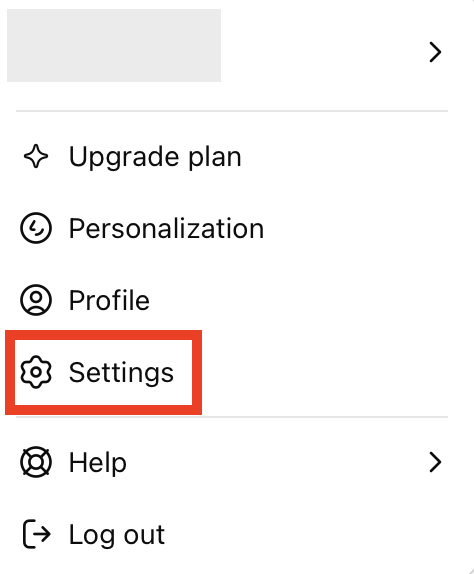
Click your profile name in the bottom left.

A pop-up menu will appear. Select the “Settings” link.
3. Click “Data controls”
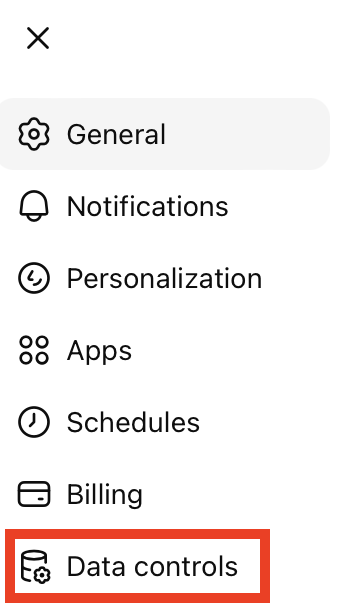
Click “Data controls” in the left side menu.
4. Click “Improve the model for everyone”
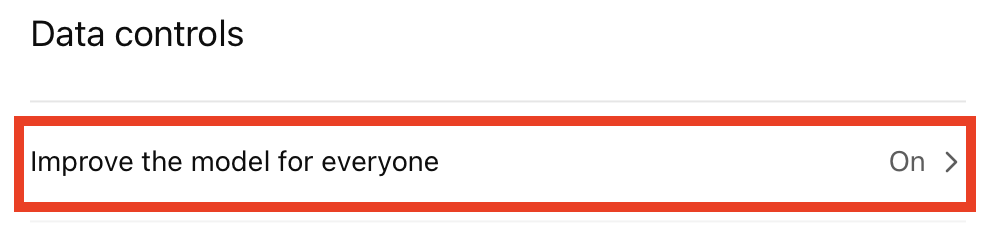
Click the “Improve the model for everyone” link.
5. Toggle off the “Improve the model for everyone” setting
You will see a toggle next to the “Improve the model for everyone” setting.
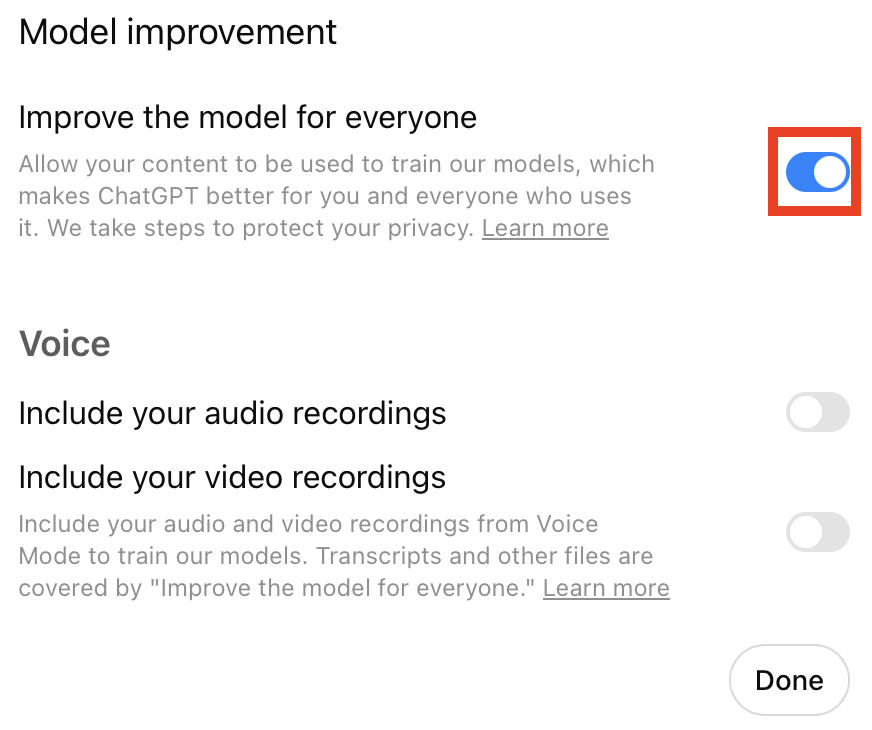
If it is toggled on, toggle the setting off.
While you’re here, make sure the voice settings (“Include your audio recordings” and “Include your video recordings”) are toggled off as well (they should be by default).
If you’ve opted into voice settings, OpenAI will use your voice chat recordings (and video) to train its models, and a human on their team may watch or listen to those clips.
Then, click the “Done” button.
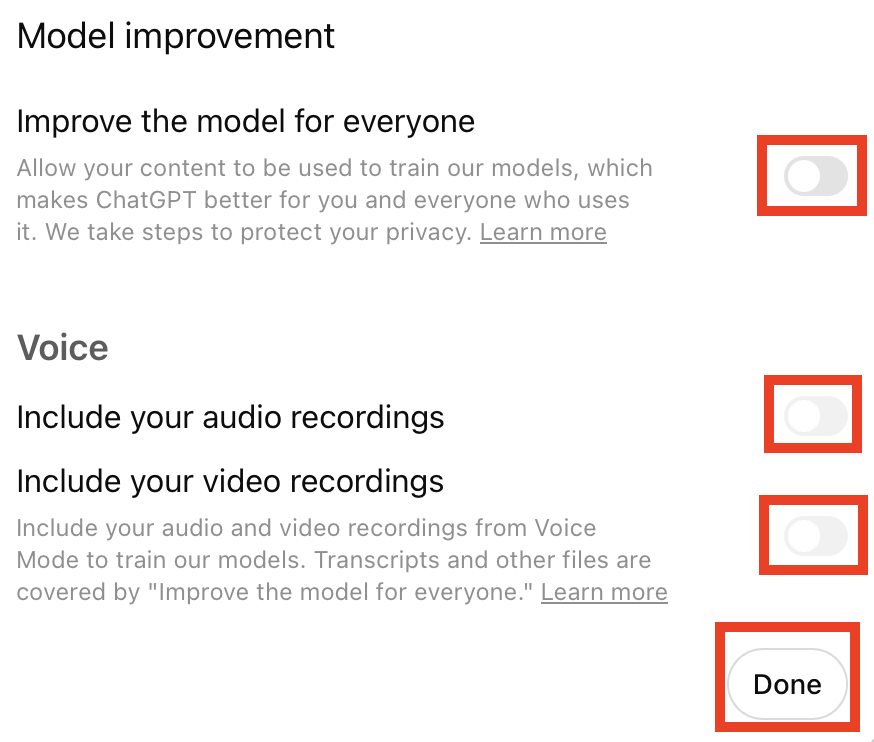
That’s it!
You should now see “Off” beside the setting to “Improve the model for everyone” in your ‘Data controls’ menu.
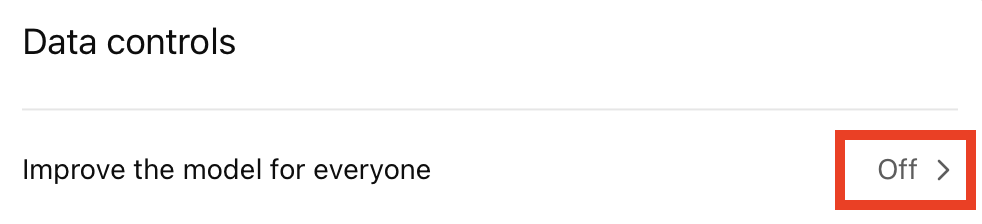
Your ChatGPT conversations will no longer be used to train OpenAI’s models.
The setting applies to your entire account across all devices, so you only need to do it once.
Use Temporary Chat for Sensitive Conversations
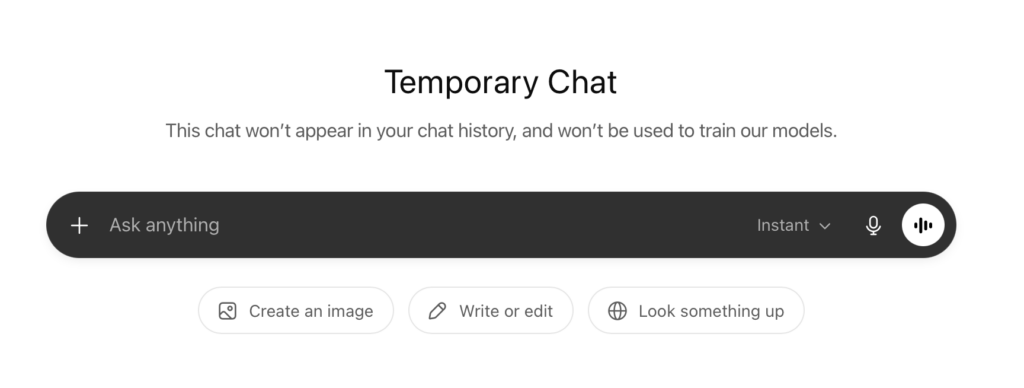
If you don’t want to change your settings across your account, but still want to have a private ChatGPT conversation, you can use a Temporary Chat.
Temporary Chats don’t show up in your history, don’t reference or create memories, and aren’t used for model training.
OpenAI says it automatically deletes Temporary Chats from its systems within 30 days.
How to start a temporary chat in ChatGPT
Here’s how you can have a private ChatGPT conversation.
1. Click the speech bubble icon in your account
Log in to your ChatGPT account.
Then, click the speech bubble icon in the top-right corner.

2. Click “Continue”
You will see a pop-up window that explains what Temporary Chats are.
Click the “Continue” button.
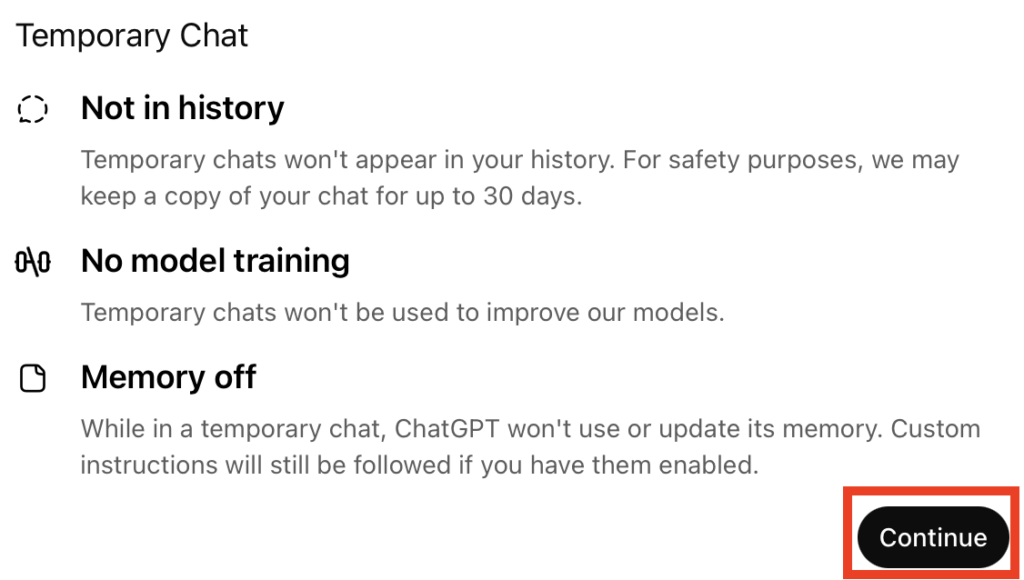
That’s it! You can now use ChatGPT without your data being used to train its AI models.
Manage What ChatGPT Remembers About You
ChatGPT’s ‘Memory’ feature allows it to reference details it has learned about you across conversations, such as your name, preferences, or projects.
If you’d rather the LLM didn’t do that, you can turn this setting off.
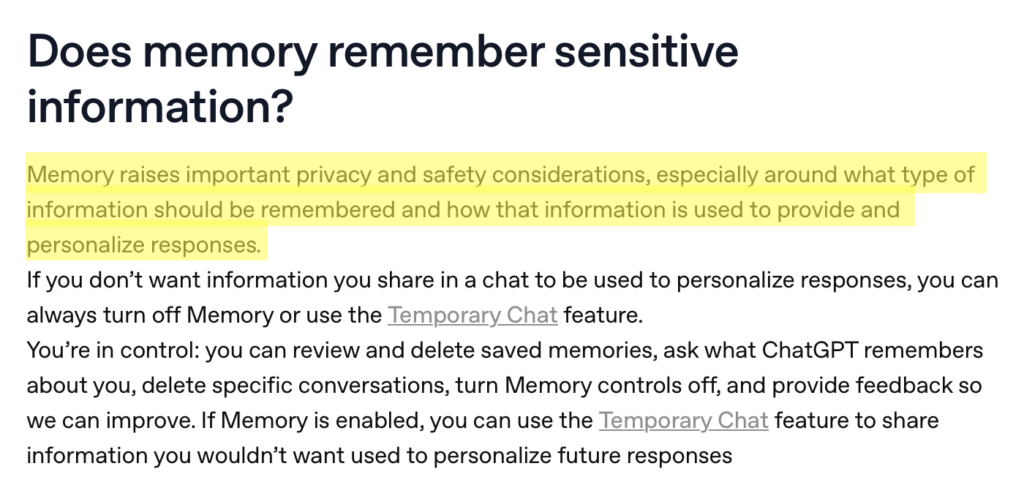
ChatGPT itself says that, “Memory raises important privacy and safety considerations, especially around what type of information should be remembered and how that information is used to provide and personalize responses.”
How to manage what ChatGPT remembers about you
Here’s how to turn off ChatGPT’s ‘Memory’ setting.
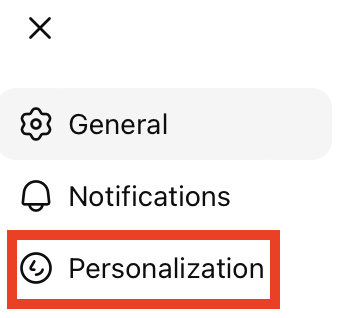
1. Click “Personalization’
In “Settings,” click “Personalization” from the left side menu.
2. Toggle off ‘Reference saved memories’
Scroll to ‘Memory.’
You will see the setting ‘Reference saved memories.’
If it’s toggled on, toggle it off. I already had this toggled off, so I didn’t need to do anything.
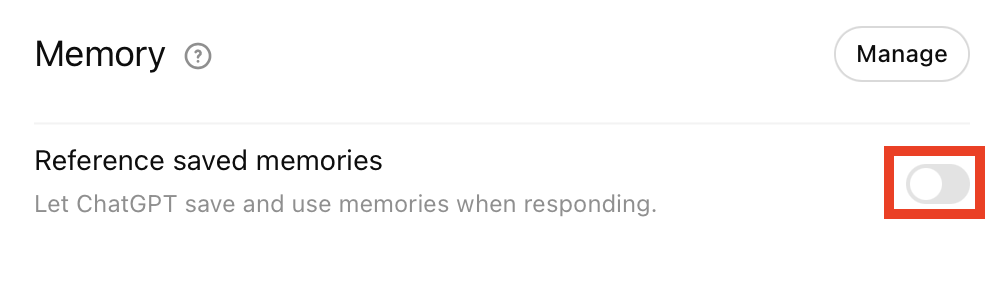
If you had the setting toggled on, you can also click on the “Manage” button to see the memories ChatGPT saved from its previous interactions with you.
3. Toggle off ‘Reference record history’ (optional)
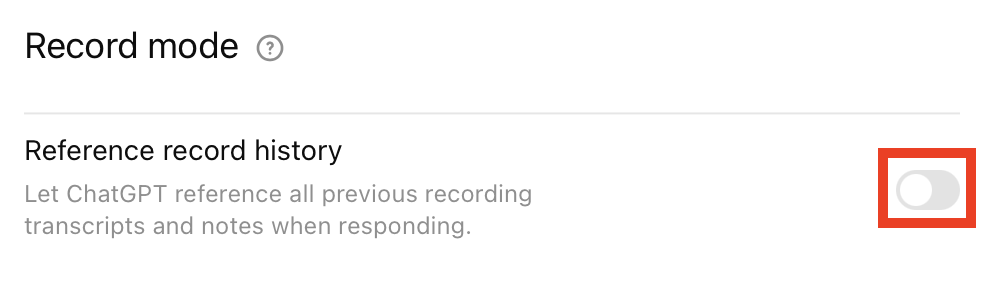
There’s a related setting called “Reference record history” (under ‘Record mode’) right beneath ‘Memory.’
If this is on, toggle it off. Doing so stops ChatGPT from pulling context from your past conversations, which is another layer of privacy if you don’t want old chats influencing new ones.
Review and Revoke Shared Links
If you’ve ever used ChatGPT’s “share” feature to send someone a link to a conversation, that link stays live until you remove it. Anyone with the URL can view it.
How to review and revoke shared links
Here’s how you can check if any such links exist and remove any you no longer want public.
Note that deleting the original conversation also invalidates its shared link.
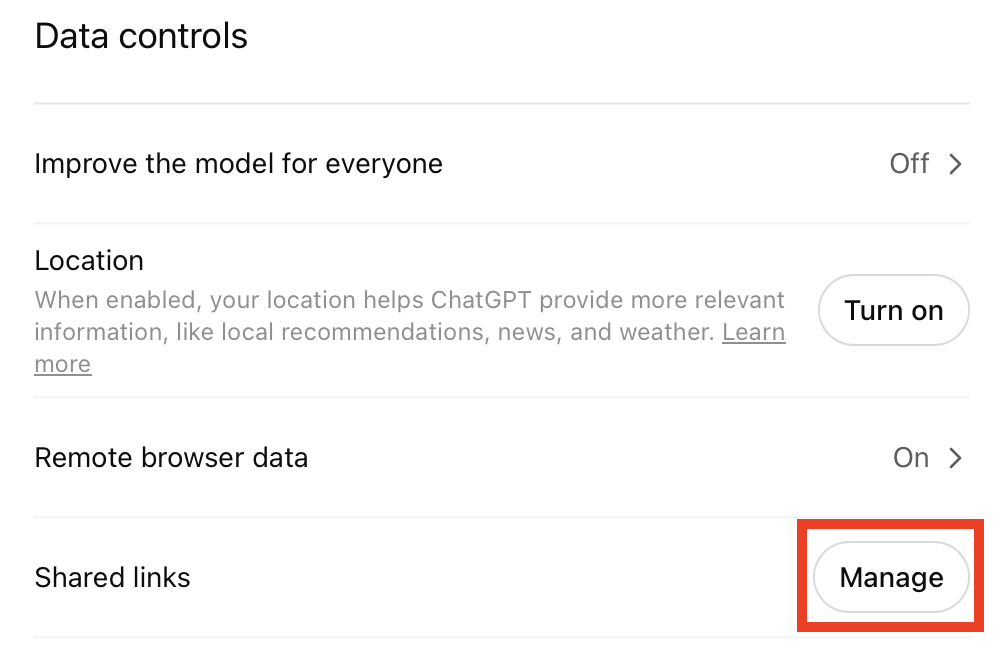
1. Click “Manage” next to ‘Shared links’
In ‘Data controls’ (in ‘Settings’), click the “Manage” button next to ‘Shared links.’
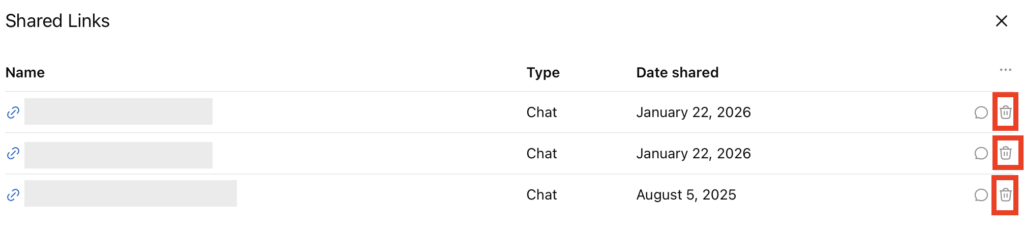
2. Click the bin icon next to the shared link you want to delete or click the three dots icon and select “Delete all shared links” and click “OK”
You will see a list of all your shared links.
You can either delete them one by one by clicking the bin icon on the right.
Or, you can click the three dots above and select “Delete all shared links” to delete all the links in one go.
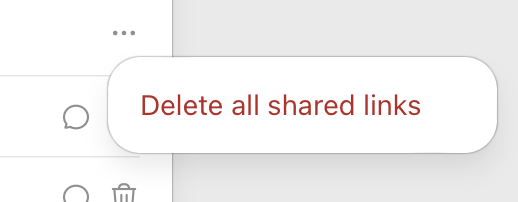
Then, click “OK.”
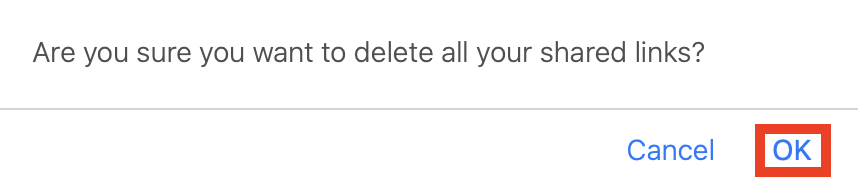
That’s it! Your shared links have been deleted.
Delete and Archive Your Chats
There are several ways to delete old ChatGPT chats.
Delete a single ChatGPT chat
Deleting a single chat in ChatGPT takes just one step.
1. Hover over a chat, click the three dots icon, and click “Delete”
Go to your ChatGPT dashboard.
Under ‘Recents’ (sidebar), hover over a chat, click the three dots, and select “Delete.”
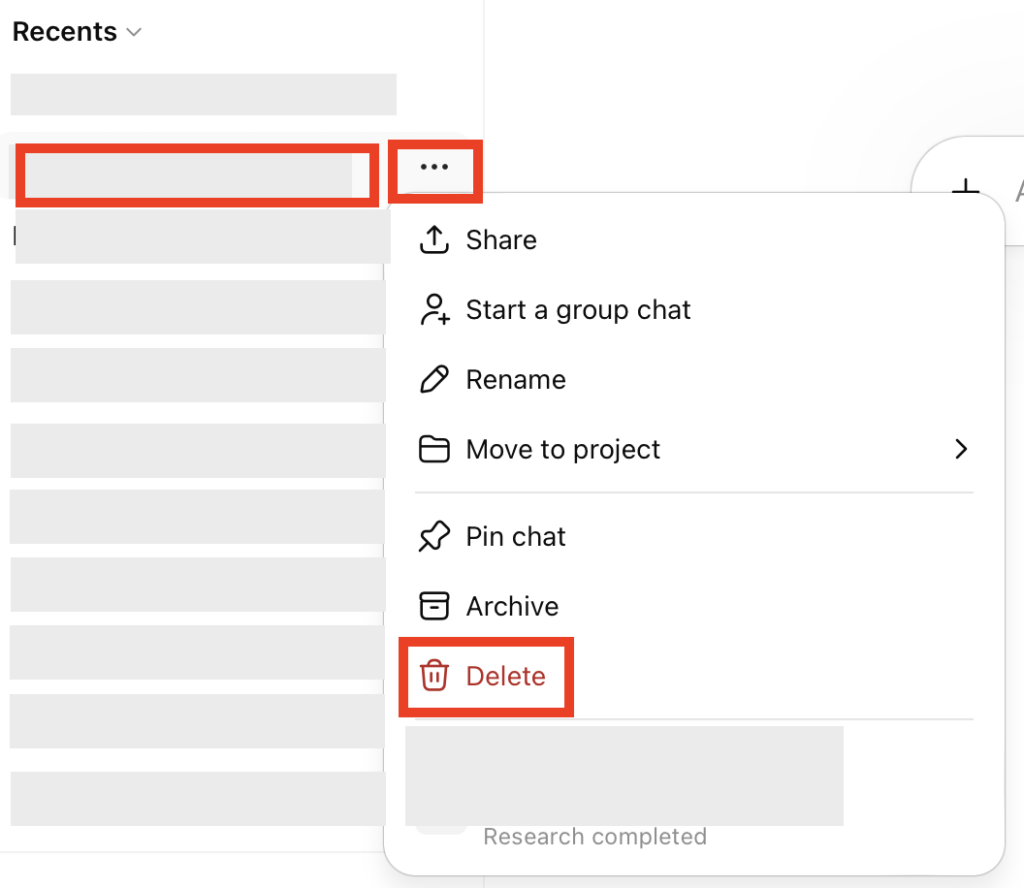
Deleted chats are scheduled for permanent removal from OpenAI’s systems within 30 days. To hide a conversation without losing it, select “Archive” instead.
Export your ChatGPT chats
You can also delete all of your ChatGPT chats in one go. However, before you do so, you may want to export your data. Here’s how.
1. In ‘Data controls,’ click “Export”
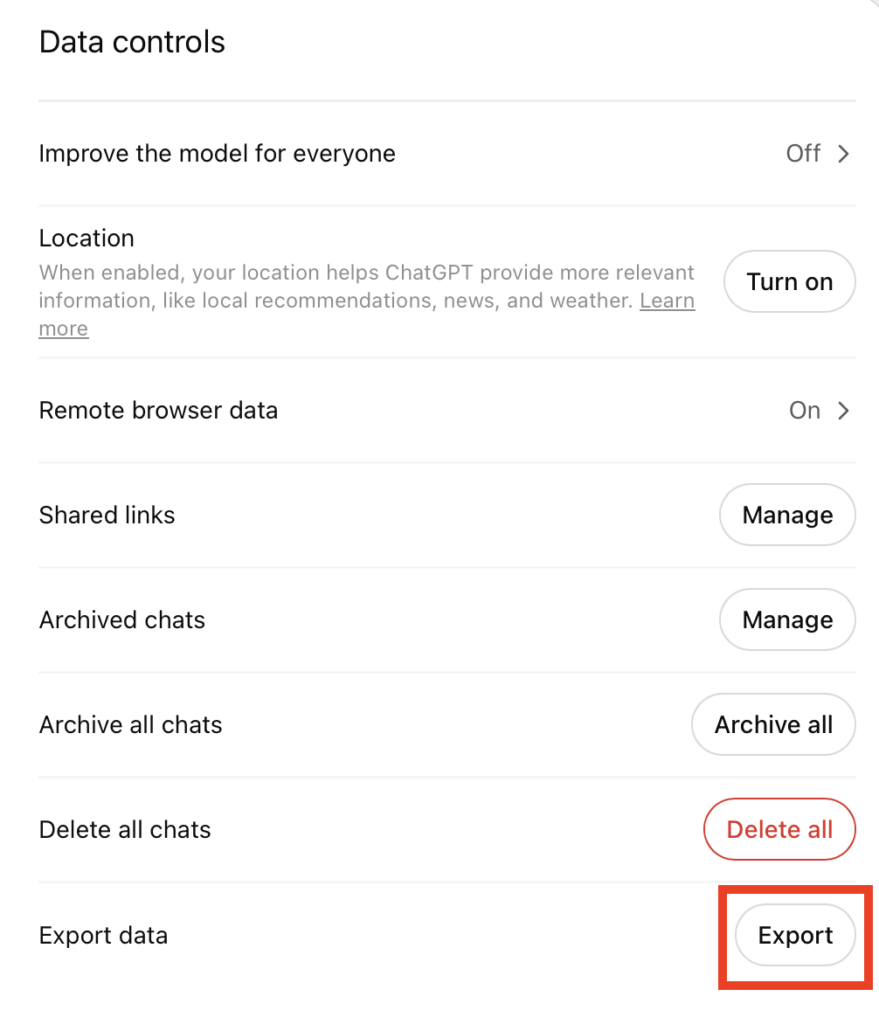
Go to ‘Data controls’ (in ‘Settings).
Click the “Export” button beside the “Export data” setting.
2. Click “Confirm export”
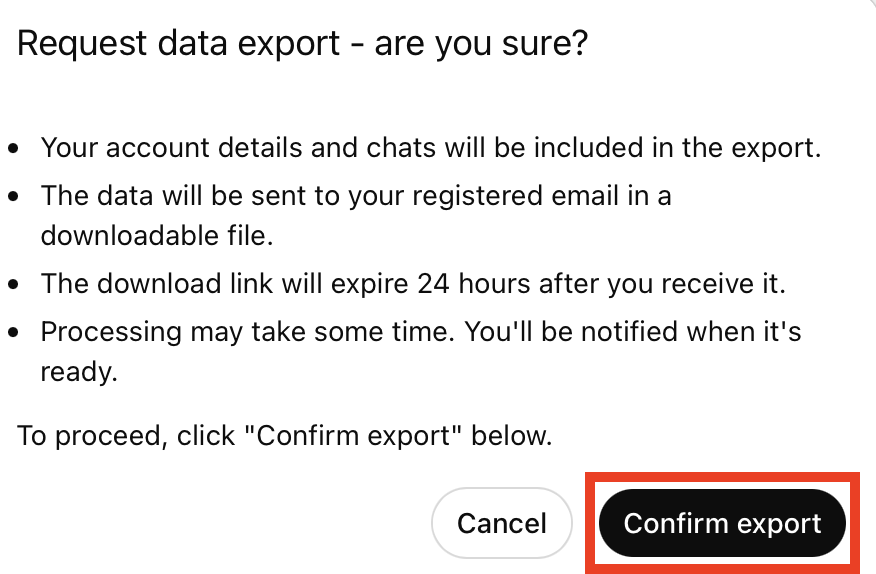
Click the “Confirm export” button.
3. Check your email inbox
OpenAI will email you a download link that will expire after 24 hours. The export is a ZIP file containing a browser-viewable chat.html file and a conversations.json file with the full message history and metadata.
Delete all ChatGPT chats
Here’s how you can delete all of your ChatGPT conversations in two steps.
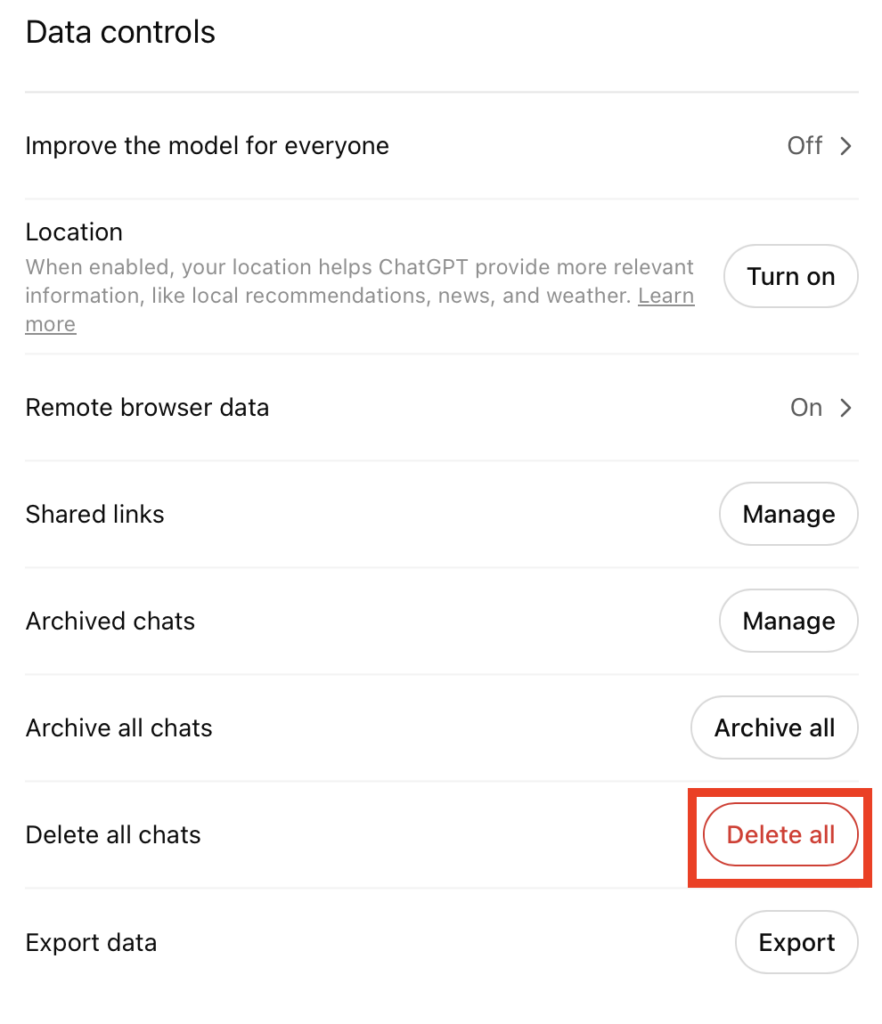
1. In ‘Data controls,’ click “Delete all” next to ‘Delete all chats’
Go to ‘Data controls’ (in ‘Settings).
Click the “Delete all” button next to the ‘Delete all chats’ setting.
2. Click “Confirm deletion”
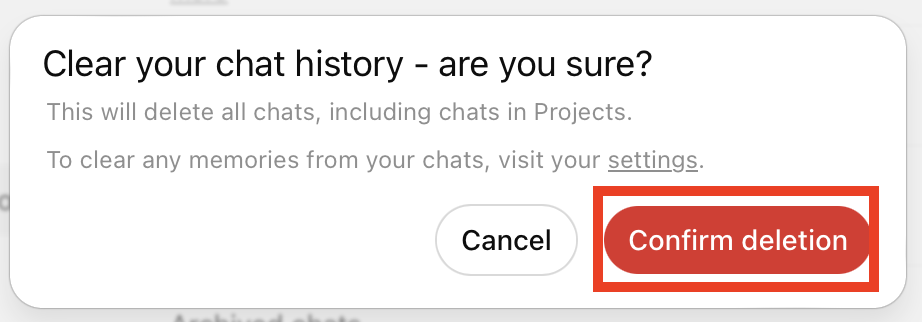
ChatGPT will warn you that completing this step will result in deleting all your chats.
Click the “Confirm deletion” button.
That’s it! You’ve successfully deleted your ChatGPT chats.
Archive your ChatGPT chats
You can alternatively archive your chats.
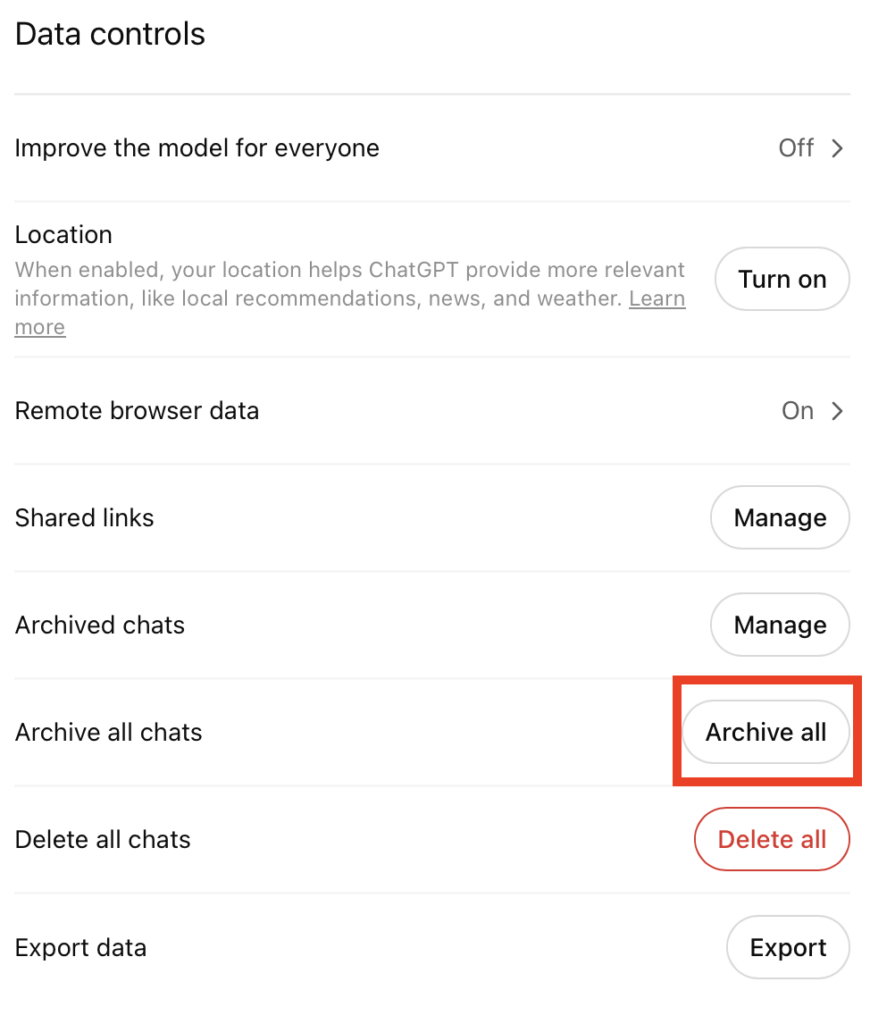
1. In ‘Data controls,’ click “Archive all” next to ‘Archive all chats’
Go to ‘Data controls’ (in ‘Settings).
Click the “Archive all” button next to ‘Archive all chats.’
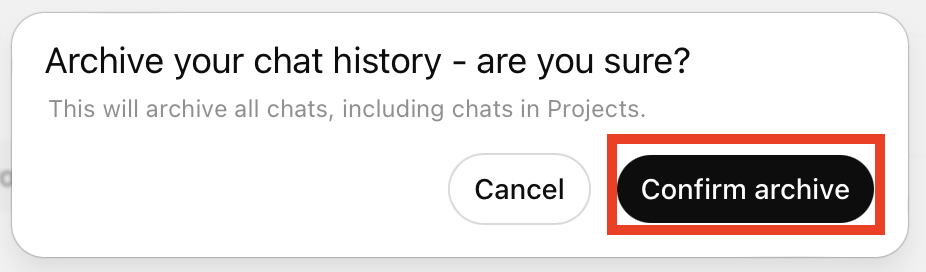
2. Click “Confirm archive”
Click the “Confirm archive” button.
That’s it! You’ve successfully archived your ChatGPT chats.
Turn Off Location Data
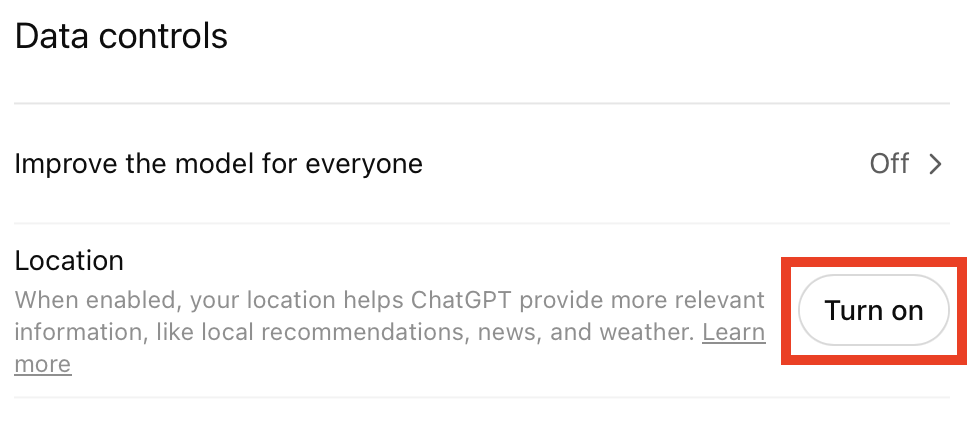
If your location is on, then ChatGPT says it can provide more relevant information to you (e.g., local recommendations). It also says that it does not keep your precise location data after it provides a response.

If you’d still prefer not to share your location with ChatGPT, you can turn it off.
How to turn off location data
Here’s how you can turn off location sharing in ChatGPT in one step.
1. In ‘Data controls’ click “Turn off”
Go to ‘Data controls’ (in ‘Settings).
If the button next to ‘Location’ says “Turn off,” click it to turn off the location setting.
My location was off to begin with.
Turn Off Remote Browser Data
If you use ChatGPT’s agent mode (i.e., you allow ChatGPT to control a browser so that it can do tasks for you), there’s one setting in particular worth knowing: ‘Remember site data between sessions.’
When agent mode browses the web, it runs in a remote browser in the cloud rather than on your computer. The “site data” in this setting mostly means cookies, the small files websites use to remember you, like keeping you logged in or holding your preferences.
If this setting is on, the agent’s browser keeps those cookies after a session ends and reuses them next time.
This is convenient in the sense that if you log into a site during one agent task, you stay logged in for the next, so you don’t have to sign in again every time. But this also means that your login sessions and tracking cookies persist in that remote browser between tasks, which is less private.
You can turn this setting off for the browser to start fresh each session with no memory of previous sites.
How to turn off remote browser data
Here’s how you can turn off remote browser data in ChatGPT.
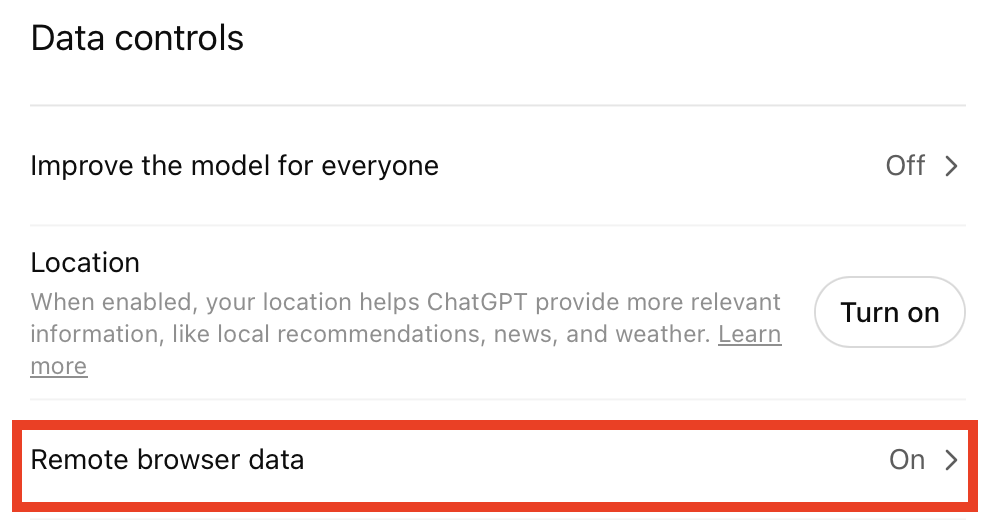
1. In ‘Data controls,’ click “Remote browser data”
Go to ‘Data controls’ (in ‘Settings).
Then, click the “Remote browser data” link.
2. Toggle off “Remember site data between sessions”
Toggle off the “Remember site data between sessions” setting.
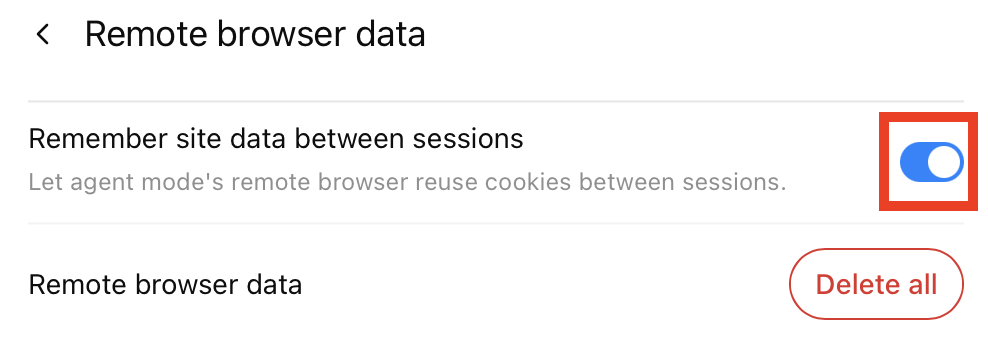
While you’re here, you can also click the “Delete all” button to permanently delete all browser data, like cookies.
Delete Your ChatGPT Account
Ready to delete your ChatGPT account? Here’s how.
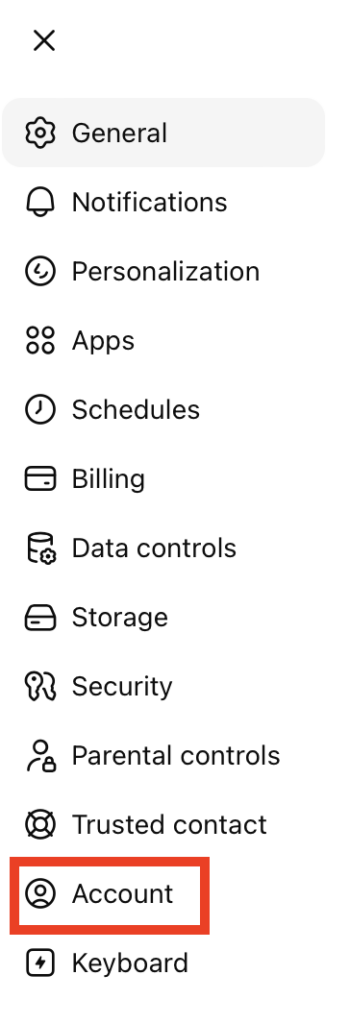
1. Click “Account” in ‘Settings’
Go to “Account” (in ‘Settings’).
2. Click “Delete” next to ‘Delete account’
Then, scroll to ‘Delete account’ and click the “Delete” button beside it.

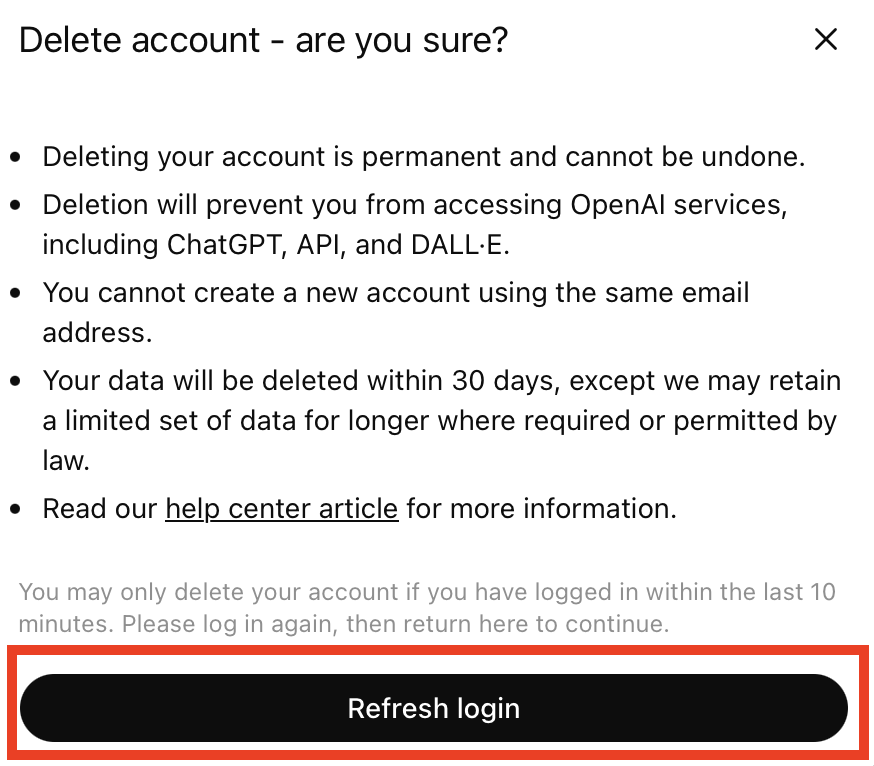
3. Click “Refresh login”
A pop-up window will appear warning you that deleting your ChatGPT account is permanent and cannot be undone, and noting that you will lose access to other OpenAI services, like DALL-E.
After you delete your ChatGPT account, you will not be able to create a new account with the same email address.
Your data will be deleted within 30 days, though ChatGPT notes that it may keep some (limited) data if required/necessary by law.
If you logged in more than 10 minutes ago, you will need to refresh your login.
Click the “Refresh login” button.
4. Log in to ChatGPT
Log in to your ChatGPT account.
5. Go to “Account” in ‘Settings’ and click “Delete” again
Then, go back to “Settings,” “Account,” and click the “Delete” button.
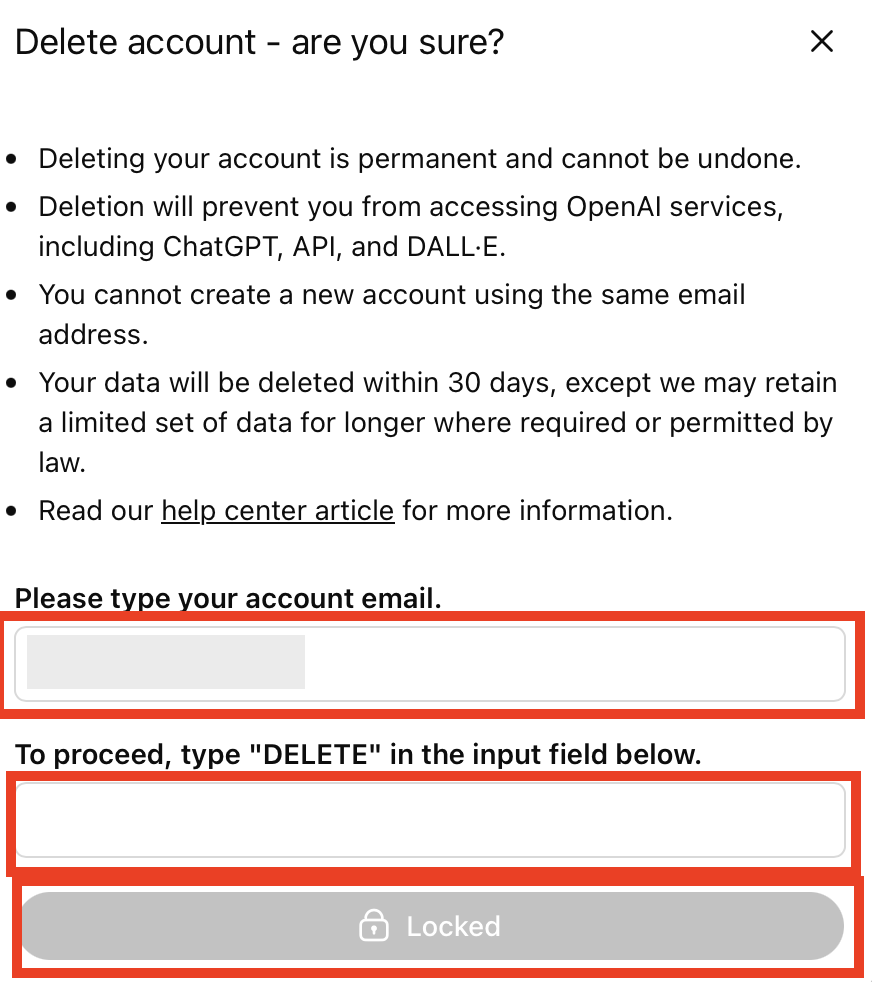
6. Enter the email address associated with your ChatGPT account and “DELETE”
A pop-up window will appear asking you if you’re sure.
Enter the email address for your ChatGPT account.
Type in “DELETE.”
7. Click “Permanently delete my account”
The “Locked” button will change to “Permanently delete my account.” Click it.

That’s it. Your ChatGPT account will be deleted.
Don’t Forget Data Brokers and People Search Sites
Reviewing your privacy settings on ChatGPT is important, but it’s just one part of the privacy puzzle.
The other is data brokers and people search sites – companies that collect your data from various different sources, compile it into detailed profiles, and sell it to more or less anyone who wants it.
Sites like Intelius, Whitepages, Spokeo, and others make it possible for anyone to look you up. As long as someone has one piece of data about you (like your name, email address, or phone number), they can find your entire dossier.
- Adjusting your ChatGPT privacy settings to the most protective options limits how ChatGPT uses your content to improve its products and services.
- Opting out of data brokers and people search sites prevents your personal information from being sold to (more or less) anyone who wants it.
The good news is that you can delete yourself from data brokers and people search sites. For instructions on how, check out our people search site opt-out guides here.
Note that you’ll need to repeat your opt-outs in the future. The reason why is that data brokers and people search sites relist people when they come across more of their data, so opt-outs need to happen regularly.
If you’d rather spend your time elsewhere, a data broker removal service like DeleteMe can perform data broker opt-outs on your behalf.

news?

Don’t have the time?
DeleteMe is our premium privacy service that removes you from more than 750 data brokers like Whitepages, Spokeo, BeenVerified, plus many more.
Save 10% on DeleteMe when you use the code BLOG10.
Related Posts



Julius AI Data Privacy Settings Guide