Claude Privacy Settings Guide


Table of Contents
I know my way around Claude pretty well, but as it turns out, not well enough. The reason: I’ve never actually looked at Claude’s privacy settings before.
When I finally checked Claude’s privacy settings, I discovered that Claude lets its users control whether conversations with its chatbot are used to improve its models and how long Anthropic keeps user data, among other things.
Here is what each setting does and how to manage it.
Stop Claude from Training On Your Data
First, Claude only trains on your data if you’re on a Claude consumer plan (i.e., Claude Free, Pro, and Max).
If you’re on a Claude commercial plan, Claude does not use your inputs or outputs to train its models. The only exception is if you report feedback or bugs to them or otherwise let them use your data.
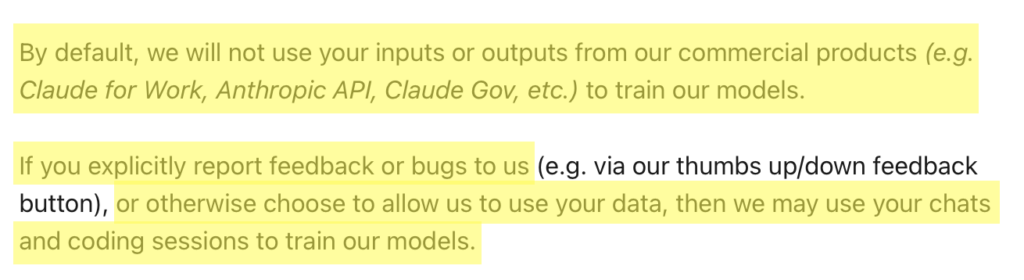
Claude Free, Pro, and Max account holders can toggle off the data training setting through their account privacy. When this setting is toggled off, your new conversations with Claude are not used for model training.
The training toggle is tied directly to how long the company keeps your data:
- If the setting is toggled off, Anthropic keeps to the standard 30-day retention period. When you delete a conversation, it is removed from your history immediately and cleared from back-end storage within 30 days.
- If the setting is toggled on, Anthropic may retain your data in a de-identified format for up to five years in its model training pipelines. This longer window only applies to new or resumed chats after you enable the setting, not to older conversations.
Anthropic says that it filters or obfuscates sensitive data, de-links your data from your user ID before any human review, and does not sell user data to third parties.
That said, it nevertheless advises against sharing highly sensitive personal information, like your SSN, medical information, or credentials.
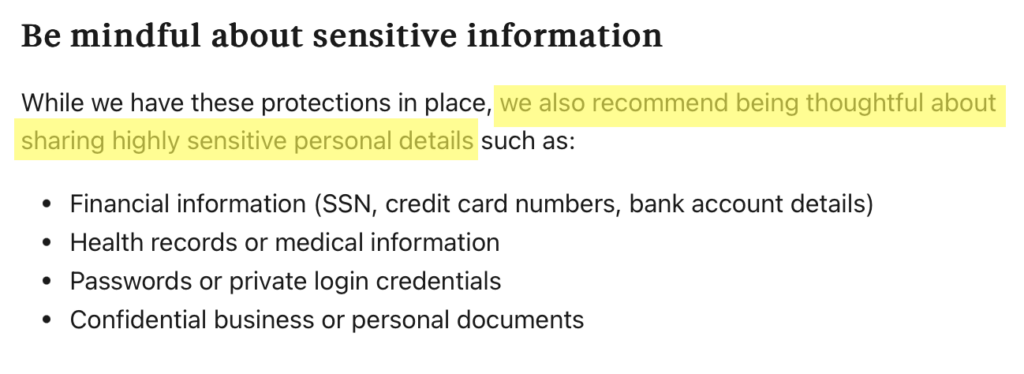
Note that if you use the thumbs-up or thumbs-down button, Anthropic stores the related conversation for up to five years, de-linked from your user ID, and may use it for research and model training. This happens regardless of your training setting, so avoid submitting feedback on conversations containing sensitive information.
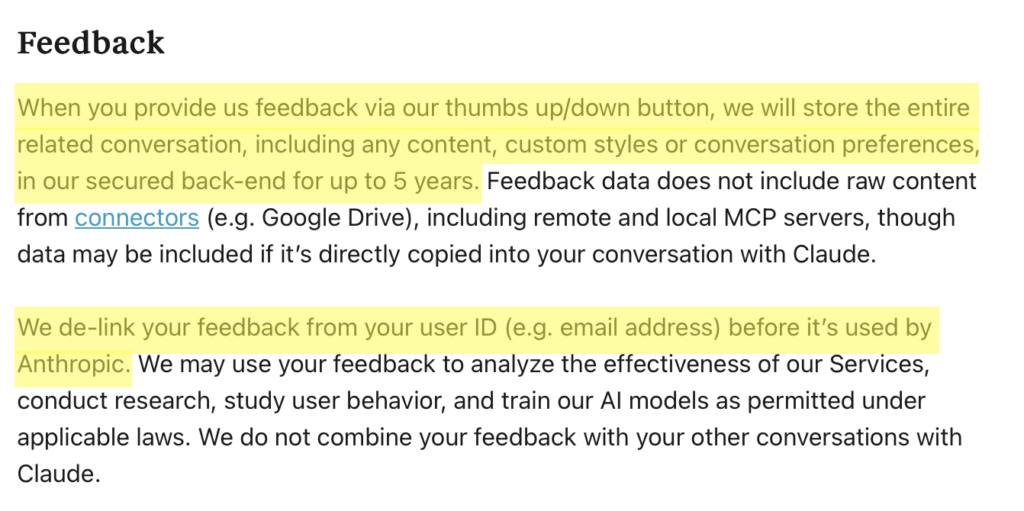
How to stop Claude from training on your data
Here’s how to stop Claude from training its AI models on your data in five steps.
1. Sign in to your Claude account
Log in to your Claude account.
2. Click your profile name
Click your profile name icon in the bottom left.

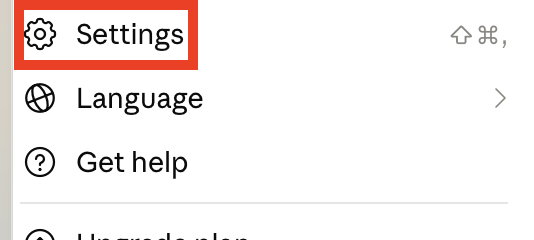
3. Click “Settings”
Select “Settings” from the dropdown menu that appears.
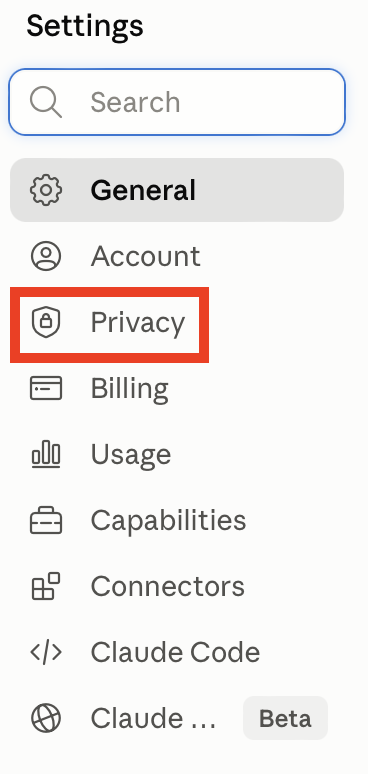
4. Click “Privacy”
Select “Privacy” from the left side menu.
5. Toggle off the ‘Help improve Claude’ setting
Check if the ‘Help improve Claude’ setting is toggled on or off.
If it’s toggled on (as it was for me), toggle it off.

That’s it.

After you toggle this setting off, Anthropic will no longer use your stored chats for future training. However, data that is already in a training run that has started, or in models that have already been trained, cannot be taken back.
The safety exception
There’s one caveat when you opt out of Claude’s model training.
If your conversation is flagged by Anthropic’s trust and safety classifiers as potentially violating the Usage Policy, it may still be reviewed and used to improve safety systems.
Flagged inputs and outputs can be retained for up to two years, and the associated classification scores for up to seven years.
Opting out of model training does not exempt flagged content from this safety review.
Use Claude’s Incognito Chat for Sensitive Conversations
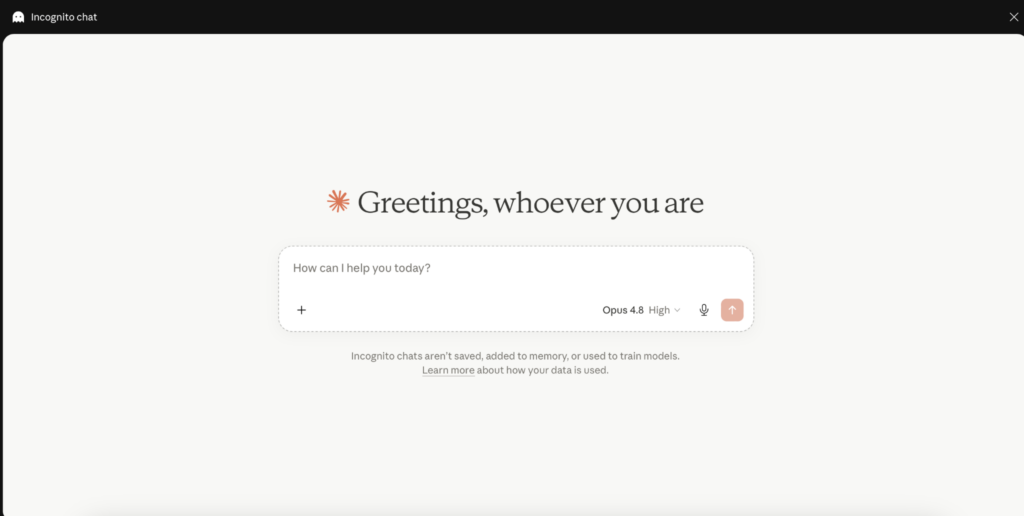
For sensitive conversations, you can use Claude Incognito mode.
Incognito conversations are never used to improve Claude, even if ‘Help Improve Claude’ is switched on.
You can use Incognito Chat for one-off conversations you do not want retained in your history.
How to use Incognito chat for sensitive conversations with Claude
Here’s how you can start an Incognito chat in Claude in one simple step.
1. Click the ghost icon in your account
Log in to your Claude account, then click the ghost icon in the top-right corner.

That’s it! You can now use Claude without the company using your data to train its AI models, even if your account settings are set to allow data training.
Turn Off Location Metadata In Claude
Claude uses your location in two ways.
The first is optional and meant to make Claude’s features work better. If you ask Claude something where local results help, like using web search to find places near you, Claude can look at your IP address to estimate your rough location, at the city or region level (i.e., not your exact spot).
You can switch this off in your privacy settings in Claude, unless you’re on the Claude mobile app and/or browser extension, where location access is controlled through your device’s own settings rather than inside Claude.
The second is mandatory and can’t be turned off. Anthropic uses your IP address and other signals to figure out broadly where you are, at the country or region level, for security and safety reasons (i.e., to make sure Claude is being used within their terms, to prevent abuse, and to show you the features that are available in your area).
How to turn off location metadata
Turn off location metadata in Claude in one step.
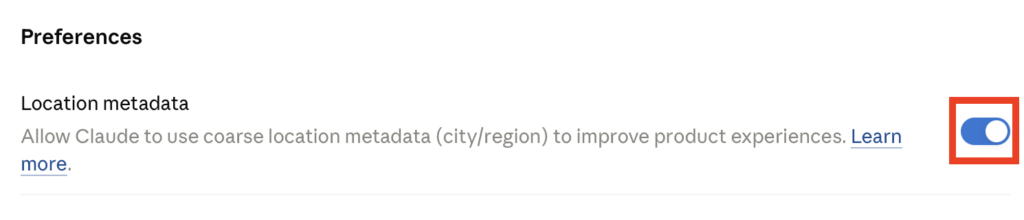
1. Toggle off ‘Location metadata’
In Privacy under “Settings,” toggle off the setting next to ‘Location metadata.’
That’s it!

Delete Claude Conversations
You can delete any Claude conversation at any time.
A deleted chat will not be used to train future models and is deleted from your chat history immediately and from Anthropic’s back-end storage within 30 days.
Here’s how you can delete your Claude conversations.
Delete a single Claude conversation
It takes only four steps to delete a single Claude conversation.
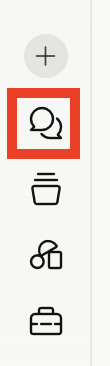
1. Click the speech bubble icon
Select the speech bubble on the left side menu of your Claude dashboard.
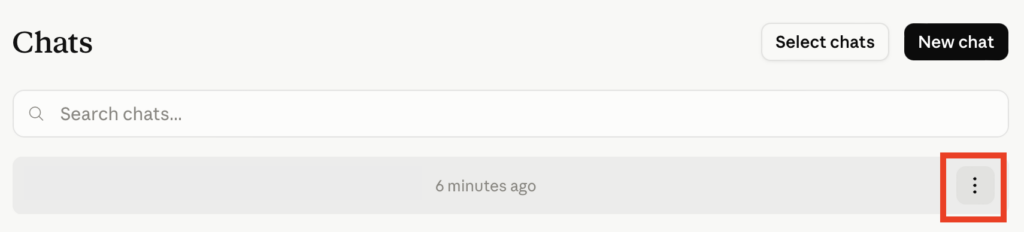
2. Click the three-dot icon
Click the three-dot icon next to the chat you want to delete.
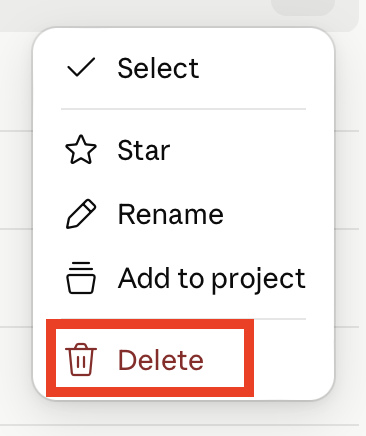
3. Click “Delete”
Select “Delete” from the pop-up menu that appears.
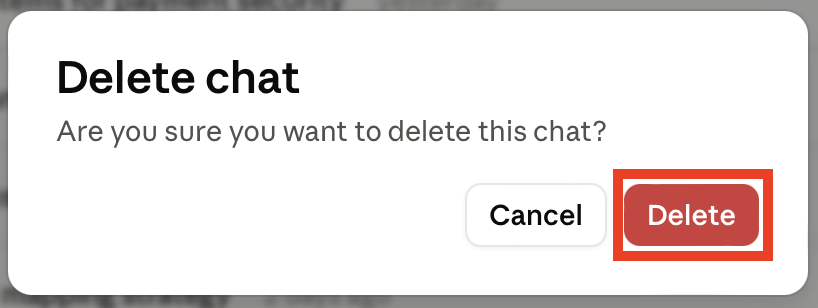
4. Click “Delete” again
You will see a pop-up asking if you’re sure you want to delete your chat.
Click the “Delete” button.
Delete multiple Claude conversations
Instead of deleting Claude chats one by one, you can remove multiple conversations at once in just five steps.
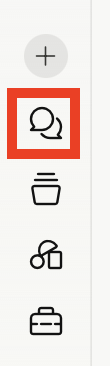
1. Click the speech bubble icon
Select the speech bubble on the left side menu of your Claude dashboard.
2. Click “Select chats”
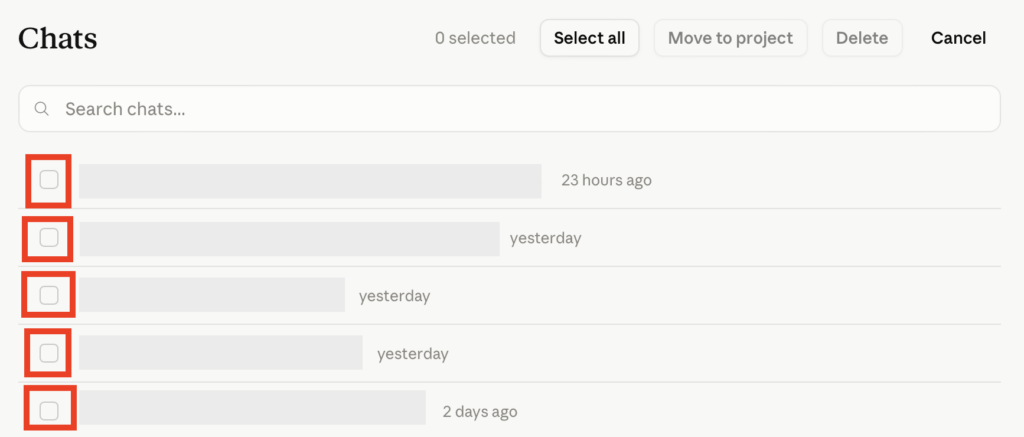
Click the “Select chats” button at the top.

3. Select the chats you want to delete
Click the checkbox beside the chat(s) you want to delete.
4. Click “Delete”
Click the “Delete” button.

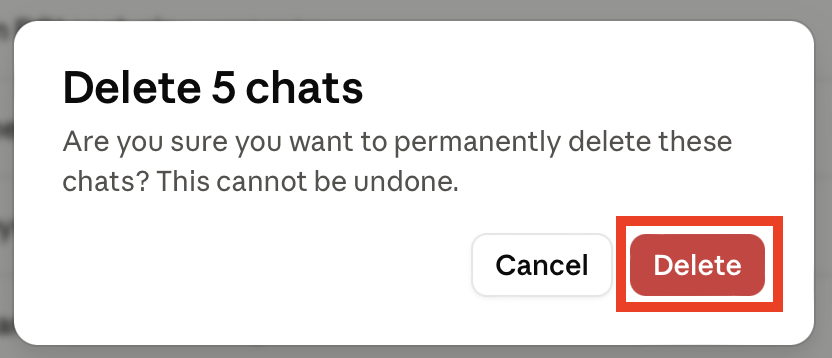
5. Click “Delete” again
A pop-up will appear asking if you’re sure you want to permanently delete your chosen chats.
Click the “Delete” button.
Review and Revoke Shared Claude Links
If you’ve ever used Claude’s “share” feature to send someone a link to a conversation, that link stays live until you deactivate it. Anyone with the URL can view it.
How to review and revoke shared links
Here’s how you can check if any such links exist and remove any that you no longer want to be public.
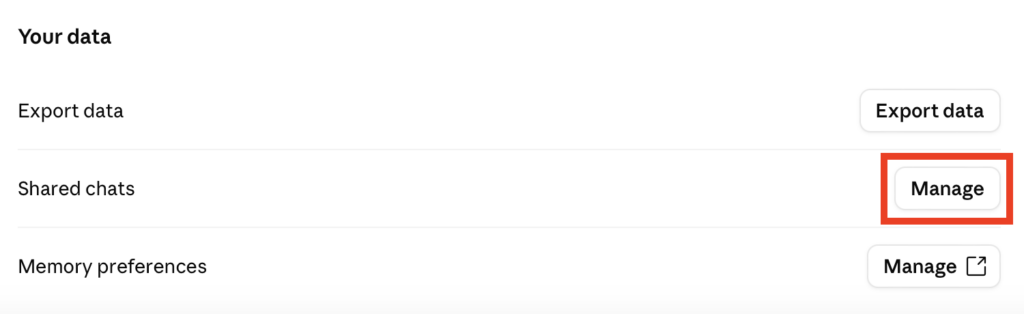
1. In ‘Privacy,’ click “Manage” next to ‘Shared chats’
In ‘Privacy’ (under ‘Settings’), click the “Manage” button next to ‘Shared chats.’
2. Unshare chat(s)
A pop-up with any shared chats will appear.
Click the unshare icon beside the chat you want to unshare.
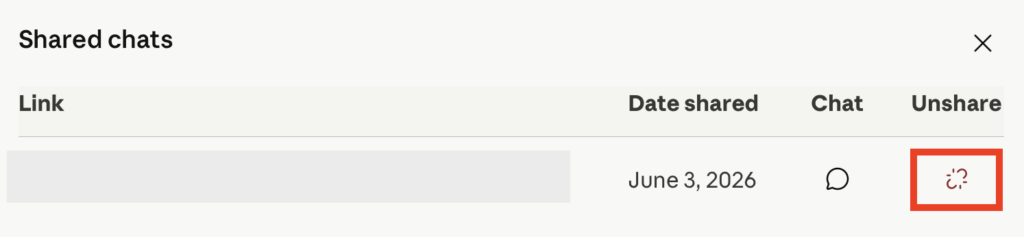
That’s it! The chat has been unshared.
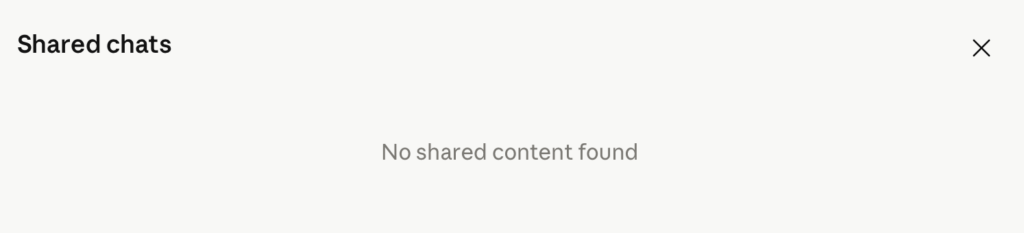
If you don’t have any shared chats, the pop-up will say “No shared content found.”
Manage Claude’s Memory
If you have the memory setting on in Claude, then Claude can carry your working context from one chat to the next instead of starting blank each time.
There are two settings worth knowing about here:
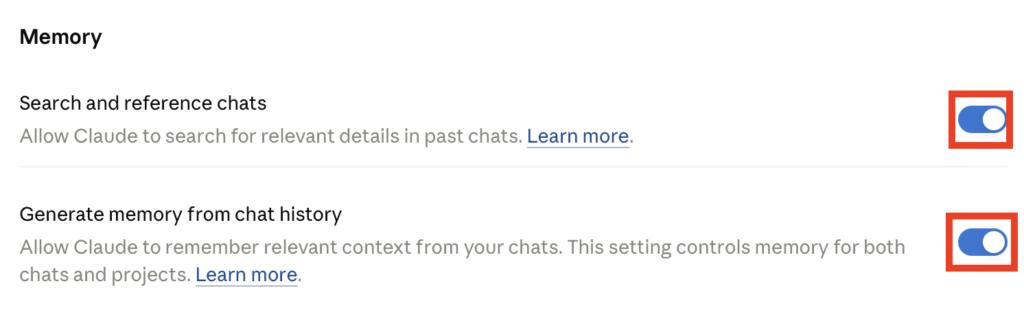
- Search and reference chats. This is an on-demand lookup setting. With it on, Claude can search through your previous conversations when something relevant comes up. Nothing is stored separately, Claude just retrieves old chats as needed.
- Generate memory from chat history. This setting lets Claude remember what you’ve been working on, so new chats already know your background instead of starting blank.
So if you wanted Claude to know nothing about past chats by default, you’d switch off “Generate memory from chat history.” If you also wanted to stop Claude from looking things up even when asked, you’d switch off “Search and reference chats” as well.
You can leave search on and memory off, which gives you a blank slate each time but lets Claude retrieve old chats when you specifically ask.
How to manage Claude’s memory
Here’s how you can manage Claude’s memory in three steps.
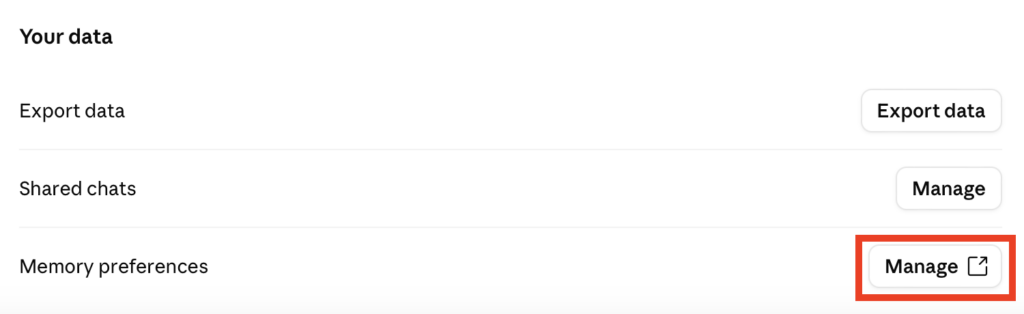
1. Click “Manage” next to ‘Memory preferences’ in ‘Privacy’
In Privacy under “Settings,” click the “Manage” button next to ‘Memory preferences.’
2. Toggle off the memory setting you don’t want
Toggle off the memory settings you don’t want enabled.
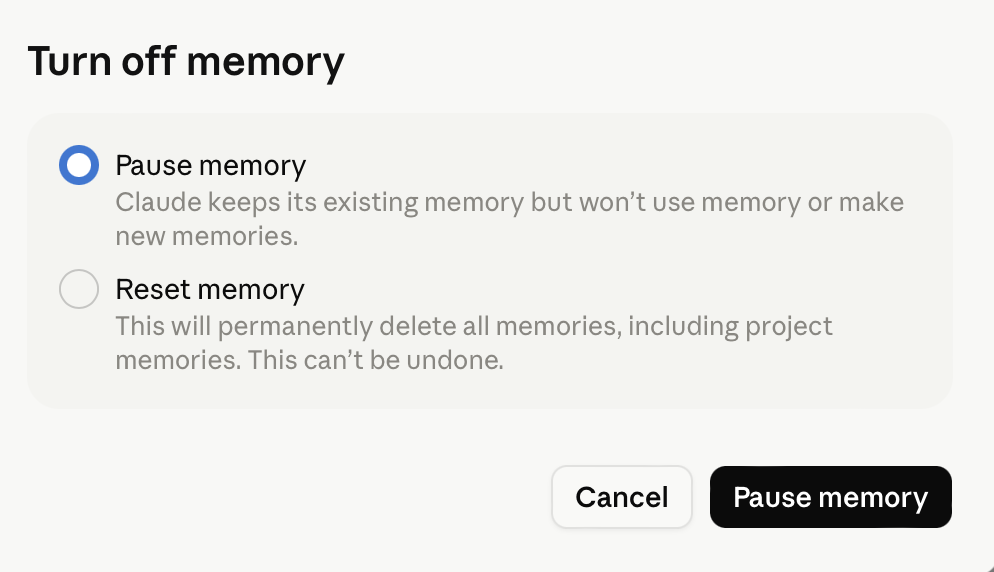
3. Choose whether you want to “Pause memory” or “Reset memory” and confirm your selection
When you toggle off ‘Generate memory from chat history,’ you can choose whether you want to pause memory (which means Claude will keep it but won’t use it or make new memories) or reset memory (Claude will permanently delete all memories, an action that can’t be undone).
Make your selection and confirm. For example, I chose to “Pause memory” and clicked the “Pause memory” button.
Review Third-Party Apps Claude Can Access
In Claude, a connector links Claude to your other apps and services, like Google Drive or Slack, so it can access your apps and services, retrieve your data, and take actions within connected services.
I have several of these set up, including Gmail, Notion, and others, so I was a little worried.
When using connectors, you can only sync content to Claude that you have permission to view in the original source, and access permissions are enforced at the user level. So connecting something doesn’t hand over more than your own access already allows.
Your data stays encrypted, and all data transfers are encrypted.
Connector content isn’t used for model training. The data Anthropic might use to improve its models does not include raw content from connectors (e.g., Google Drive), including remote and local MCP servers, though data may be included if it’s directly copied into your conversation with Claude.
In other words, adding a file in through a connector keeps it out of training, but pasting that file’s text directly into a chat is treated like any other message.
As expected, you control what’s connected. You can review what each service is asking for when you set it up, and disconnect services you no longer need or use.
How to review third-party apps connected to Claude
Here’s how you can review third-party apps connected to Claude.
1. Click the briefcase (“Customize”) icon
From your Claude dashboard, click the briefcase (“Customize”) icon in the left side menu.

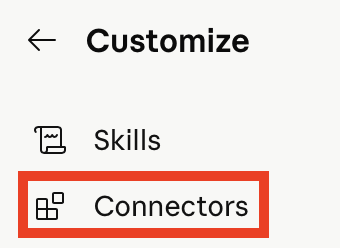
2. Click “Connectors”
Select “Connectors” from the left side menu.
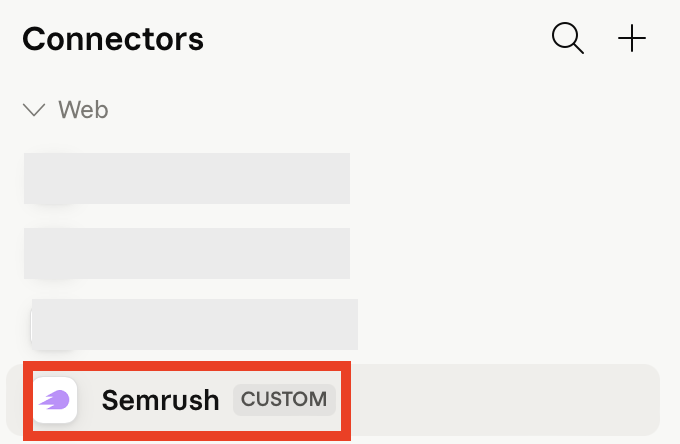
3. Select a connector
You will see a list of connectors.
Select the connector you want to review. In my case, I selected Semrush.
4. Disconnect or change tool permissions
You can either disconnect a connector by clicking the “Disconnect” button at the top.

Or you can change the tool’s permission broadly.
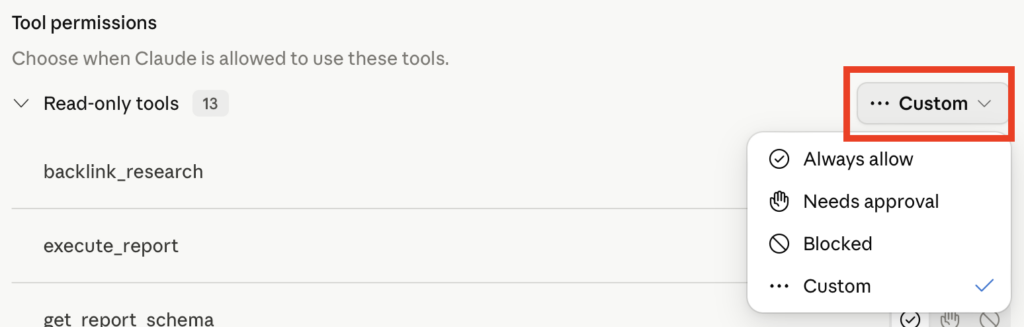
Alternatively, you can change the tool’s permissions narrowly for each capability.

Export Your Claude Data
In some cases, like if you want to delete your Claude account or are curious about what you’ve shared with the LLM, you may want to export your Claude data.
How to export your Claude data
You can export your Claude data in two steps.
1. Click “Export data” next to ‘Export data’
In ‘Privacy’ (under ‘Settings’), click the “Export data” button next to ‘Export data.’

2. Choose your export timeframe and content, then click “Export”
You will see a pop-up window where you can choose the timeframe for the data you want to export as well as what the export includes (e.g., conversations, users, projects).
Once you’re happy with the contents of the export, click the “Export” button.
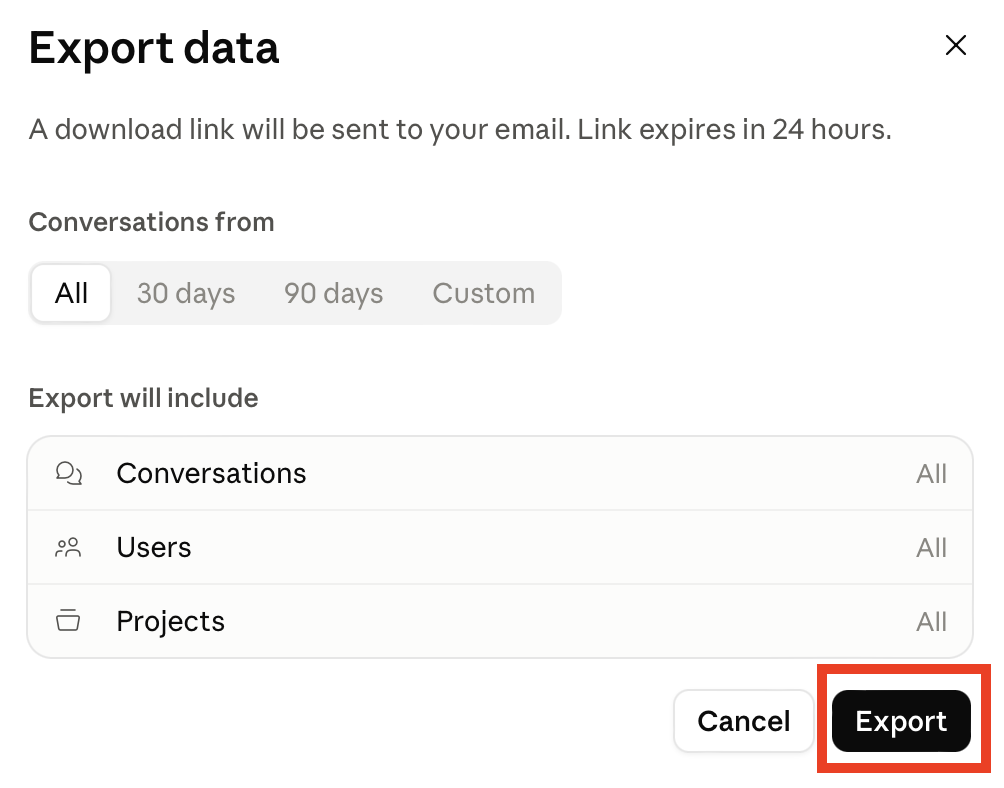
That’s it.
After Anthropic processes your export, you will receive a link to download your data via email. The export will come to the email associated with your Claude account.
Note that the download link is only active for 24 hours. After that, you’ll need to request the export of your data again.
Delete Your Claude Account
If you’re ready to delete your Claude account, you can do so from your Claude dashboard in most cases.
How to delete your Claude account
Delete your Claude account in three steps.
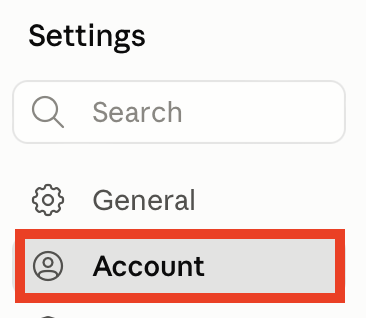
1. Click “Account” in ‘Settings’
In ‘Settings,’ click the “Account” link from the left side menu.
2. See which plan you’re on
Depending on which plan you’re on, you may need to cancel your Claude subscription first.

3a. Click “Delete account” if you’re a free Claude user
If you’re on a free Claude plan, you can just click the “Delete account’ button and follow the prompts.
3b. Cancel your subscription, wait until your current subscription ends, then delete your account
If you’re a paying Claude user, you will need to cancel your subscription first.
To do so, click the “Billing” link in the left side menu in ‘Settings.’
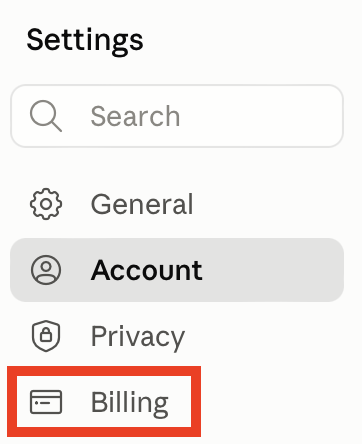
Scroll to the bottom and cancel your plan.

Then, wait until your subscription period ends.
When it does, go to “Account” in ‘Settings’ and click the “Delete account” button.
Account deletion is permanent and leads to losing access to all saved Claude chats.
Don’t Forget Data Brokers and People Search Sites
Reviewing your privacy settings on Claude is important, but it’s not the only step you should take if you care about your privacy.
Opting out of data brokers and people search sites – companies that collect and sell your information without your consent, and, in most cases, even your knowledge – is just as important.
- Adjusting your Claude privacy settings to the max stops Claude from using your content to improve its products and services.
- Opting out of data brokers and people search sites prevents your personal information from being sold to (more or less) anyone who wants it.
As long as someone knows some information about you (like your name, email address, or phone number), they can use data brokers and people search sites to find out even more about you.
The good news is that you can delete yourself from data brokers and people search sites. For instructions on how, check out our people search site opt-out guides here.
The slightly bad news is that opting out once is not enough. Data brokers relist people when they come across more of their information, so opt-outs need to be continuous for them to be effective.
Don’t want to spend time on manual, regular opt-outs? Subscribe to a data broker removal service like DeleteMe, and we’ll take care of data broker opt-outs so you can focus elsewhere.
If you’d rather spend your time elsewhere, a data broker removal service like DeleteMe can perform data broker opt-outs on your behalf.

news?

Don’t have the time?
DeleteMe is our premium privacy service that removes you from more than 750 data brokers like Whitepages, Spokeo, BeenVerified, plus many more.
Save 10% on DeleteMe when you use the code BLOG10.
Related Posts


Julius AI Data Privacy Settings Guide