Gemini Privacy Settings


Table of Contents
Where can I find Gemini privacy settings? That’s the question I was asking myself when I decided to improve my privacy across the different LLMs I use.
I found Gemini’s privacy settings slightly more confusing to wrap my head around than other AI models. Even so, it only took me between 15 and 20 minutes to check every setting and turn off anything I did not want on.
Below, I share the settings I consider most important for protecting your privacy, with step-by-step instructions for each.
Turn Off Gemini Chat History and AI Training (‘Keep Activity’)
The most important privacy control in Gemini is a setting called ‘Keep Activity.’
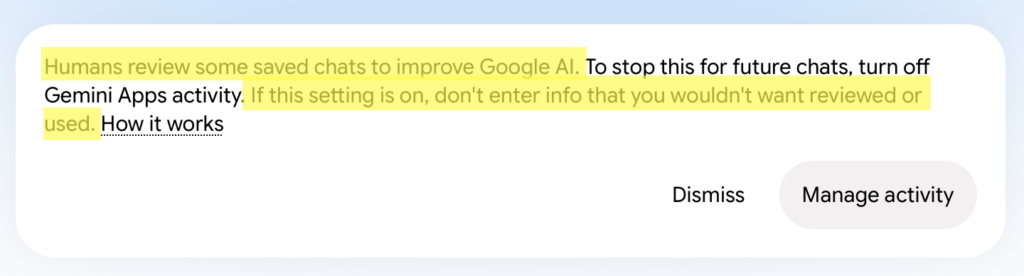
When ‘Keep Activity’ is toggled on (the default), your conversations with Gemini are saved to your Google account and can be used to improve Google’s services, including training its AI models, and a sample of them may be seen by human reviewers.
Unsurprisingly, Google recommends not sharing information you would not want reviewed or used.
When ‘Keep Activity’ is toggled off, your future chats no longer show up in your activity history and are not used to train Google’s AI models, unless you choose to send feedback on a specific response.
Note: Even when this setting is off, your future chats with Gemini will still be saved for 72 hours to allow Google to provide responses, process any feedback, and protect users against abuse. There is no way to opt out of this short service window, but after it passes, your chats are not retained or used for training. Past chats will not be deleted and will be retained for up to three years.
How to turn off “Keep Activity”
Here’s how to check whether your “Keep Activity” is on or off, and adjust it.
1. Go to Gemini Apps Activity
Go to https://myactivity.google.com/u/1/product/gemini
2. Click “On”
If your “Keep activity” setting is on by default, click “On.”
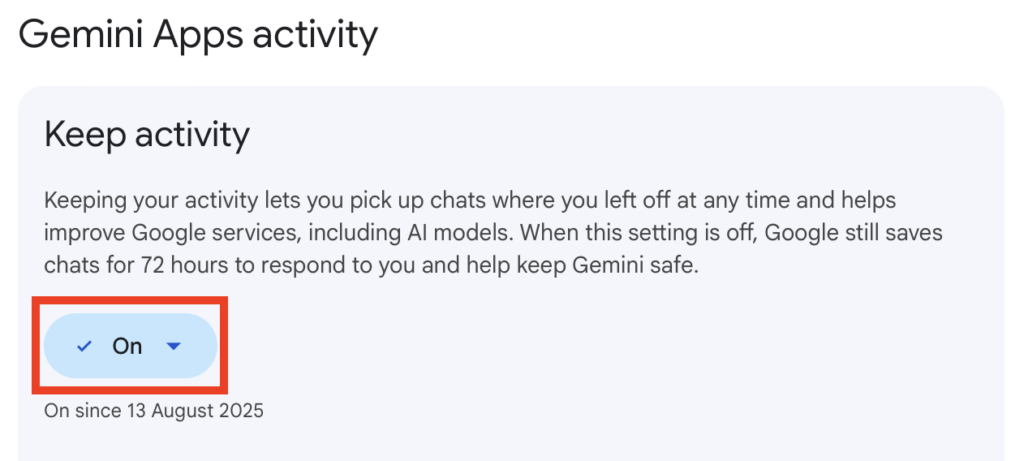
A dropdown menu will appear, letting you choose between turning the setting off or turning it off and deleting all previous activity.
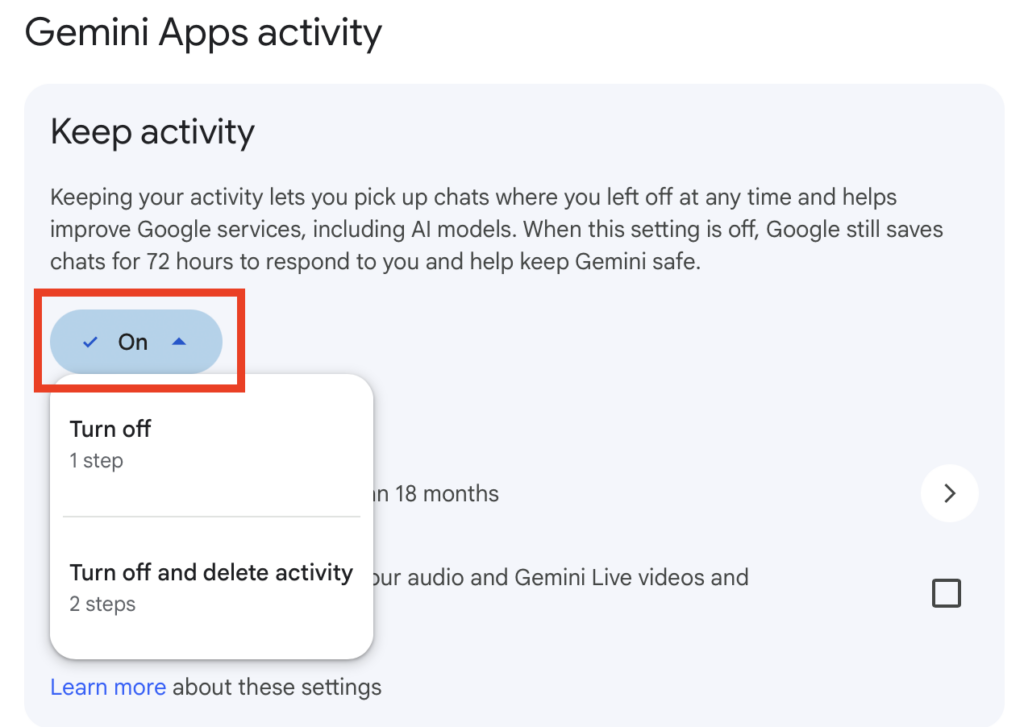
3a. Click “Turn off” and “Got it”
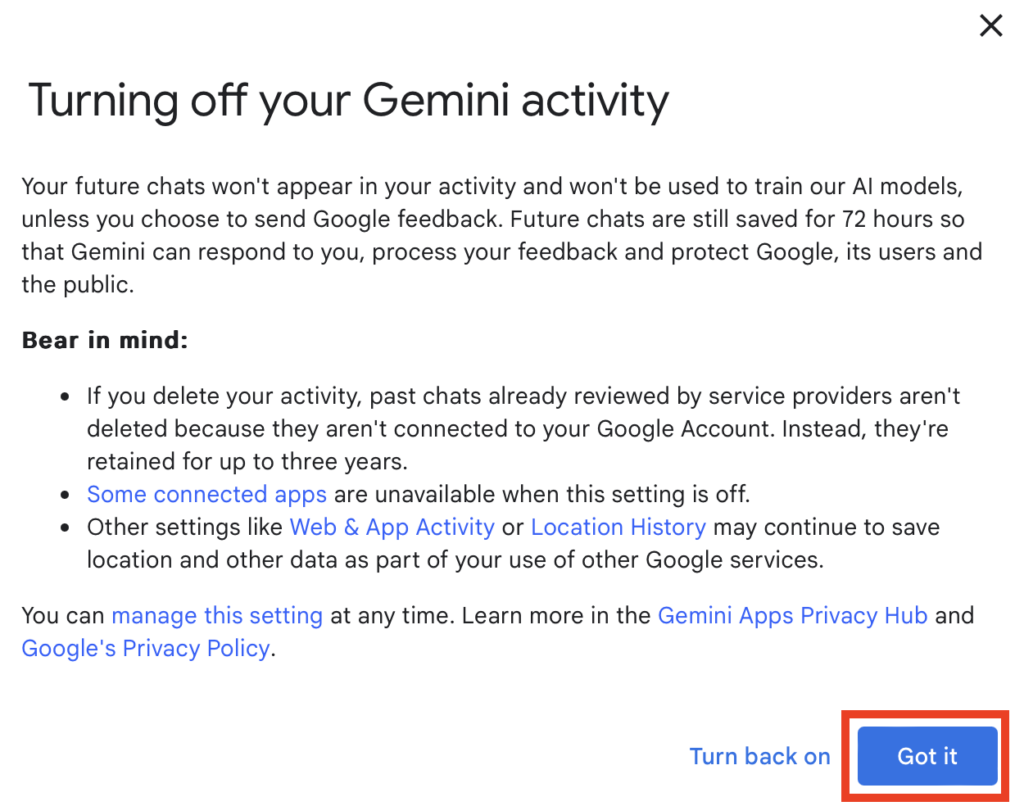
If you click “Turn off,” you’ll see a pop-up with more information about this setting and what will happen after you turn it off.
Click the “Got it” button.
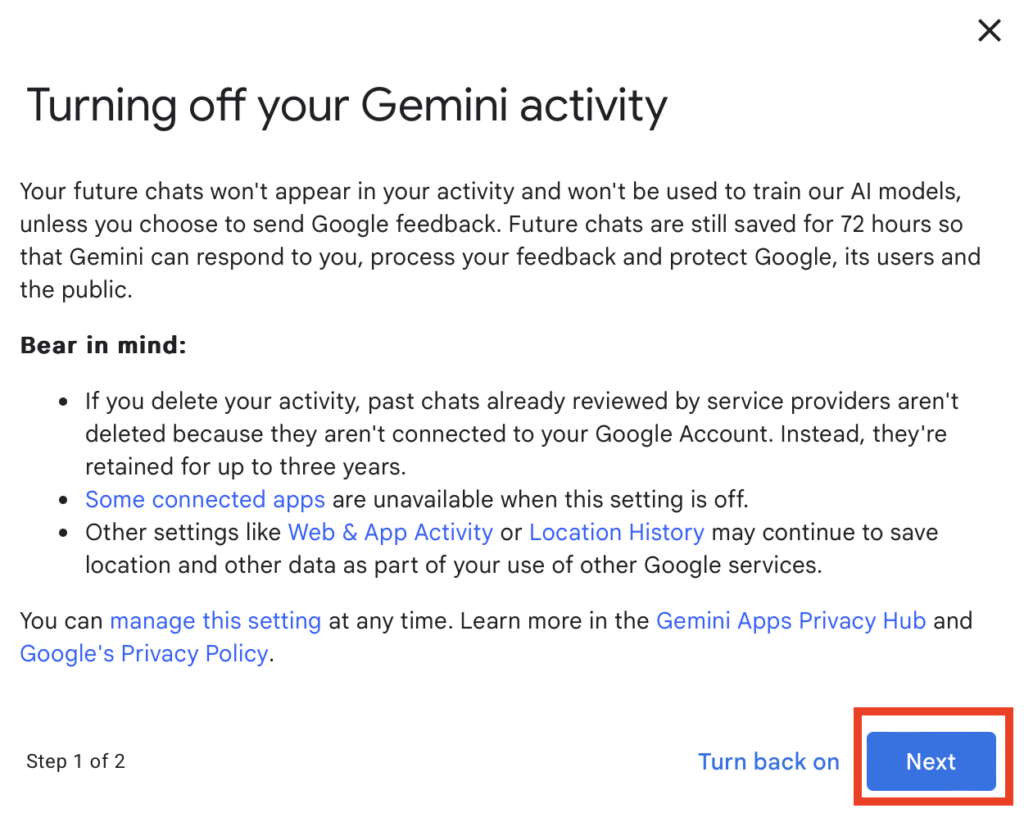
3b. Click ‘Turn off and delete activity,’ then ‘Next,’ then ‘Delete’
If you click “Turn off and delete activity,” you’ll see a pop-up with more information about this setting and what will happen after you turn it off.
Click “Next.”
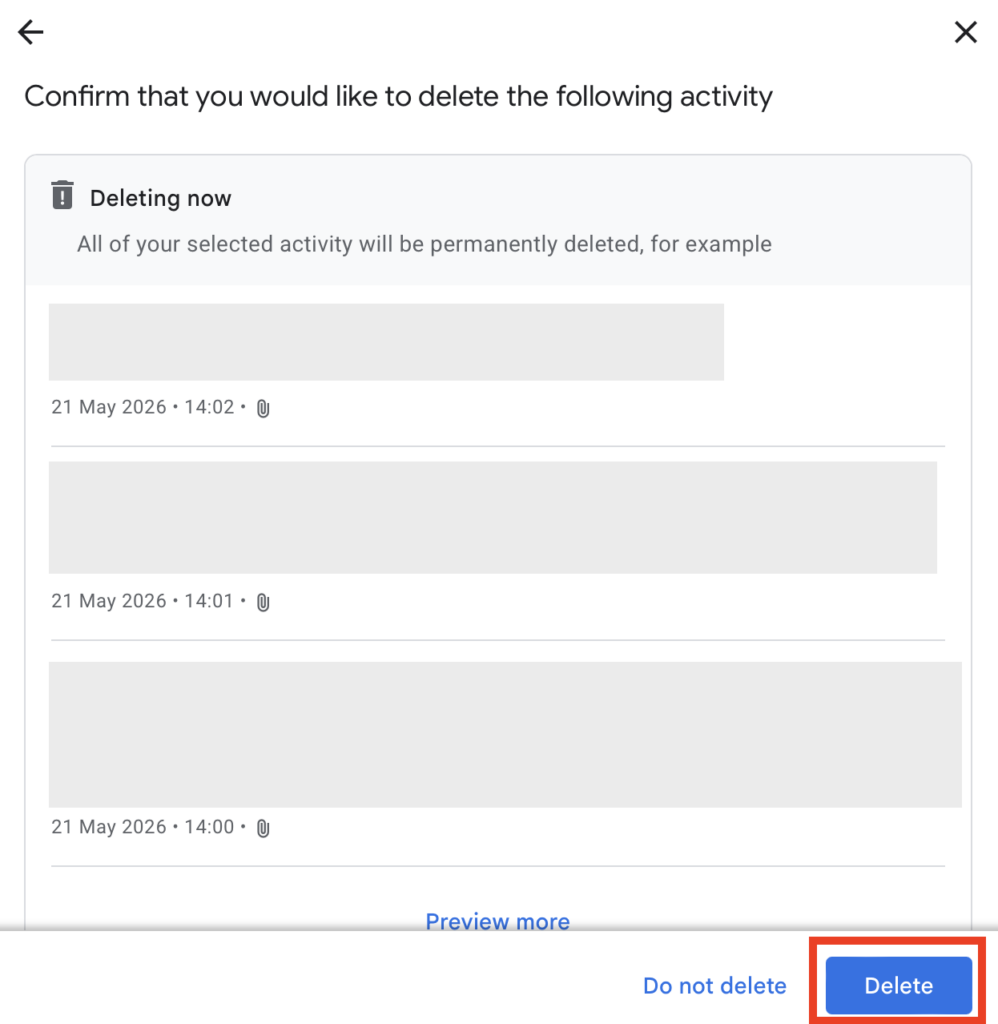
You will see a window asking you to confirm that you want to delete your activity.
Click the “Delete” button to confirm.
That’s it! Your ‘Keep Activity’ is off.
Delete Past Chats from Gemini History
If you don’t want to turn off “Keep activity,” you can instead delete specific chats.
How to delete past chats from history
Here’s how you can delete specific chats from your Gemini history.
1. Go to Gemini Apps Activity
Go to https://myactivity.google.com/u/1/product/gemini
You can delete individual chats or bulk delete multiple chats.
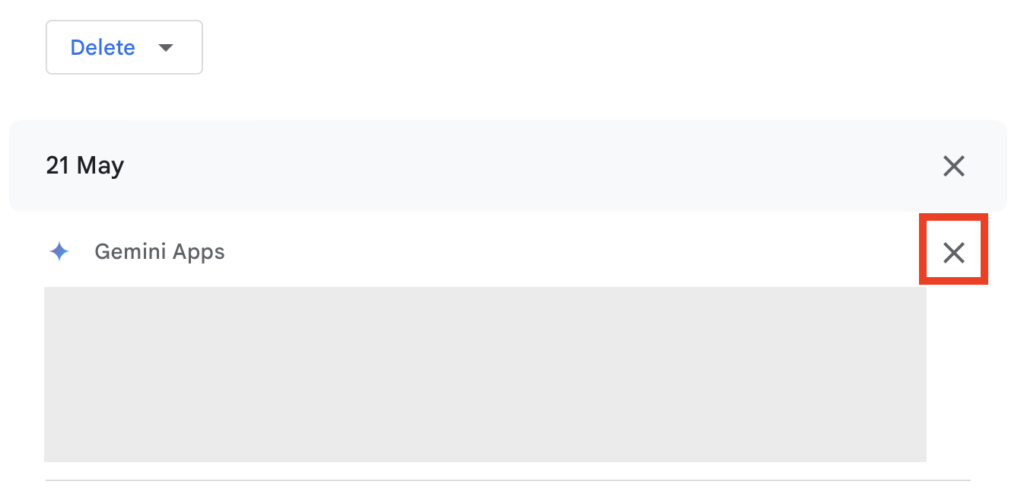
2a. Delete individual chats by clicking “X” beside the chat you want to delete
Scroll until you see a list of chats.
Delete each individual chat you don’t want stored in history by clicking “X” beside it.
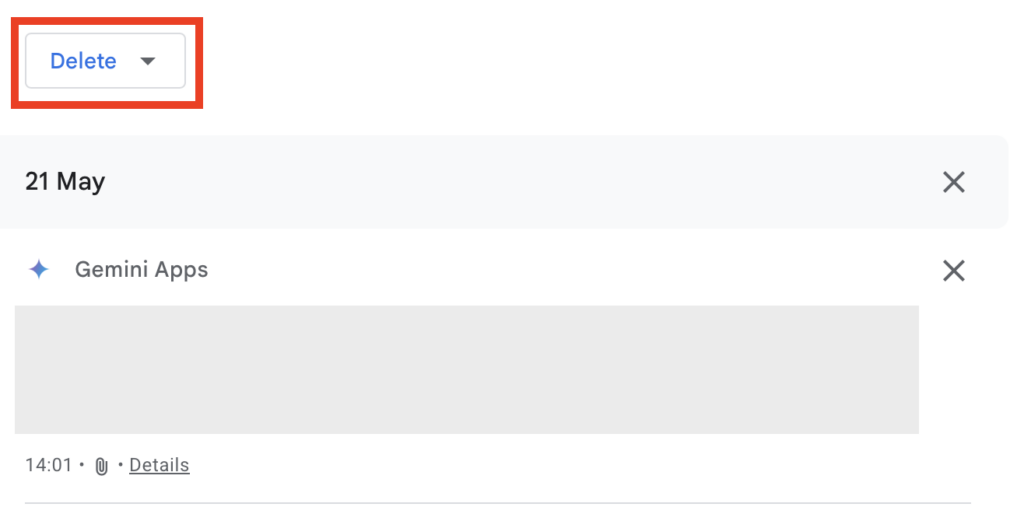
2b. Bulk delete chats by clicking ‘Delete,’ then selecting the timeframe for the activity you want to remove
Click the “Delete” button at the top.
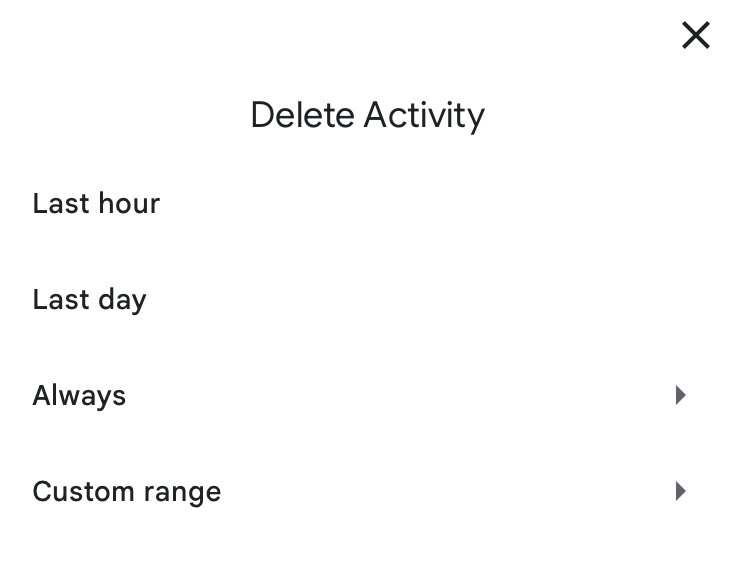
Select the timeframe for deleting your activity from the last hour, last day, always, or a custom range.
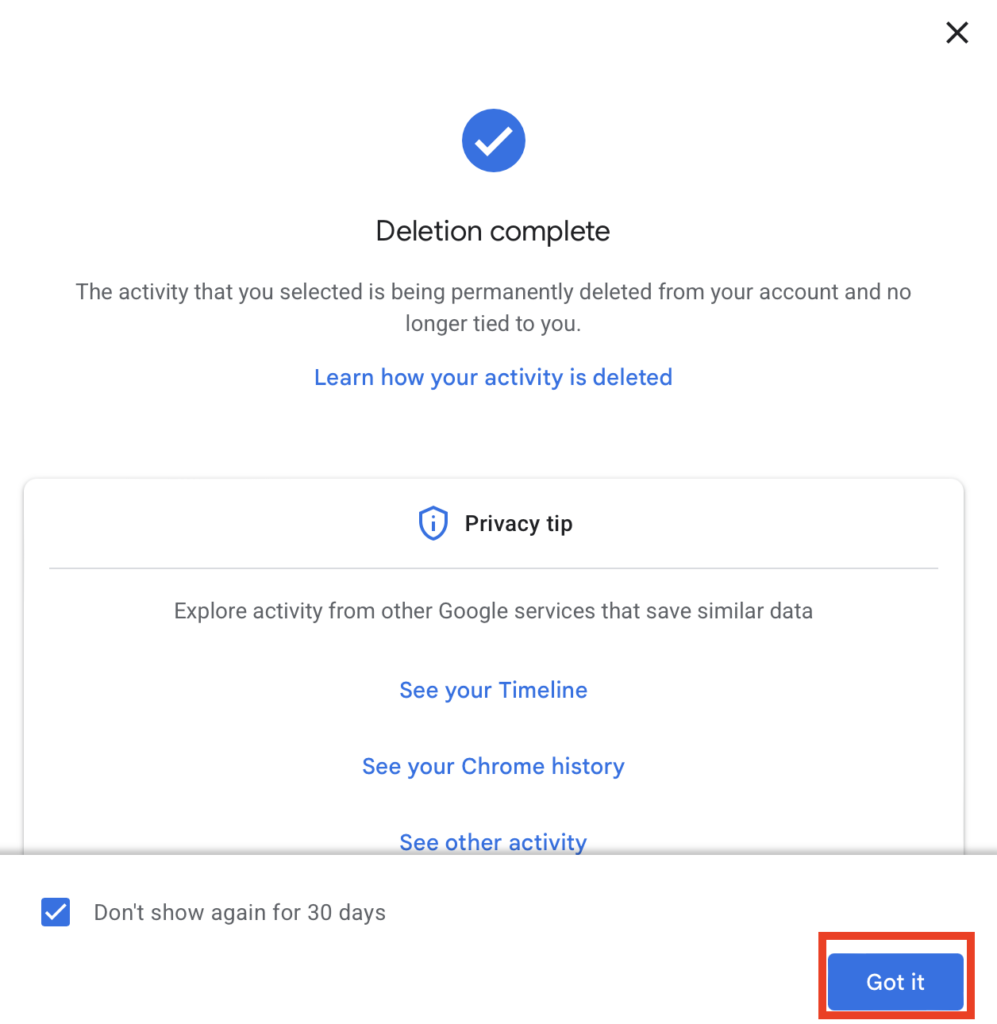
That’s it! Your chats have been permanently deleted from your account and are no longer tied to you.
Click the “Got it” button.
Set Your Gemini Conversations to Auto-Delete
If you want to keep the ‘Keep Activity’ setting on for the convenience of a searchable chat history, you do not have to let conversations live forever.
While Gemini auto-deletes your activity after 18 months by default, you can shorten or change that timeframe.
How to set your Gemini conversations to auto-delete
Here’s how you can set your Gemini conversations to auto-delete after a specific timeframe.
1. Go to Gemini Apps Activity
Go to https://myactivity.google.com/u/1/product/gemini
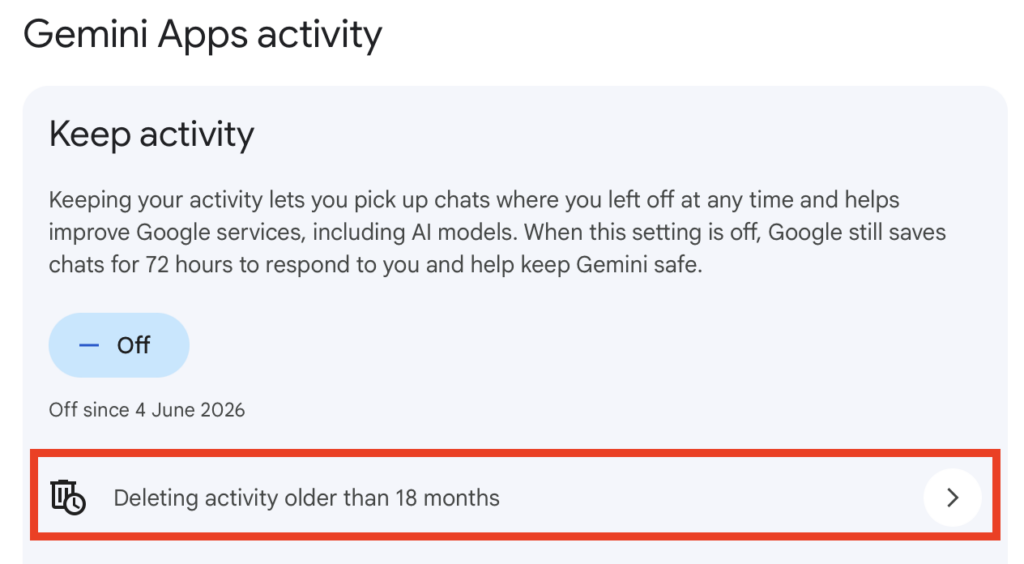
2. Click “Deleting activity older than 18 months”
Under ‘Gemini Apps activity,’ click “Deleting activity older than 18 months.”
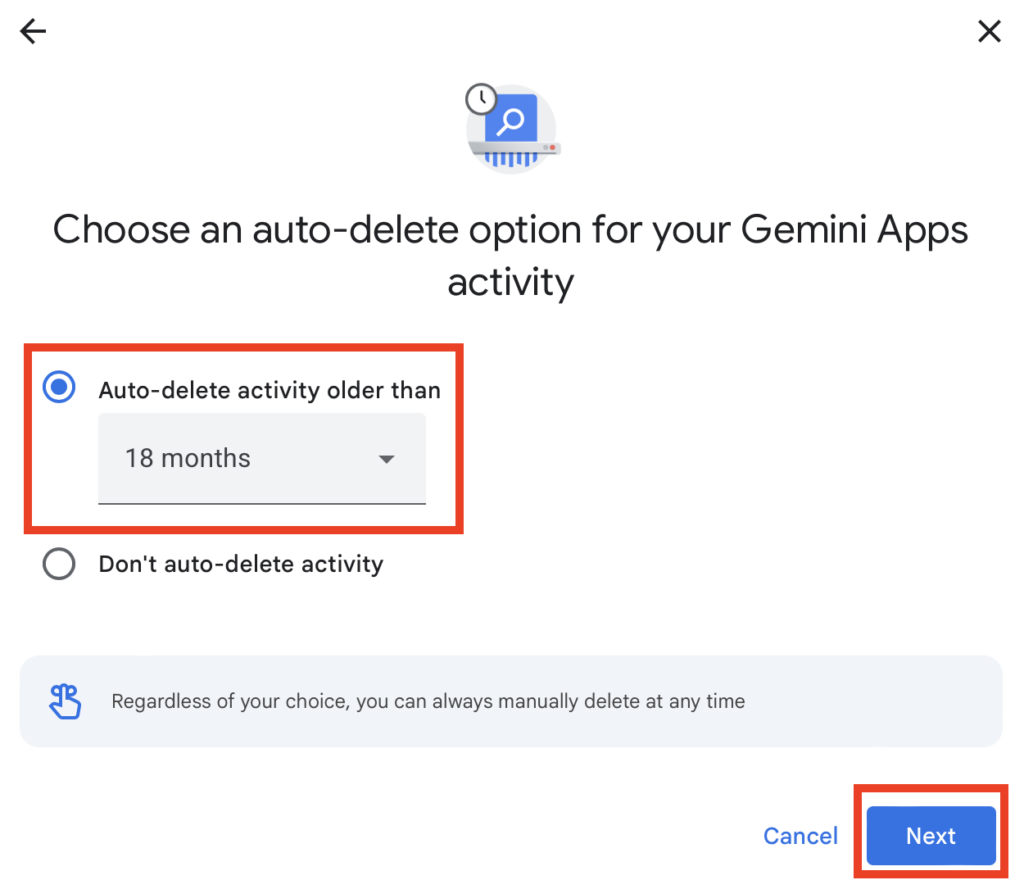
3. Select an auto-delete option and click “Next”
A pop-up window will appear where you can choose an auto-delete timeframe of 3 months, 18 months, or 36 months.
I chose 3 months. Picking 3 months is the simplest way to limit how much of your history exists at any given time while still keeping recent chats handy.
Once you choose an option, click the “Next” button.
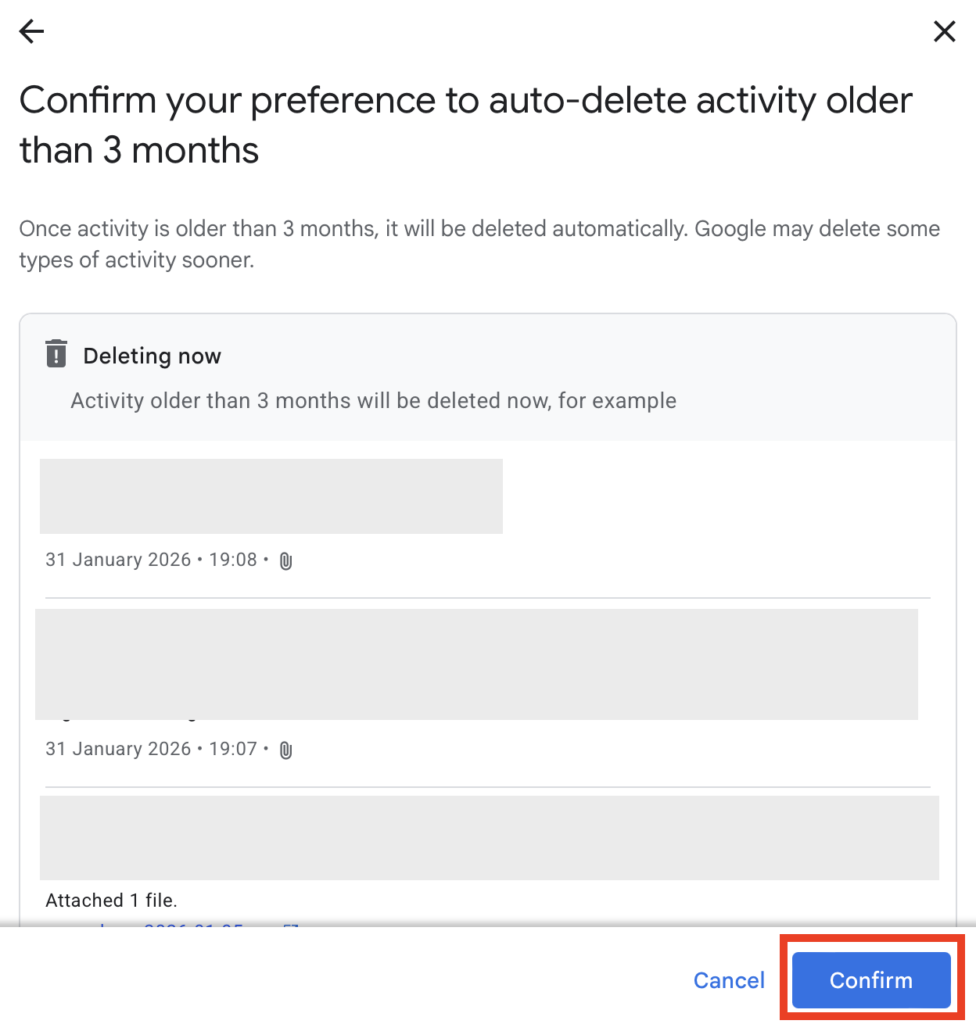
4. Click “Confirm”
You will see a list of activities that are older than your selected timeframe, and that will be deleted.
Click the “Confirm” button.
That’s it! You’ve successfully set your Gemini conversations to auto-delete.
Stop Google from Using Your Voice Recordings and Videos Or Screen Shares
Sitting under the broader ‘Keep activity’ setting is the setting ‘Improve Google services with your audio and Gemini Live videos and screenshares.’
This setting lets Google use your Gemini voice recordings, plus any camera video or screen shares from Gemini Live sessions, to improve its services and train its AI, with some of that material potentially watched or listened to by human reviewers.
It is opt-in rather than opt-out.
Switching this setting on also applies to recordings you’ve already made, not just future ones, and it can pick up audio from a few seconds before you say “Hey Google” or from accidental activations.
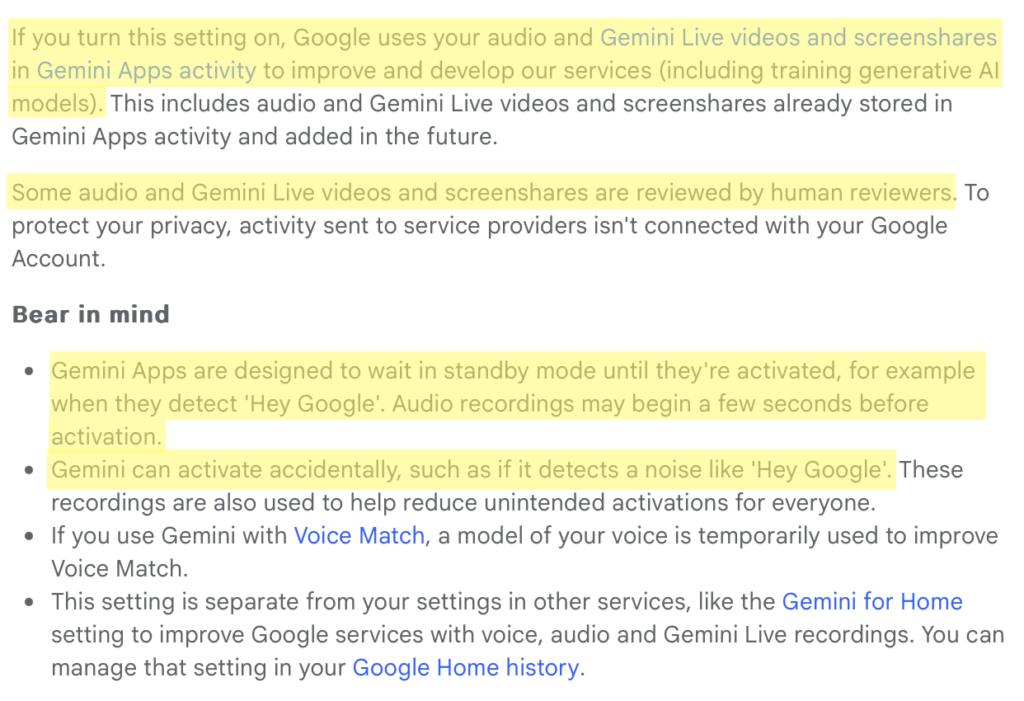
There’s no forced retention window here: you can leave it off and delete your recordings whenever you like.
How to stop Google from using your voice recordings and videos or screen shares
Here’s how you can check whether you’ve given Gemini permission to use your audio, video, and screen shares to improve Google services.
1. Go to Gemini Apps Activity
Go to https://myactivity.google.com/u/1/product/gemini
2. Check whether the audio and video sharing setting is ticked
Under ‘Gemini Apps activity,’ check if the ‘Improve Google services with your audio and Gemini Live videos and screenshares’ setting checkbox is ticked or not.
It should be off by default, but if it’s on, click the checkbox to turn it off.

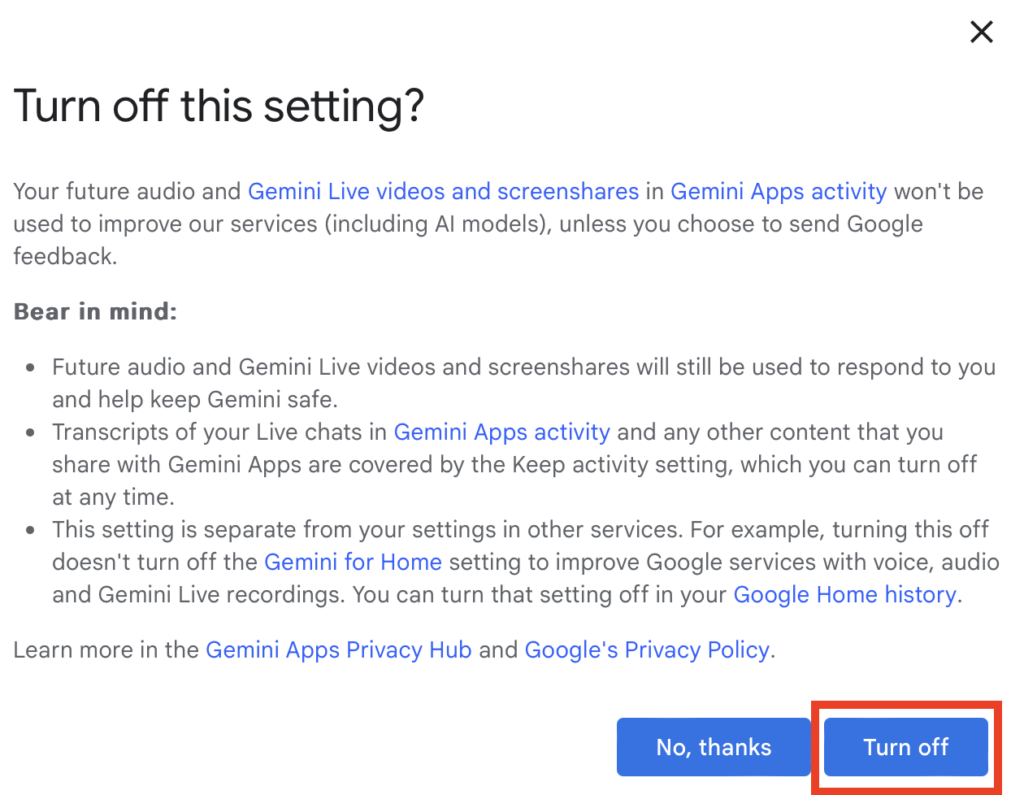
3. Click “Turn off”
You will see a pop-up window with information about this setting.
Click the “Turn off” button.
4. Click “Got it”
Click the “Got it” button.
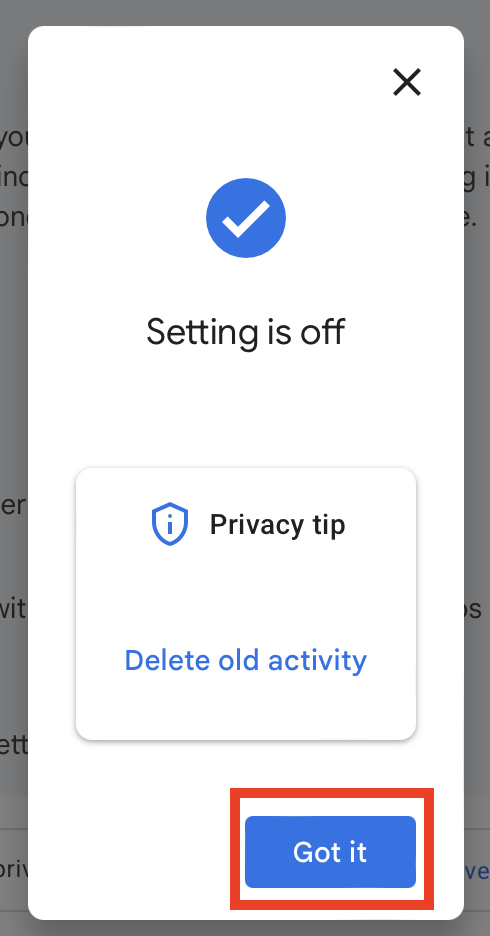
That’s it!
Use Temporary Chats for Anything Sensitive
If you want to have a Gemini conversation without it appearing in your recent chats or Gemini Apps Activity, or being used to train Google’s AI models, you can use a Temporary Chat.
Temporary Chats are kept for up to 72 hours to respond to you and to process any feedback you choose to provide.
How to start a Temporary Chat in Gemini
Here’s how you can start a Temporary Chat in Gemini in only one step.
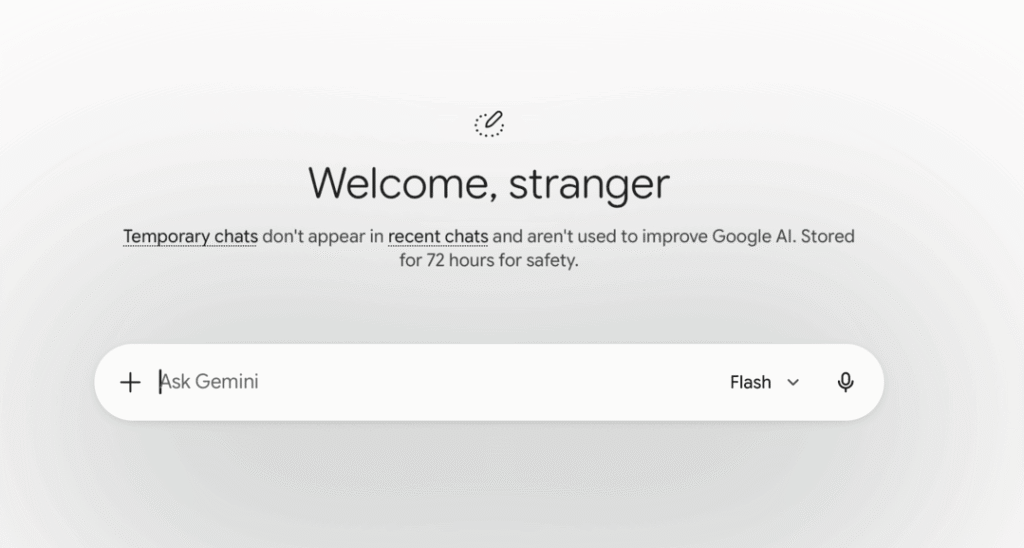
1. Click the dashed chat bubble icon (“Turn on temporary chat”)
From your Gemini dashboard, click the dashed chat bubble icon (“Turn on temporary chat”) in the top right corner.

That’s it! You can now have a Temporary Chat with Gemini.
Control Whether Gemini Remembers Your Past Chats
Gemini can reference your previous conversations to learn your preferences and give you more personalized answers over time.
If you would rather have Gemini treat each conversation as a blank slate, you can turn its ‘Memory’ setting off in your Gemini settings.
Turning it off does not delete your history. It just stops Gemini from using it to tailor responses.
How to control whether Gemini remembers your past chats
Here’s how you can check whether Gemini is set to remember your past chats, and how to turn it off if it is.
1. Click the cog (“Settings”) icon
In your Gemini dashboard, select the cog (“Settings”) icon from the bottom left side.

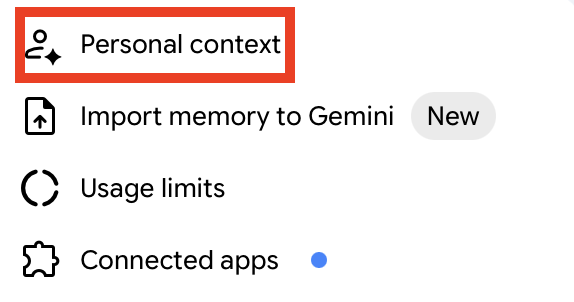
2. Click “Personal context”
From the pop-up menu that appears, select “Personal context.”
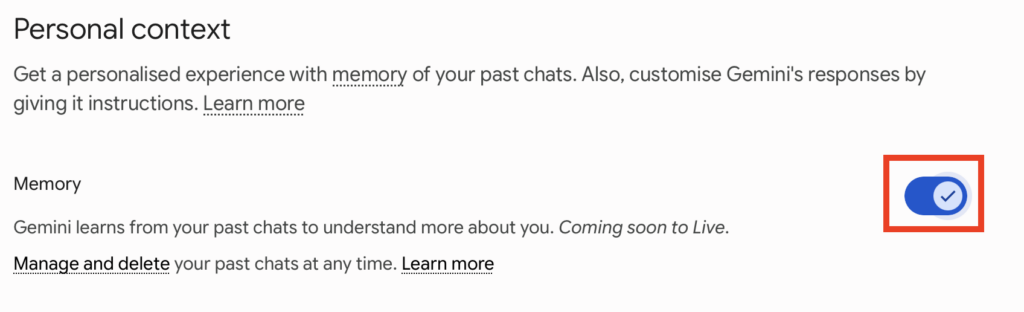
3. Toggle ‘Memory’ off
Toggle off the setting next to ‘Memory.’
That’s it!

Disconnect Unwanted Third-Party Apps from Gemini
Gemini can connect to other services, like Gmail, Google Workspace, Phone, Messages, and WhatsApp, so it can act on information from them. This can be useful, but it also widens what Gemini can access.
Any data Gemini shares with another app is then governed by that app’s own privacy policy. Deleting your Gemini activity does not delete data that those apps have already received.
Review your connected apps periodically and disconnect anything you are not actively using.
How to disconnect unwanted third-party apps from Gemini
Here’s how you can see which third-party apps are connected to Gemini, and how to disconnect any you no longer need.
1. Click the cog (“Settings”) icon
In your Gemini dashboard, select the cog (“Settings”) icon from the bottom left side.

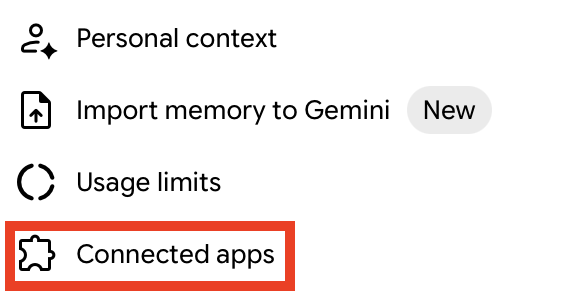
2. Select “Connected apps”
From the pop-up menu that appears, select “Connected apps.”
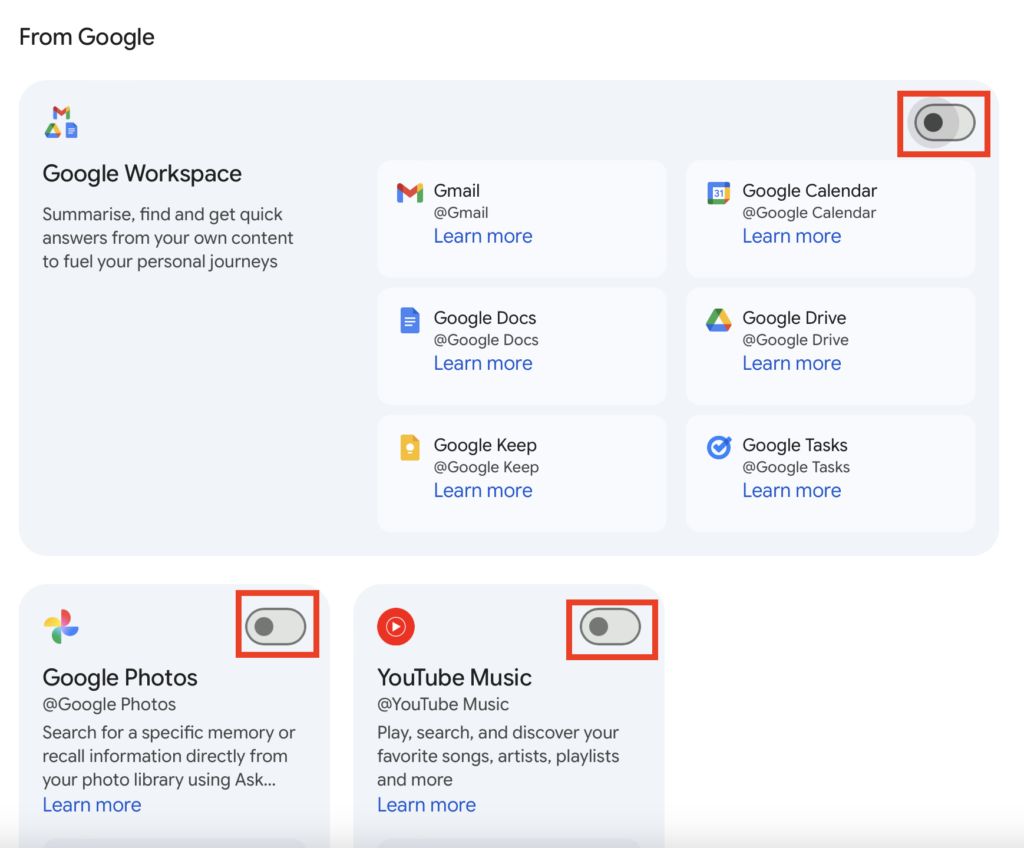
3. Toggle off unwanted connected apps
You will see a list of apps, each showing whether it’s connected.
If any are connected that you no longer want, toggle them off.
Review and Revoke Shared Gemini Links
If you’ve ever shared a Gemini chat, you’ve essentially made it public, i.e., anyone who has the link can read the whole conversation. If they share it with someone else or accidentally expose it, anyone who finds the link can read it, too.
Your name isn’t attached to the chat, but the content within it might still give you away if you discussed anything personal.
Other people can reshare your chat and even keep chatting in it themselves, in which case, their chat ends up saved in their Google account.
Note that deleting the link doesn’t fully undo things. New people can’t open it anymore, but it won’t delete anything you posted elsewhere, won’t remove it from your own history, and won’t remove it from anyone who already continued the chat.
The best approach is therefore to treat a shared chat like a public post.
How to review and revoke shared Gemini links
Here’s how to check whether you’ve shared any Gemini links, and how to revoke any you no longer want public.
1. Click the cog (“Settings”) icon
In your Gemini dashboard, select the cog (“Settings”) icon from the bottom left side.

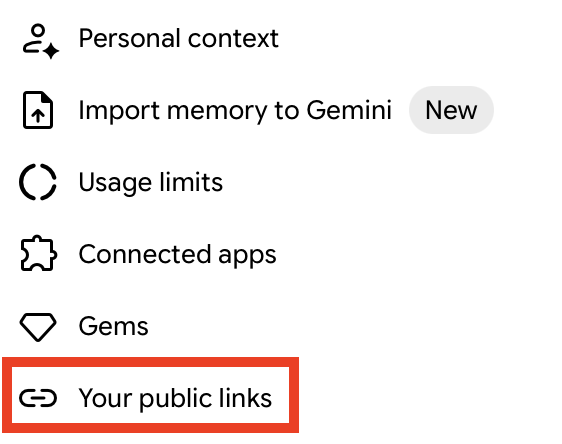
2. Click “Your public links”
From the pop-up menu that appears, select “Your public links.”
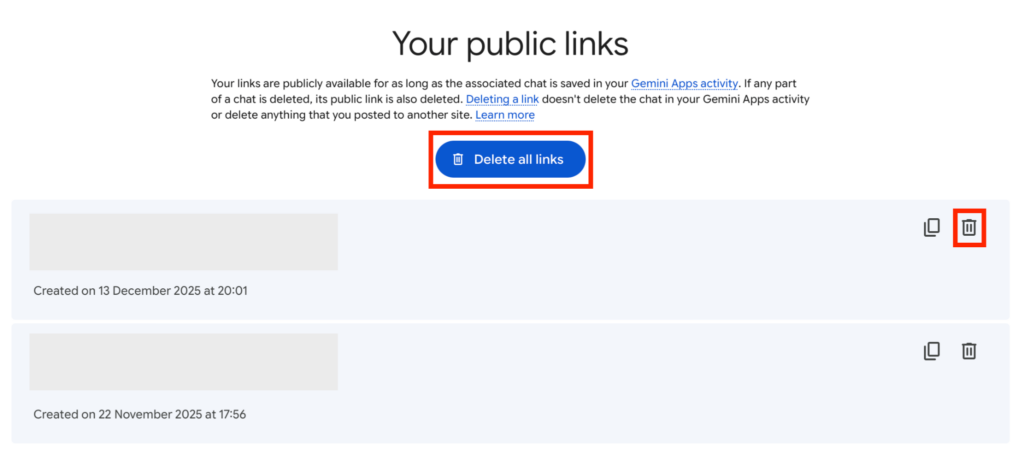
3. Click “Delete all links” or click the trash can icon to delete individual links
You will be redirected to a page with all your public links.
You can either click the “Delete all links” button to delete all public links in one go.
Or, you can delete individual links by clicking the trash can icon next to each link.
Don’t Forget Data Brokers and People Search Sites
Reviewing your privacy settings on Gemini is important, but there’s one more thing you should do to improve your privacy: opt out of data brokers and people search sites.
- Setting your privacy controls to maximum privacy on Gemini limits how much of your content is used to improve Google’s products and services.
- Opting out of data brokers and people search sites prevents your personal information from being sold to (more or less) anyone who wants it.
Data brokers and people search sites are companies that collect your personal information from a wide variety of sources and then sell it to pretty much anyone who wants it.
It is thanks to sites like Spokeo, Intelius, Whitepages, and hundreds of others that anyone can find out where you live, who you’re related to, your contact details, and more.
If you’re not comfortable with your personal information being available online for anyone to see, you’ll be glad to know that you can opt out. See our comprehensive, step-by-step people search site opt-out guides here.
Just remember that opt-outs are not once-and-done. You’ll need to repeat them in a few months’ time. That’s because people search sites and data brokers republish individuals after they find more information about them, even if they previously opted out.
Don’t want to spend time on manual opt-outs, but don’t want to give up your privacy either? A data broker removal service like DeleteMe can help. Our privacy experts will remove you from people search sites on your behalf and will make sure you remain opted out.

news?

Don’t have the time?
DeleteMe is our premium privacy service that removes you from more than 750 data brokers like Whitepages, Spokeo, BeenVerified, plus many more.
Save 10% on DeleteMe when you use the code BLOG10.
Related Posts



Julius AI Data Privacy Settings Guide