How to Opt Out of Google AI Training


Table of Contents
In my ongoing quest to opt out of AI training across every major platform I use, I eventually arrived at the big one, Google. By Google, I mean Gemini, Gmail, and Google Workspace. Tools I use every day. So, what does opting out of Google AI training entail?
Turns out, not that much. You can opt out of Google AI training in three steps.
The first step is opting out of Gemini chat history and AI training. The second and third are turning off Google’s “smart features” in Gmail and the wider Google Workspace.
If you’d also like to opt out of Google AI training as I did, keep on reading for step-by-step instructions on how.
What Is “Google AI Training”?
Two different things get lumped together as “Google AI training”:
- Your conversations with Google’s chatbot Gemini. By default, these conversations are saved, and a sample of them is read by human reviewers and used to improve Google’s models.
- “Smart features” inside products like Gmail and other Google Workspace apps. Google says these features personalize your own experience and that it does not use the content of your personal Gmail to train the public Gemini model. Even so, many people turn Google’s smart features off to limit how much of their content is scanned by AI.
Here’s how you can opt out of both.
Opt Out of Google AI Training In Gemini
If you use Google’s Gemini, your chats are used to train Google’s AI models by default. Some of your chats may also be reviewed by human reviewers (hence why Google recommends never entering information that “you wouldn’t want reviewed or used”).
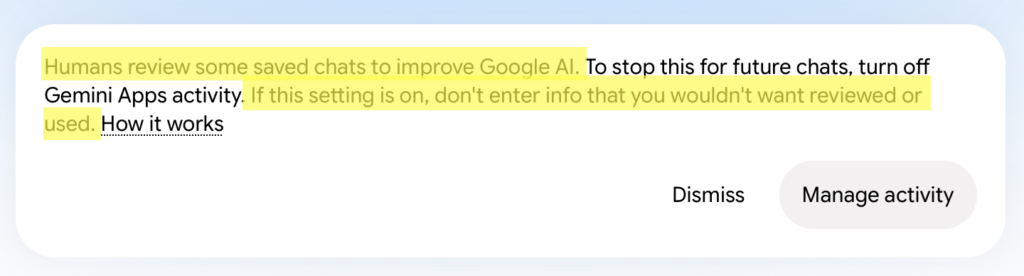
Toggling this setting off will stop your chats from being visible in your Gemini activity history. They will also no longer be used to train AI models (with the exception of sending feedback).
However, keep in mind that turning this setting off does not stop your conversations with Gemini from being stored for 72 hours for things like generating responses and keeping Gemini safe.
How to opt out of Google AI training in Gemini
Here’s how you can prevent your activity history from being used to train Google’s AI models.
1. Visit ‘Gemini Apps activity’
Go to the ‘Gemini Apps activity’ setting by clicking the following URL: https://myactivity.google.com/u/1/product/gemini.
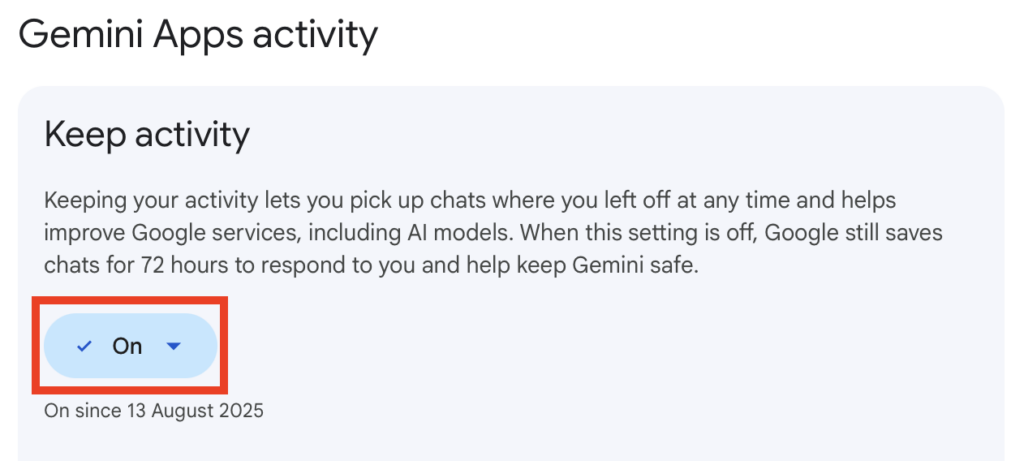
2. Click “On”
Under ‘Keep activity,’ click the “On” to open a drop-down menu.
3. Click “Turn off” or “Turn off and delete activity”
You will see two options:
- Turn off.
- Turn off and delete activity.
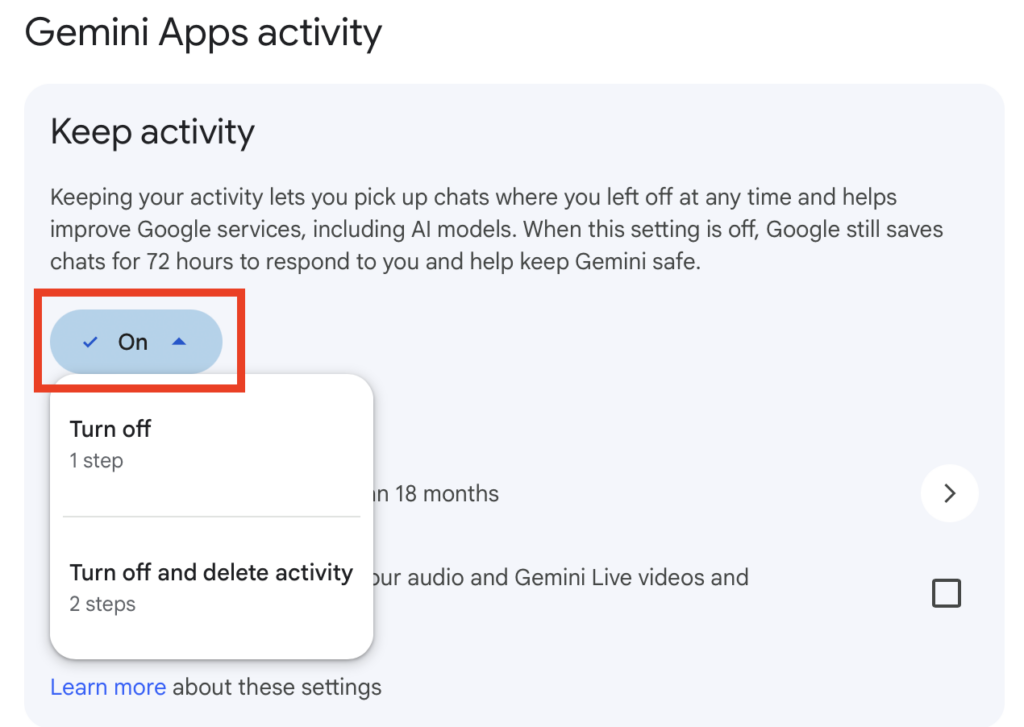
Choose the option you want.
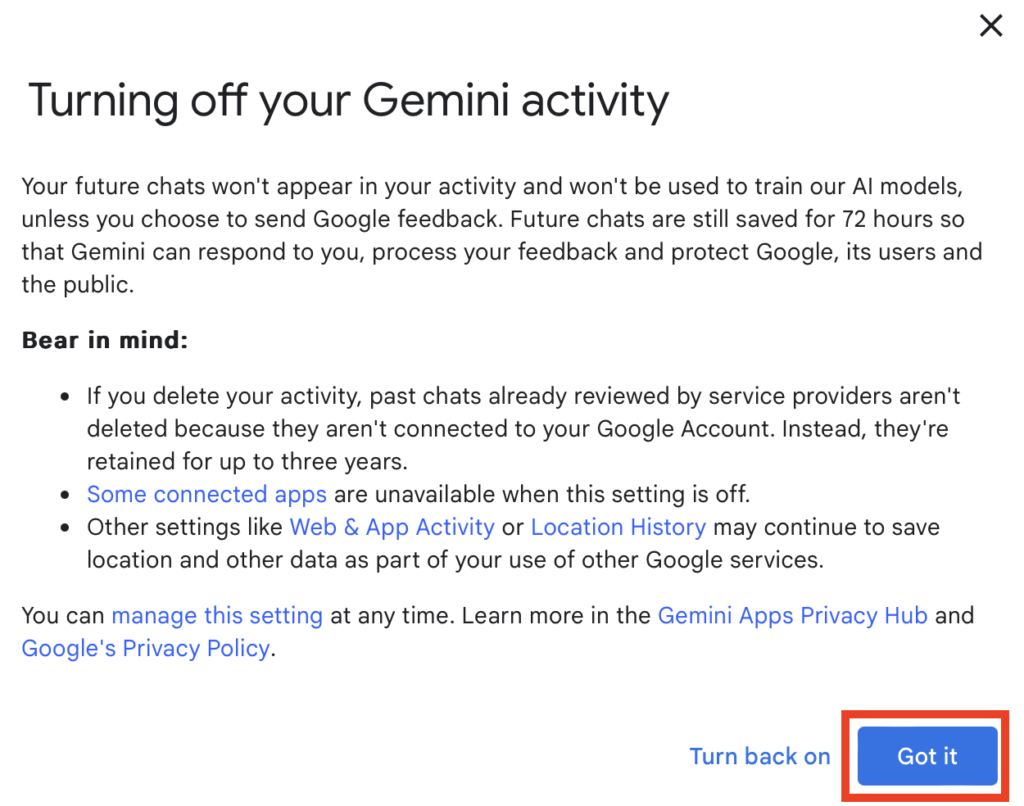
4a. Click “Turn off” and then click “Got it”
If you select “Turn off,” a pop-up window with more information about what this setting does will appear.
Click “Got it.”
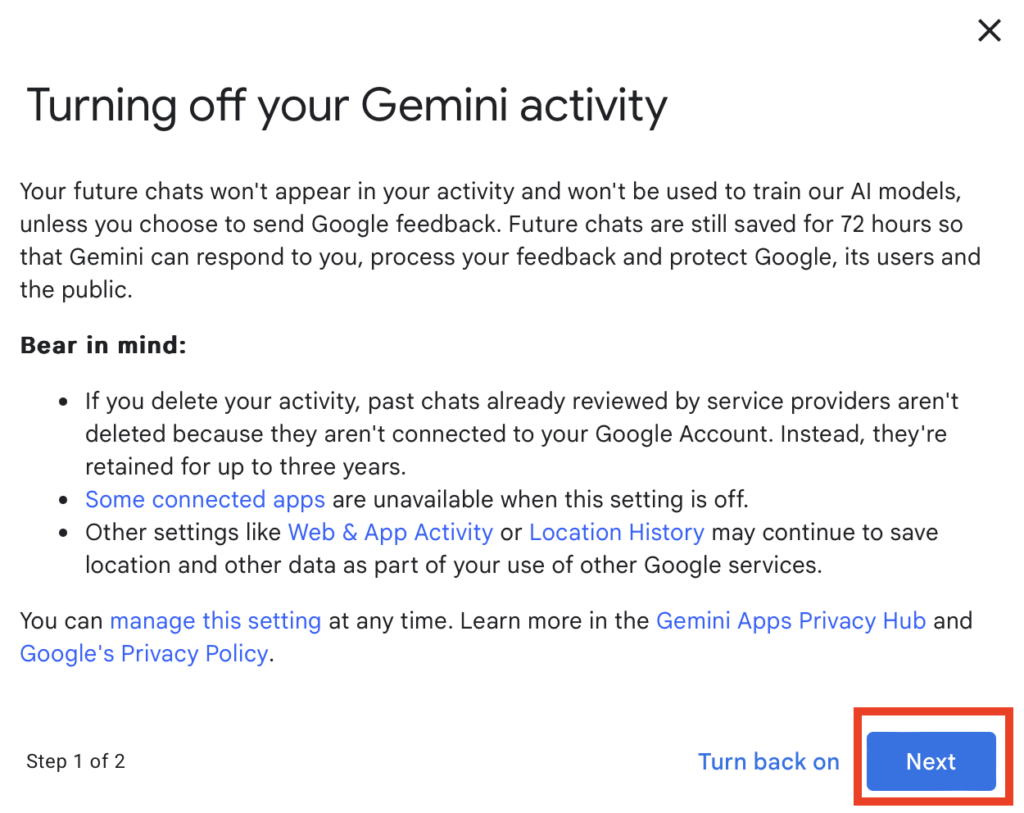
4b. Click “Turn off and delete activity,” “Next,” and “Delete”
If you select “Turn off and delete activity,” a pop-up window with more information about what this setting does will appear.
Click the “Next” button.
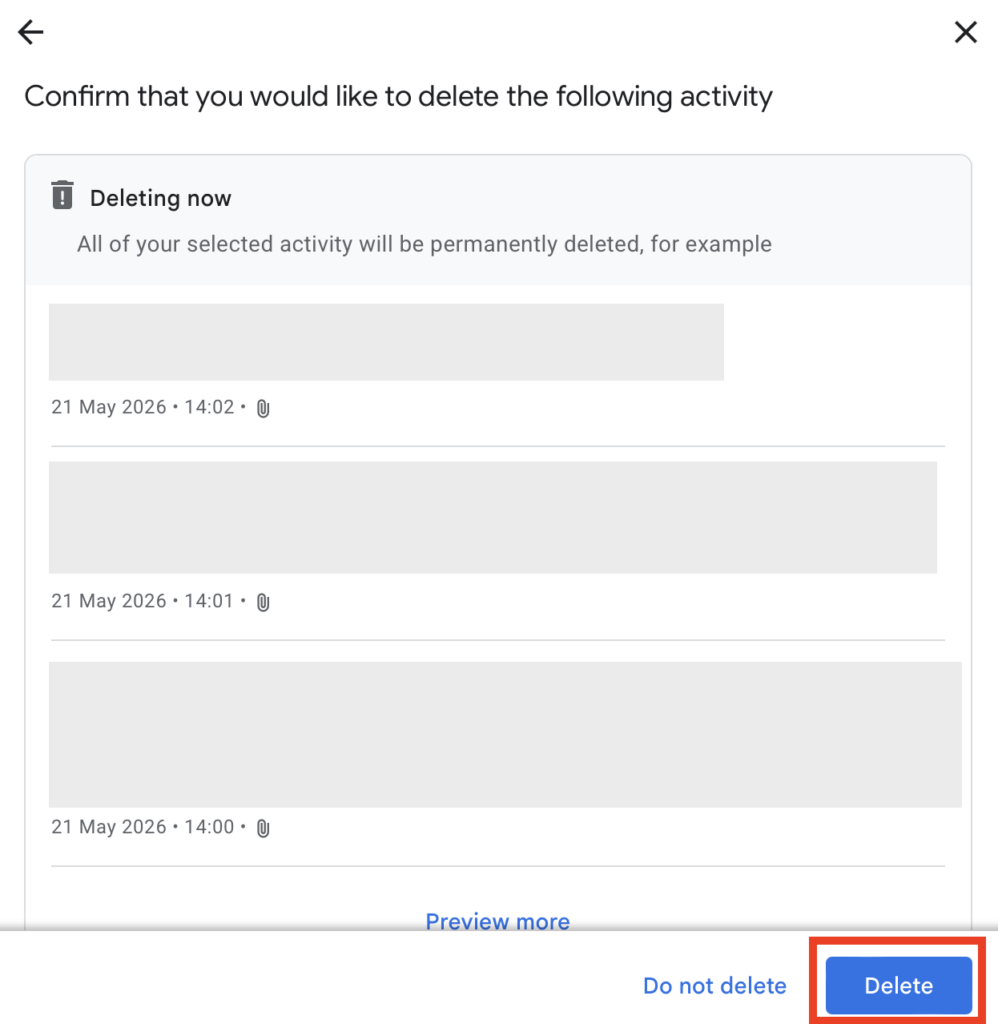
Next, you will need to confirm that you indeed want to delete your activity.
Select “Delete” to confirm your choice.
That’s it!
You’ve opted out of Google AI training in Gemini.
How to Opt Out of Smart Features In Gmail and Google Workspace
Google’s smart features are a collection of AI-powered tools built into Gmail and across the wider Google Workspace platform, covering Chat, Meet, Drive, and the rest.
Google’s AI scans what you write and store, such as your emails and documents, and uses it to provide tailored help (e.g., sorting your inbox for you and suggesting replies to messages).
Leaving the smart features box ticked counts as giving Google permission to use your content, both to personalize features and to improve its services more broadly, research and development included.
If you would rather opt out, you can turn off smart features in your Gmail settings, then turn them off separately under Drive’s privacy settings.
Opt out of smart features in Gmail
Here’s how you can opt out of smart features in Gmail in four steps.
1. Click the “settings” (cog) icon in Gmail
Sign in to your Gmail account.
Click “settings” (cog icon) in the upper right corner.

2. Select “See all settings”
Click “See all settings” in the pop-up menu that appears on your screen.
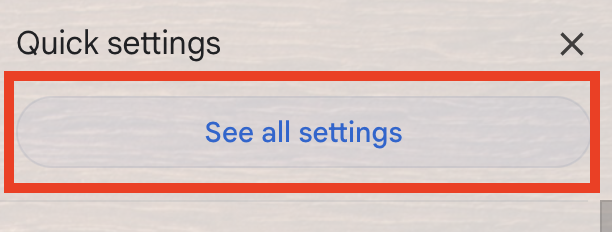
3. Uncheck the checkbox next to ‘Smart features’
Scroll to the ‘Smart features’ section.
Uncheck the checkbox next to it.

4. Select “Turn off and reload”
You will now see a pop-up window with a message telling you that you need to reload Gmail to turn off smart features.
Select “Turn off and reload.”
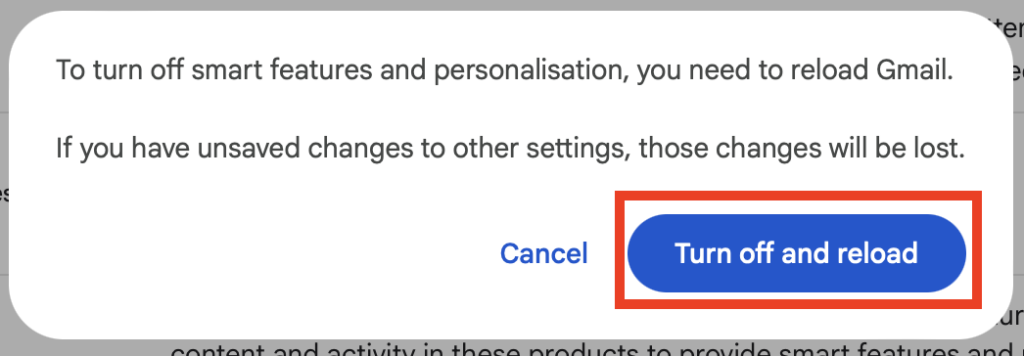
Your Gmail inbox will now reload. After it reloads, the smart features in your Gmail will be turned off.
Opt out of smart features in Google Workspace
Here’s how you can opt out of smart features in your Google Workspace in four steps.
1. Select the “settings (cog) icon in Gmail
Sign in to your Gmail account.
Click “settings” (cog icon) in the upper right corner.
2. Select “See all settings”
Click “See all settings” in the pop-up menu that appears on your screen.
3. Select “Manage Workspace smart feature settings”
Go to the ‘Google Workspace smart features’ section on the page.
Click “Manage Workspace smart feature settings” beside it.

4. Turn off the smart features settings
A pop-up will appear with information on smart features in your Google Workspace and other Google products.
Untoggle both settings if they’re toggled on.
Then, click the “Save” button.
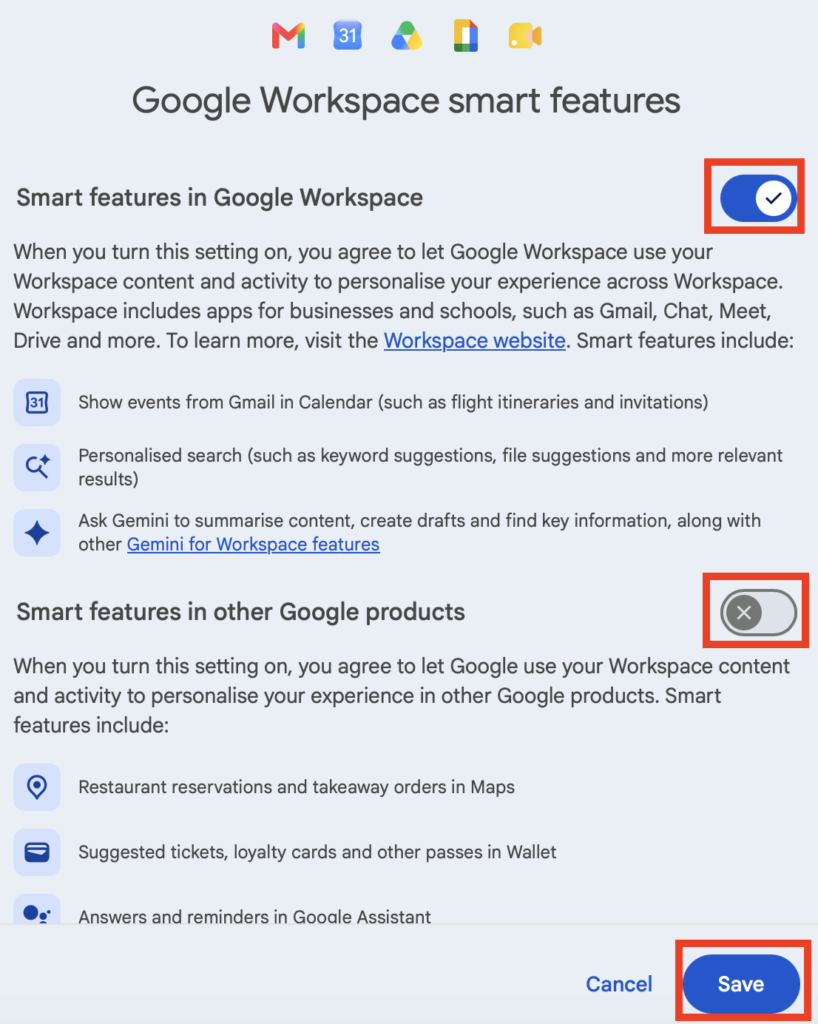
That’s it!
You’ll see a pop-up message saying that your preferences have been saved.
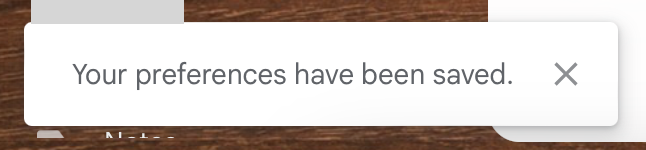
A note for EU, UK, Swiss, and Japanese users
If your account is based in the European Union, the United Kingdom, Switzerland, or Japan, Google has been required to opt you out by default.
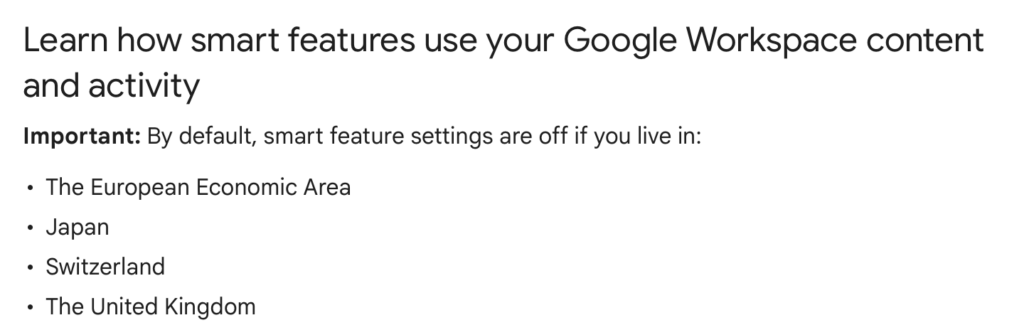
You generally do not need to change anything, though it is still worth checking the two settings above to confirm they are off.
A note for Google Workspace administrators
If you manage a business or school Google Workspace, individual users can control their own smart features, but organization-wide behavior is governed in the Admin console.
Admins who want to set a consistent policy should review the smart features and personalization controls there rather than relying on each user to change personal settings.
How to Contact Gmail
There’s no way to contact Google by email, live chat, or phone if you’re a free user. If you’re a Google Workspace customer, you can contact Google through live chat. Otherwise, you can seek help through Google’s Help Center.
Don’t Forget Data Brokers and People Search Sites
After you opt out of Google AI training, you should also opt out of data brokers and people search sites.
- Opting out of Google AI training minimizes how much of your content Google uses to improve its products and services.
- Opting out of data brokers and people search sites reduces the amount of your information available to anyone on the internet.
Data brokers and people search sites are companies that collect your personal information from various sources (e.g., public records, social media), collate it into detailed profiles, and then share/sell these profiles.
As long as someone knows your name or phone number or where you live (or sometimes, even just your email address or username), they can use a people search site to find out more information about you (like where you work or who you’re related to). These sites also frequently show up on the first page of Google when someone looks you up online.
The good news is that you can opt out of people search sites and data brokers. See our data broker and people search site opt-out guides for more information on how to do so.
After you opt out, make a note in your calendar to re-check these sites in a few months. That’s because after a while, they are likely to relist you. For this reason, opt-outs need to happen regularly. If you see that your information has been relisted on a people search site, you’ll need to send another opt-out request.
Don’t want to perform manual opt-outs? Subscribing to a data broker removal service such as DeleteMe can help. Our privacy experts will remove you from data brokers and people search sites for you, and they will ensure your information remains off of these sites.

news?

Don’t have the time?
DeleteMe is our premium privacy service that removes you from more than 750 data brokers like Whitepages, Spokeo, BeenVerified, plus many more.
Save 10% on DeleteMe when you use the code BLOG10.
Related Posts


Julius AI Data Privacy Settings Guide