Character AI Privacy Settings Guide


Table of Contents
Out of curiosity, I made a Character AI account to see what it would be like to chat with fictional characters from books I like. Then, since I’ve been going through my privacy settings everywhere lately, it didn’t take long to spot a few things worth changing on my Character AI account to improve privacy there too.
If you have a Character AI account, you should probably do the same.
Here are the privacy settings that matter, and how to turn them on.
Opting Out of AI Model Training in Character AI
Character AI states that it uses some of the data you share with it to train its generative AI models. However, it notes that it takes steps to strip out personal information before doing so.

How to opt out of AI model training in Character AI
If you’re in the European Economic Area (EEA) or the United Kingdom, Character AI says that you can opt out of having your data used for training.
However, I was unable to locate this setting.
In case you’re more lucky, here’s where it should be.
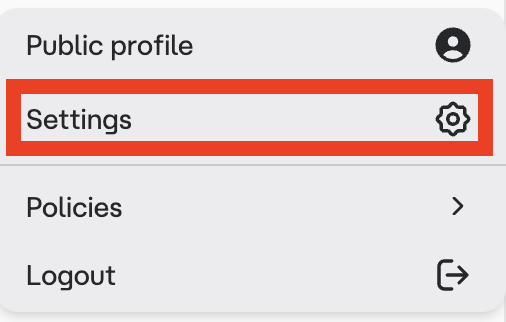
1. Click your profile name and icon and select “Settings”
From your Character AI dashboard, click your profile name and icon in the bottom left.
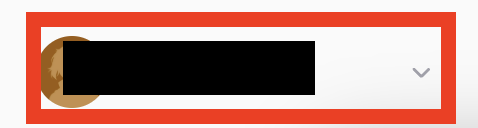
Then, from the pop-up menu that appears, select “Settings.”
2. Select “Account”
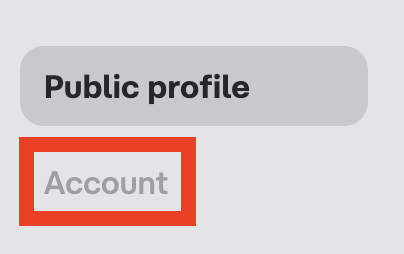
Select “Account” from the menu on the left.
3. Select “Manage Account & Data”
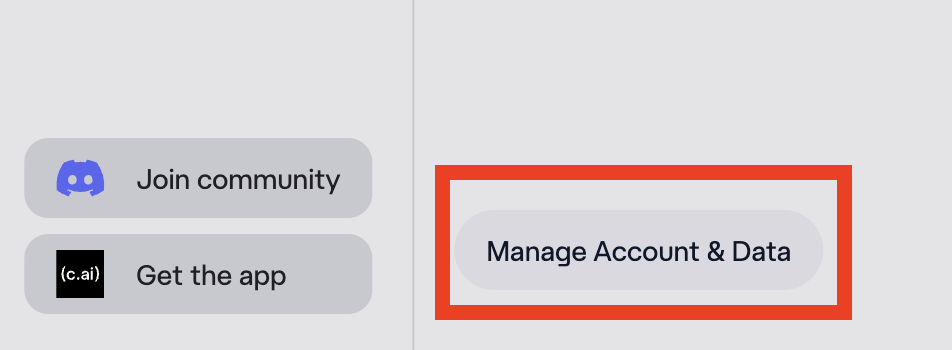
Click the “Manage Account & Data” button at the bottom.
4. Select “Model Improvement”
Select “Model Improvement.”
5. Toggle off “Improve the Model for Everyone”
Toggle off the setting to “Improve the Model for Everyone.”
That’s it.
Character AI will not use new content from you to train its generative AI models. However, it may still use your data to improve services like recommendations, search, and safety classifiers.
Controlling Character Visibility on Character AI
Every character you create on Character AI can be assigned a different privacy setting.
Privacy settings available include:
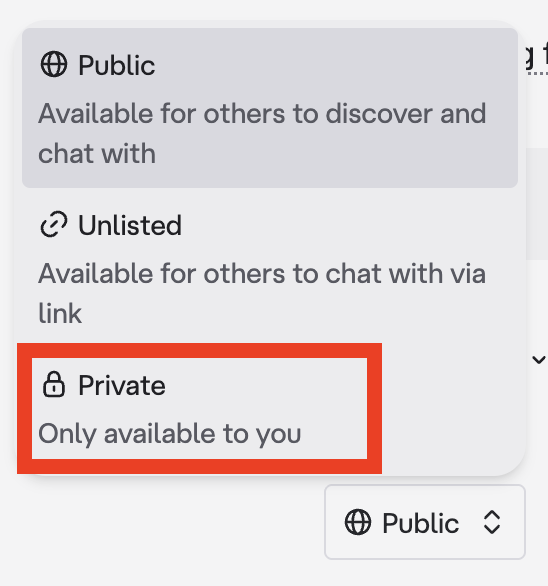
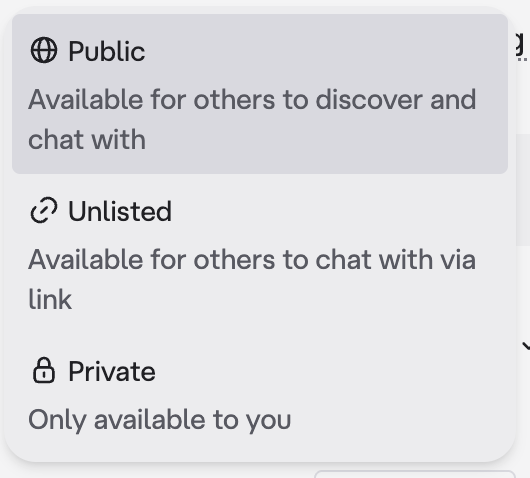
- Public: Anyone can find and chat with your character.
- Unlisted. Only people who have a direct link to the character can access it, and the character won’t show up in search.
- Private: Only you can chat with the character you’ve created.
How to control character visibility on Character AI
Here’s how you can control how visible your character is on Character AI.
How to control character visibility on Character AI when creating a character
You can control a character’s visibility when you create it on Character AI.
1. Click “+Create” and select “Character”
Click the “+Create” button from the left side menu.
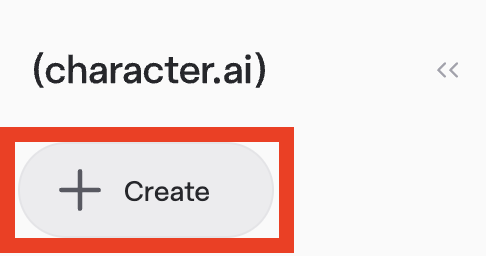
Select “Character” from the pop-up menu.
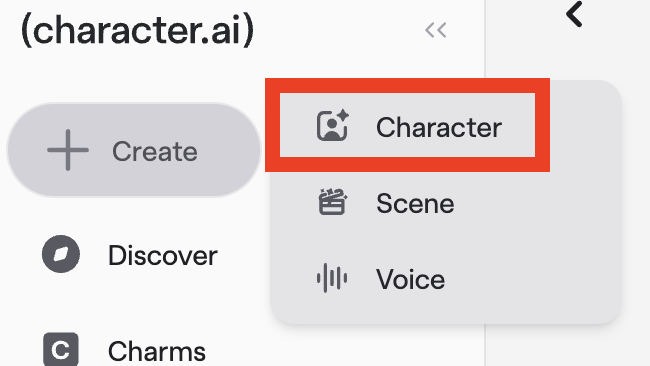
2. Change the visibility setting
Create your character.
Then, choose its visibility by clicking the box beneath the setting.
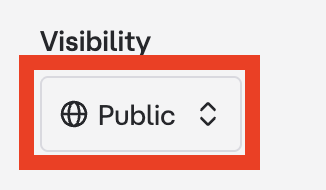
Choose “Unlisted” or, if you want maximum privacy, select “Private” (to make the character only available to you).
Then, click “Create Character.”
How to control character visibility on Character AI after you created your character
If you’re not sure what visibility setting your characters have, here’s how you can check.
1. Click your profile name and icon and select “Settings”
From your Character AI dashboard, click your profile name and icon in the bottom left.
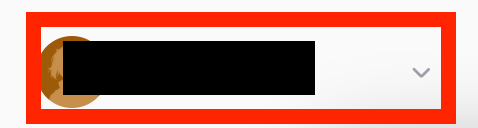
Then, from the pop-up menu that appears, select “Public profile.”
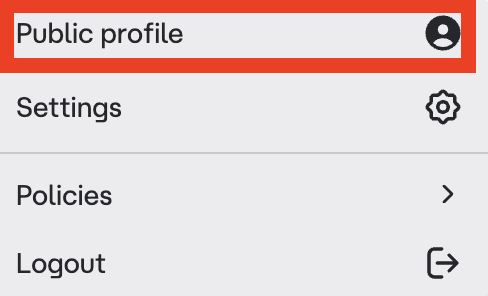
2. Click the three-dot icon
Select the three-dot icon next to the character you want to review.

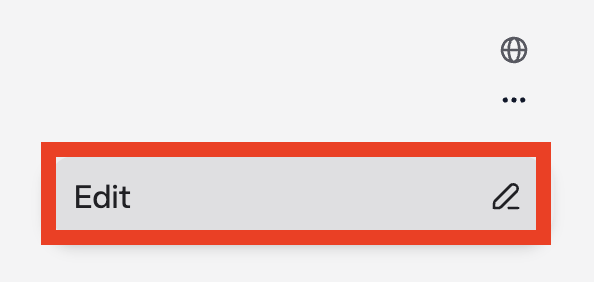
Then, click “Edit”
3. Review the visibility settings
Scroll to the bottom until you see ‘Visibility.’
If the setting is set to ‘Public,’ click on it.
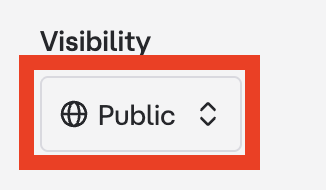
From the available options, choose either ‘Unlisted’ or ‘Private.’
4. Click “Save Changes”
Click the “Save Changes” button.
Keep Your Character AI Account Private
There is no setting to make your entire Character AI user profile private.
That means that if someone knows your username or visits your public Character AI profile, they may be able to see things like your:
- Display name.
- Profile picture.
- Bio (if you’ve added one).
- Public characters.
- Follower/following lists (if turned on by the platform).
- Public posts or shared content.
For better privacy, keep all of your character private, don’t publish posts, make sure your bio and profile picture are free from identifying information, and don’t use your real name as your username.
Opt Out of Data Sales and Targeted Ads on Character AI
Under US state privacy laws (like the CCPA), Character.AI offers a separate opt-out for the sale or sharing of personal information and for targeted advertising.
This opt-out is tied to the specific device and browser you’re using. If you use Character.AI on your phone, laptop, and a tablet, you’ll need to repeat the opt-out on each one.
How to opt out of data sales and targeted ads on Character AI
Here’s how you can opt out of data sales and targeted ads on Character AI.
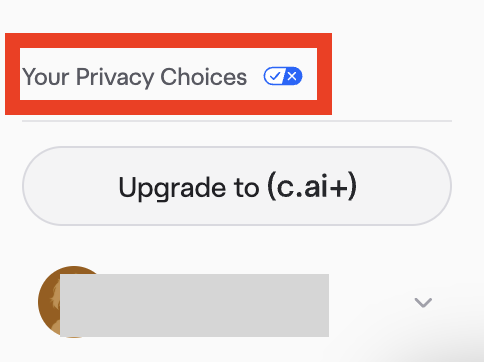
1. Click “Your Privacy Choices”
Click “Your Privacy Choices” from the left-side menu.
2. Click the “Do not consent” button
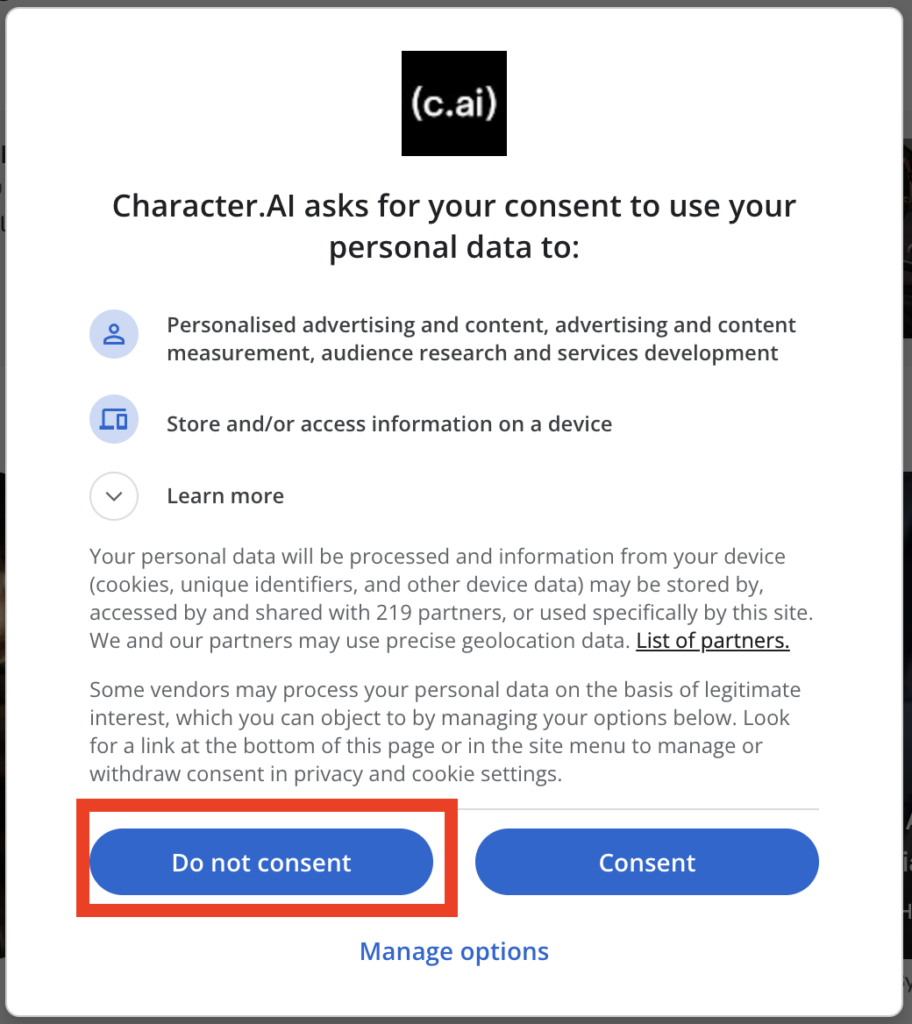
A pop-up screen will appear asking you for permission to collect and use your data for advertising and analytics, as well as to let third-party companies do the same.
If privacy is important to you, click the “Do not consent” button.
That’s it.
Your data will not be used for the above. The only exception is if Character AI or its vendors decide that they have a legitimate interest to do so.
Delete Your Character AI Account
The simplest way to protect your privacy with a service is just not to use it if you don’t need to. With that in mind, here’s how you can delete your Character AI account. If you want to keep a copy first, I also show you how to export it.
Note: When you delete your account, you will permanently lose access to it. This includes your chats, Characters, messages, and more.
How to export your Character AI data
Here’s how you can export your Character AI data.
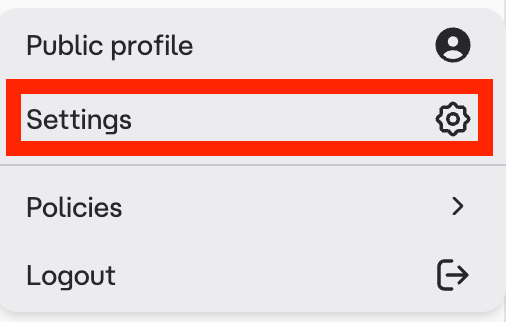
1. Click your profile name and icon and select “Settings”
From your Character AI dashboard, click your profile name and icon in the bottom left.
Then, from the pop-up menu that appears, select “Settings.”
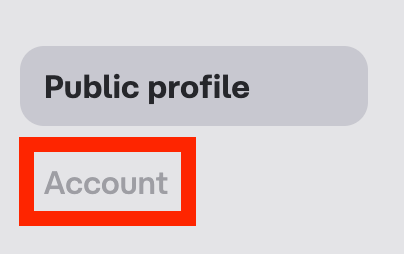
2. Select “Account”
Select “Account” from the menu on the left.
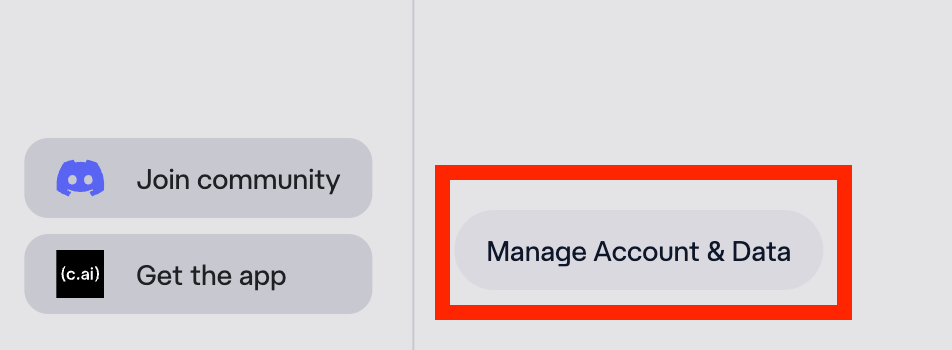
3. Click “Manage Account & Data”
Click the “Manage Account & Data” button at the bottom.
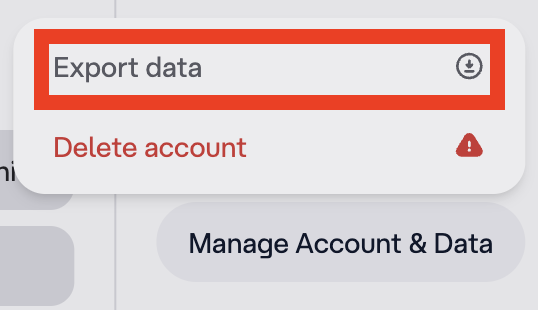
4. Select “Export data”
From the small pop-up menu that appears, select “Export data.”
That’s it. Your download should start automatically.
How to delete your Character AI account
Here’s how you can delete your Character AI account.
1. Click your profile name and icon and select “Settings”
From your Character AI dashboard, click your profile name and icon in the bottom left.
Then, from the pop-up menu that appears, select “Settings.”
2. Select “Account”
Select “Account” from the menu on the left.
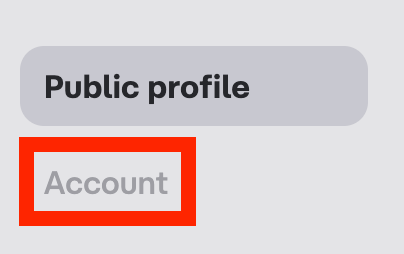
3. Click “Manage Account & Data”
Click the “Manage Account & Data” button at the bottom.
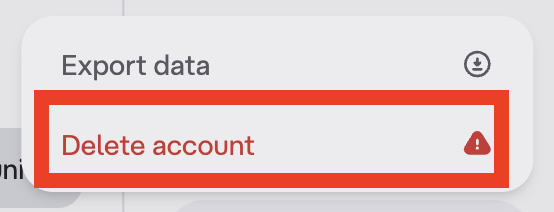
4. Select “Delete account”
From the small pop-up menu that appears, select “Delete account.”
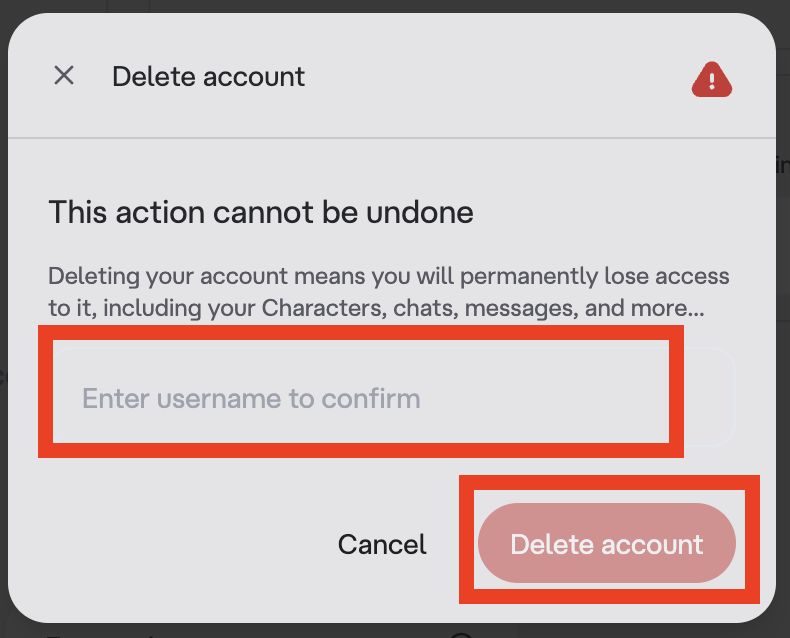
5. Confirm you want to delete your Character AI account
Type in your username.
Then, click the “Delete account” button.
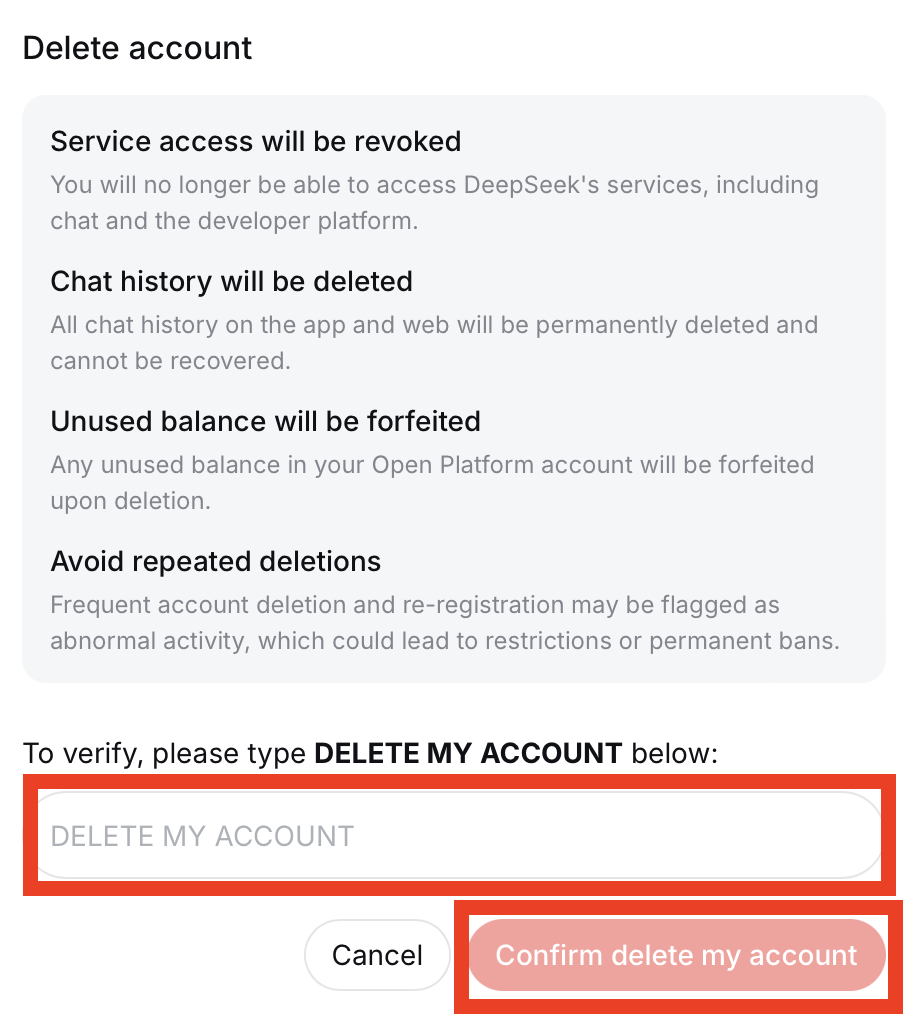
Verify you want to delete your Character AI account by typing in “DELETE MY ACCOUNT” and clicking the “Confirm delete my account” button.
That’s it!
Don’t Forget Data Brokers and People Search Sites
Your Character AI settings only cover Character AI. Data brokers are a separate problem, and a bigger one.
- Your Character AI settings decide how the company uses your conversations for training its models.
- Opting out of data brokers decides whether strangers can buy your personal details.
Data broker companies scrape your details from social media, public records, and anywhere else they can find them.
They compile these details into a comprehensive profile about you (which can include your contact details, education and employment history, who you’re related to, and more) and sell it to whoever pays. All someone needs to find your profile is your name (or your phone number/email address/address/sometimes just a username).
Luckily, most data brokers and people search sites allow you to opt out. Our people search site opt-out guides show you how.
However, opting out once isn’t enough. People search sites are notorious for relisting people when they come across more of their information. For maximum privacy, make sure to re-check these sites periodically and opt out again where needed.
Stuck for time? Subscribe to a data broker removal service like DeleteMe, and we’ll take care of people search opt-outs on your behalf.

news?
Don’t have the time?
DeleteMe is our premium privacy service that removes you from more than 750 data brokers like Whitepages, Spokeo, BeenVerified, plus many more.
Save 10% on DeleteMe when you use the code BLOG10.
Related Posts

Julius AI Data Privacy Settings Guide